• Workspace
Creation
  • AI Video
  • AI Image
Features
  • AI Video Effects
  • Text to Video
  • Image to Video
  • Reference to Video
  • AI Video Editor
  • Mimic Motion
  • Video to Video AI
  • Video Upscaler
  • Face Swap Video
  • Video Background Remover
  • AI Video Extender
  • Text to Image
  • Image to Image
  • Image to Prompt
  • PNG Maker
  • Pricing
Workspace
All creationsAd VideoStory VideoMV Visuals

What will you create?

7 credits
7 credits

Choose a direction and describe your idea. Start with a concept and storyboard, then generate clips for your edit.

Ad Video

Start with your product and the reason someone would choose it. Develop a concept, storyboard and matching visual clips.

Start creating ↗
Story Video

Build a short story around a goal, a difficult choice and an ending that feels earned. Keep characters and props consistent across scenes.

Start creating ↗
MV Visuals

Plan visual clips around a mood, a recurring character or motif and changing energy. Take the generated clips into your own edit.

Start creating ↗

Choose a type or describe an idea?

Either works. Selecting a type gives you a focused brief. You can also describe your character, event, style and desired feeling directly.

What will I receive?

Review the concept and storyboard first, then generate character and scene references and individual video clips. Download the clips and finish the film in your own editor.

One idea.More than one direction.

Explore how a specific subject, a visual style and a short sequence can work together. Choose a direction for your own brief, then make it yours.

Cinematic Worlds

A small creature. A city-sized adventure.

Try this brief

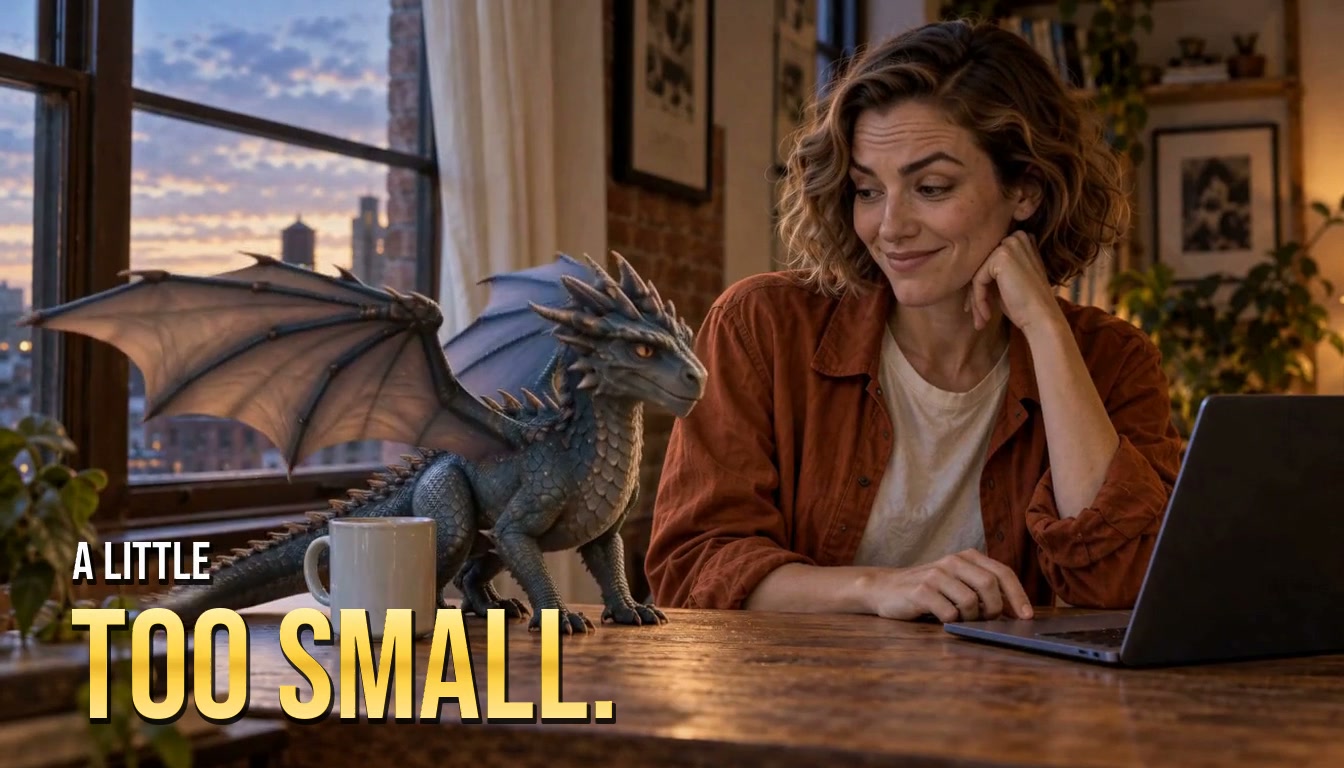
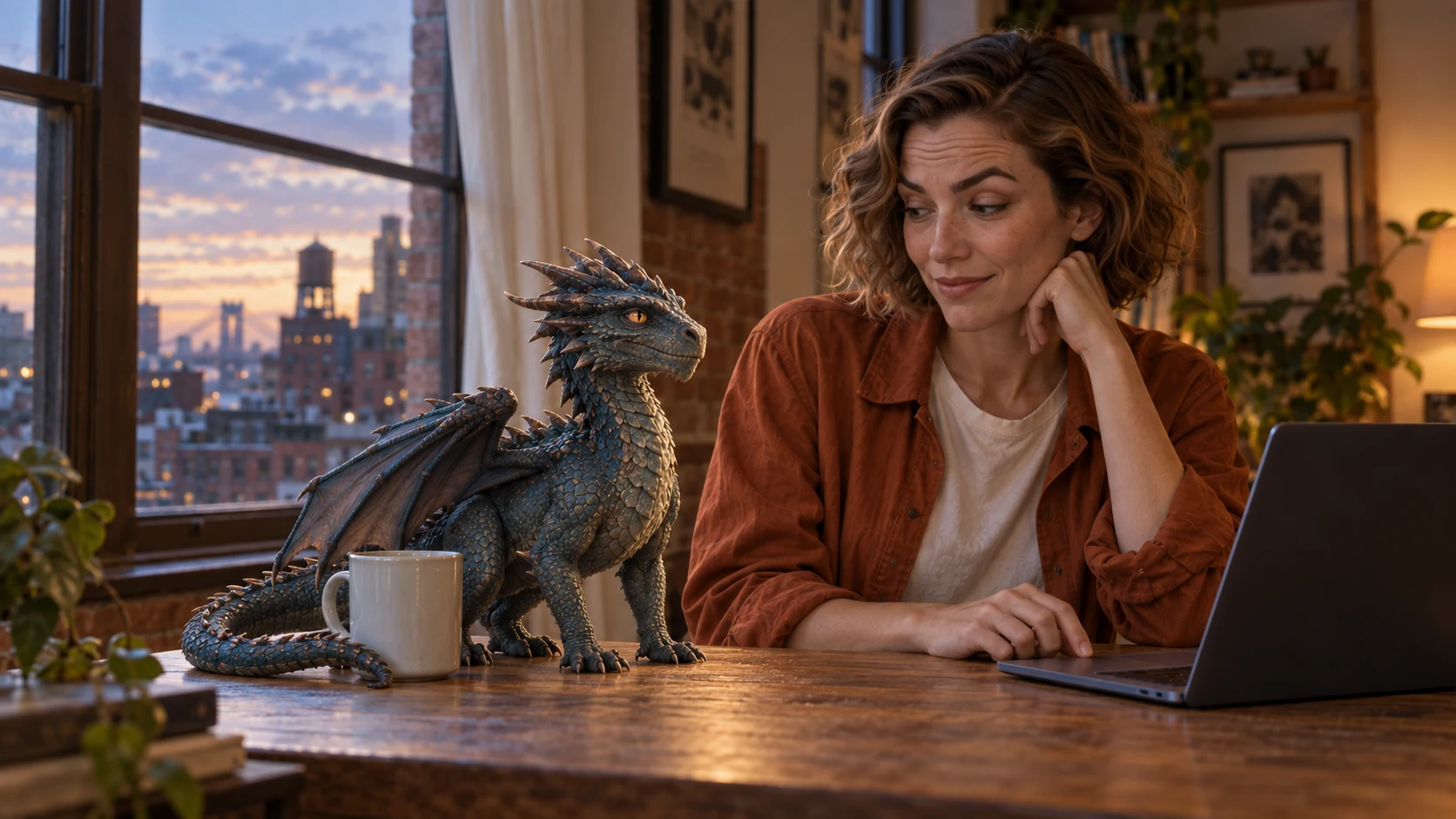
Plan a three-shot 16:9 fantasy adventure around the small blue-grey dragon in my reference. Begin beside its creator at a wooden desk in a sunset-lit city loft, then reveal the city outside. Preserve its horns, amber eyes, wings and scale texture. Use the mug to establish its size. First give me a shot list with framing, one action, one camera move and an end state per shot; ask which shot I want to create first.

For a shot plan, open a creative workflow and select Plan storyboard.
Cinematic Worlds
A small dragon beside a woman at her desk
Visual direction

Use a reference with the dragon’s face, horns and wings visible. Add a setting reference only if the same location must continue across shots.

  1. Desk-level close shot: turn toward the creator; move past the mug to show scale.
  2. Medium window shot: open the wings; follow from behind toward the sill.
  3. Wide city shot: pause at the rooftop edge; pull back to reveal the sunset skyline.

Character Adventures

From a street-level scene to a spectacular reveal.

Try this brief

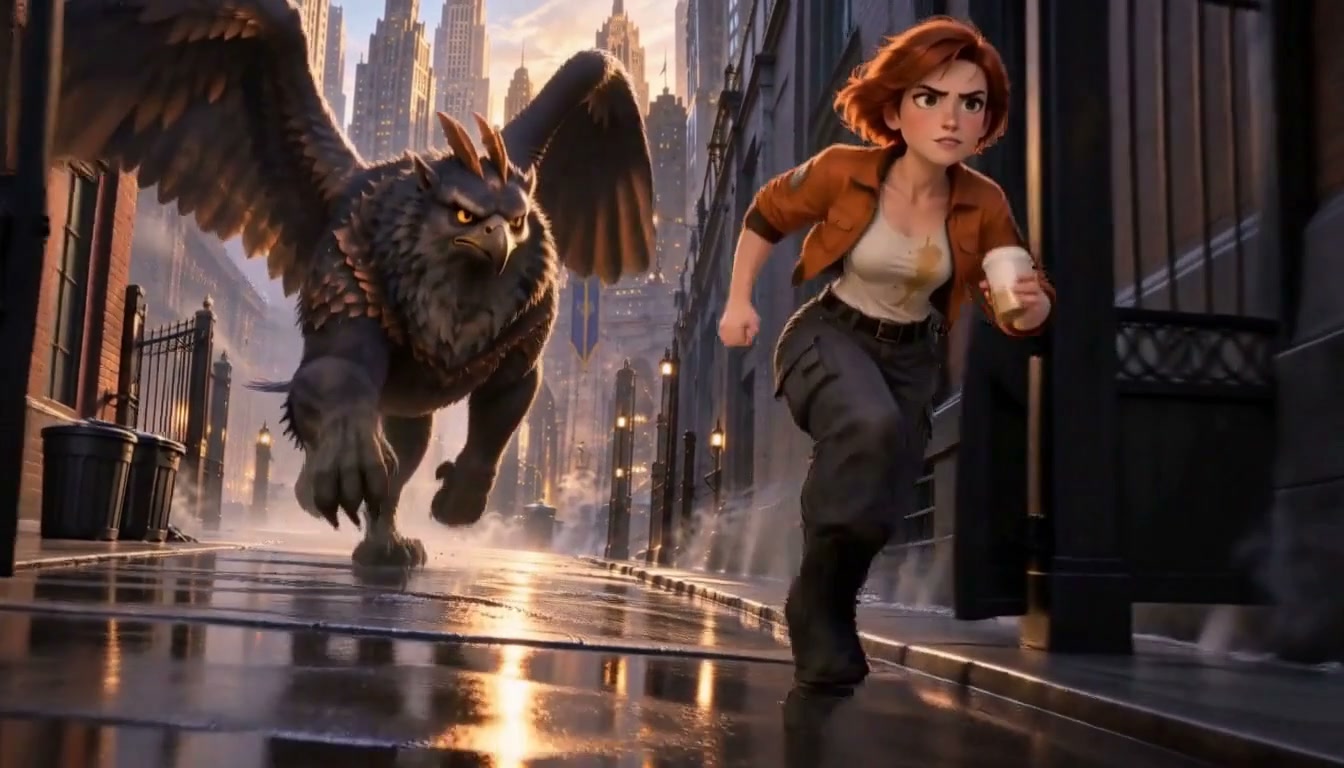
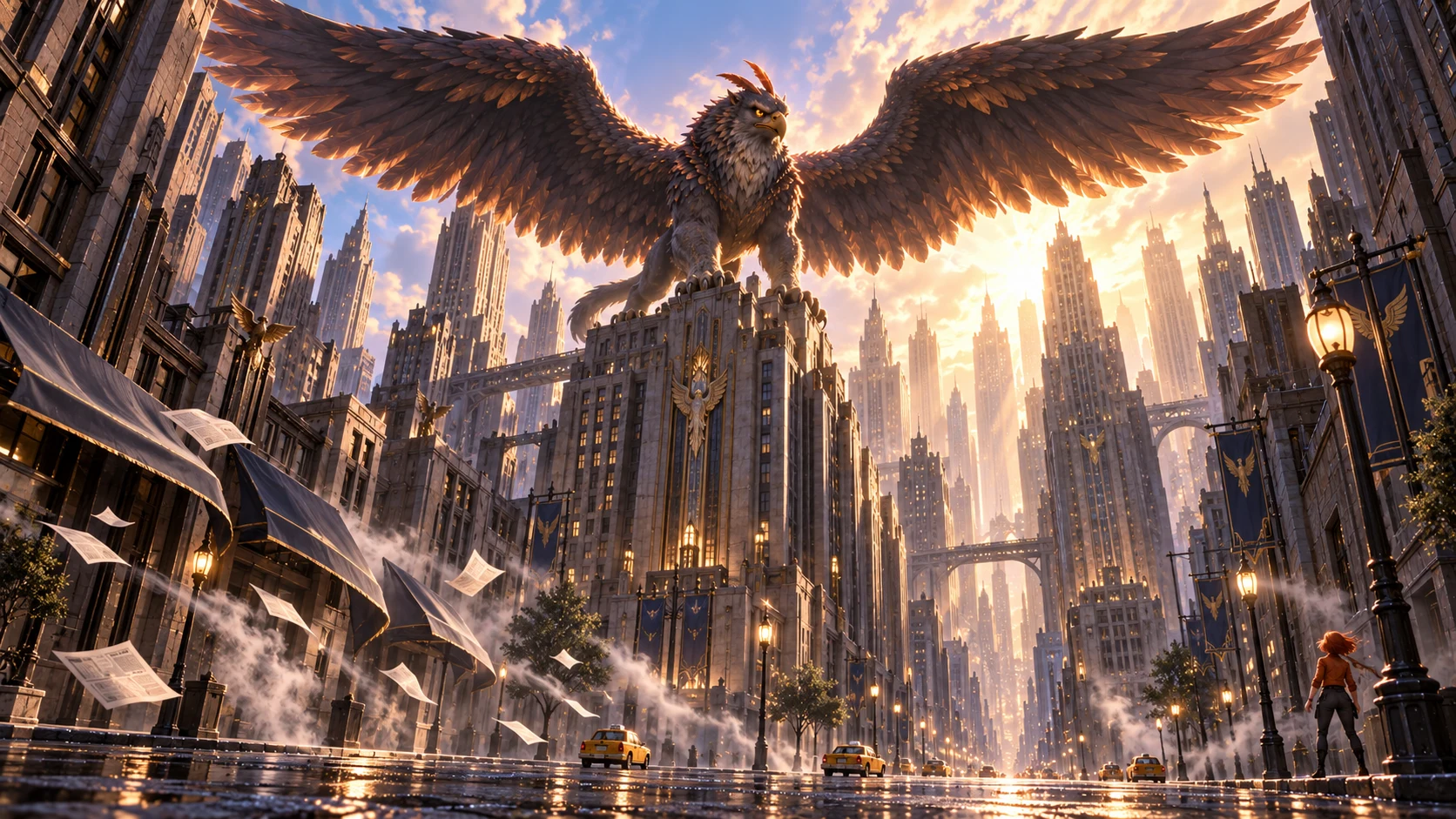
Develop a three-shot animated city encounter around the giant griffin in my reference. Preserve its hooked beak, brown layered feathers, pale chest and wide wings. Keep the street-level character small enough to communicate scale. Move from a first reaction on the street to the griffin spreading its wings above the buildings. Start with three separate shot prompts and the reference material each needs; use one main action per shot.

For a shot plan, open a creative workflow and select Plan storyboard.
Character Adventures
A giant winged creature above an illustrated city
Visual direction

Show the complete wingspan and a building or person that establishes scale. Name the beak, feathers and chest markings that should remain recognisable.

  1. Street-level medium shot: look upward; tilt to reveal the building’s height.
  2. Low-angle shot: the griffin spreads its wings from the rooftop; hold the camera.
  3. Wide reveal: lift clear of the roof; pull back to keep the wings and skyline together.

Visual Storytelling

Let one unexpected event carry the story.

Try this brief

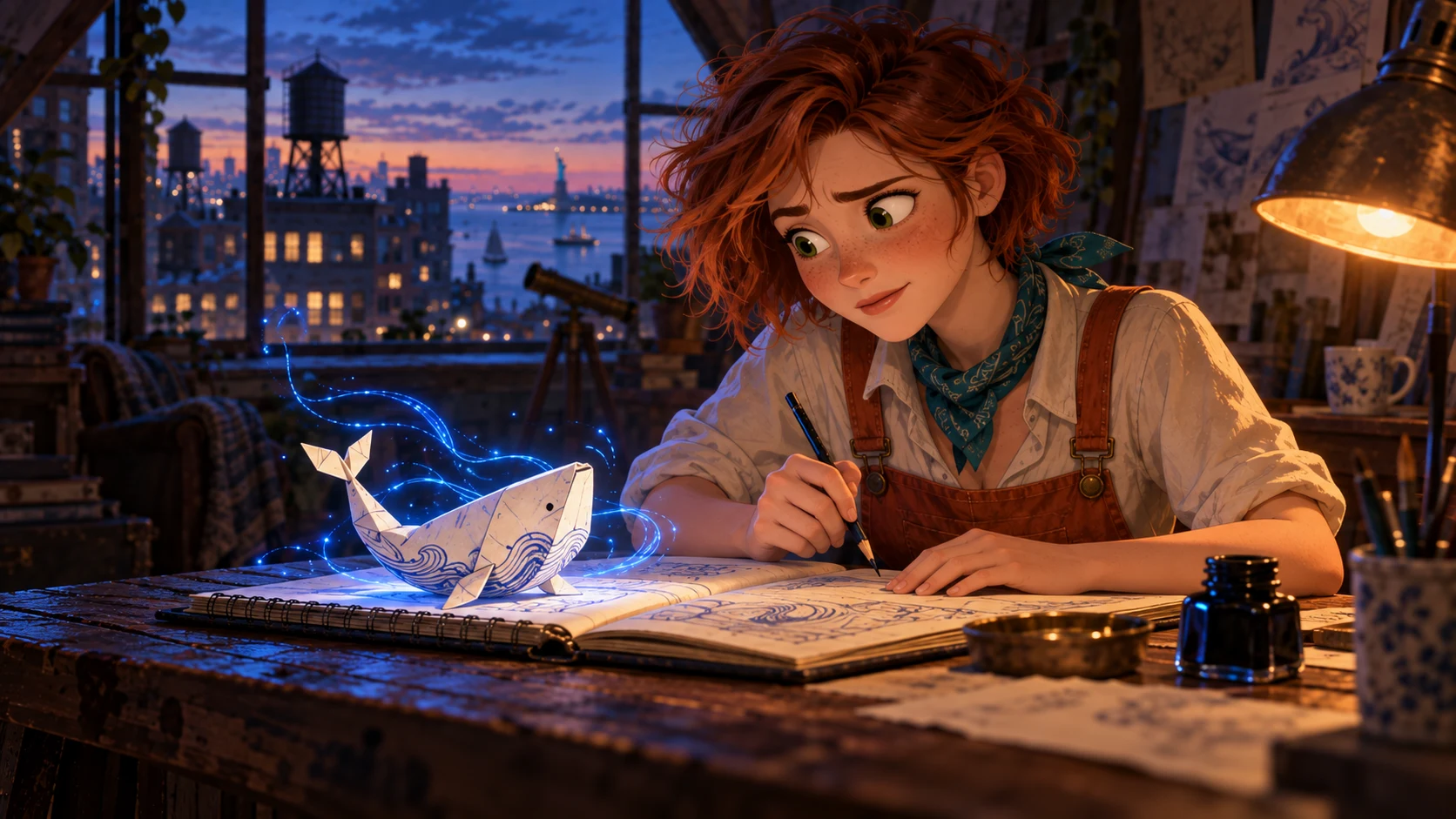
Plan a short animated story around the artist and paper whale in my reference. Begin at the sketchbook, introduce the whale’s first movement, then reveal a wider world. Preserve its folded white-paper silhouette, blue drawn markings and the artist’s warm, curious expression. Give me three separate shot prompts and a continuity checklist before generating anything.

For a shot plan, open a creative workflow and select Plan storyboard.

Visual Storytelling
An artist sketching a luminous paper whale
Visual direction

Keep the whole whale and sketchbook visible in the reference. Use the folded silhouette and blue markings as continuity anchors.

  1. Desk-level close shot: rest on the open sketchbook; keep the folded silhouette readable.
  2. Locked medium shot: lift the tail; let its shadow move across the page.
  3. Wider studio view: rise above the book; pull back to include the artist and whale.

Product Stories

Keep the product at the centre of the action.

Try this brief

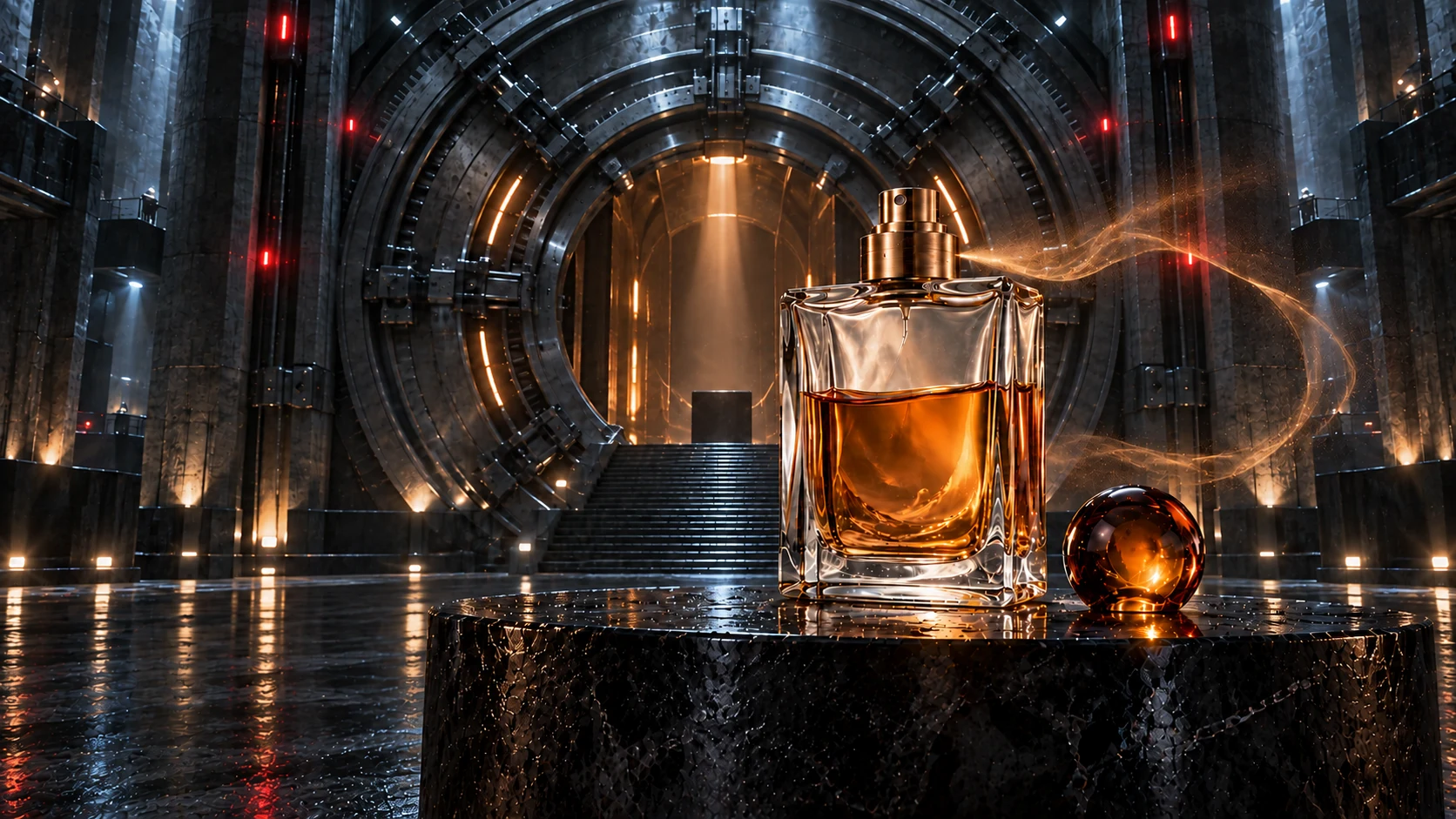
Create a three-shot launch plan for the amber perfume bottle in my reference. Use a 16:9 composition, a dark architectural setting and warm amber reflections. Preserve the bottle geometry, atomizer, liquid colour and any supplied label. Establish the setting, introduce one light event around the bottle, then finish with a clean product view. Give the composition, action, camera move and end state per shot; do not add unprovided product claims.

For a shot plan, open a creative workflow and select Plan storyboard.

Product Stories
An amber perfume bottle in a cinematic vault
Visual direction

Use a sharp product photograph with the whole bottle and atomizer visible. Keep packaging and mood references separate; check glass shape, label spelling and reflections.

  1. Low-angle product shot: stand on the dark pedestal; push in to reveal the glass edges.
  2. Close shot: an amber light trail crosses behind the still bottle; hold the product in frame.
  3. Final product view: let the motion settle; leave clear space around the readable bottle.

Turn a rough idea intoA useful creative brief

Give the conversation enough detail to make the next choice clear. You can refine the brief before you generate.

  1. 01

    Describe the goal

    Say what you need: a product image, a character scene or a short video. Include the audience, setting and format. For a shot plan, open a creative workflow and select Plan storyboard.

  2. 02

    Choose what stays consistent

    Attach a clear reference when identity, product shape or composition matters. Name the elements to keep and the single change to make next.

  3. 03

    Create, review and continue

    Check the subject, crop and important details in the result. Ask for a focused revision, or use the image as the start of a video.

Already know the task?Go straight to the tool

Text to Image

Create a still image from a specific visual prompt.

Image to Image

Start with a reference and describe a focused change.

Image to Video

Give an existing image a clear action and camera direction.

Plans for your next creation

Use your plan credits for images and videos. Review the selected tool, settings and credit quote before each generation.

Starter

$9.99/ month

800 credits / month

Credits renew monthly and expire at the end of the billing period.

View plan

Creator

$24.99/ month

2,500 credits / month

Credits renew monthly and expire at the end of the billing period.

View plan

Pro

$59.99/ month

6,200 credits / month

Credits renew monthly and expire at the end of the billing period.

View plan
See all plans and credit packs

Before you startA few useful answers

What can I create with Jynno Agent?+

You can work on image and video requests in a conversation. Start from text, and add relevant image or video references when your chosen workflow supports them.

How is the Agent different from a single generator?+

A direct generator starts with a selected mode and prompt. The Agent gives you a conversation for developing the request and continuing with revisions; the dedicated tools remain useful when you already know the exact task.

Can I use a reference image?+

Yes. Use a clear image and explain what it should guide: the subject, a product detail, the framing or the style. Reference limits and available settings depend on the selected model and workflow.

Does a visual example guarantee the same result?+

Examples show a creative direction. Your result depends on the prompt, the references and the selected model. Review faces, text, product details and motion before using an output.

Which plans include the AI agent?+

Sign in with an active Pro or Studio subscription to use the agent. Review the membership plans, or use the image and video tools to create directly.

What makes a good first message?+

Describe the subject, intended use, style and details to preserve. For a video, ask for separate shots with one action and one camera move each. Pick the next shot after reviewing the plan rather than combining several unrelated events in one generation.

Guides for your next creation

Plan a video from a product photo

↗

Prepare an image and describe motion

↗

Choose your Jynno creative workflow

↗

Your next image or videoStarts with a conversation

Bring the subject, the goal and the details you care about. Develop the direction before choosing the next generation.

Explore membership plans

AI Image

  • AI Image Generator
  • Image to Image AI
  • AI Photo Editor
  • Watermark Remover
  • Magic Eraser
  • Image Upscaler
  • Background Remover
  • Face Swap Photo
  • Chat to Image

AI Video

  • AI Video
  • Text to Video
  • Image to Video
  • Reference to Video

AI Video Effects

  • AI Video Effects
  • AI Kiss Video Generator
  • AI Hug Video Generator
  • City flight
  • Everything blooms
  • Giant pet
  • Step out of the frame
  • Petal drift
  • Doodle to life
  • City folding
  • Vanish
  • Street Colossus
  • High Flip
  • Thunder Strike
  • Portal Reveal
  • Energy Wings
  • AI Twerk Video Generator
  • Bigfoot Video Generator

Product

  • Jynno
  • All AI Tools
  • Agent
  • Pricing

Resources

  • Creative guides
  • Privacy Policy
  • Terms of Service
© 2026 Jynno. All rights reserved.