• Workspace
Creation
  • AI Video
  • AI Image
Features
  • AI Video Effects
  • Text to Video
  • Image to Video
  • Reference to Video
  • AI Video Editor
  • Mimic Motion
  • Video to Video AI
  • Video Upscaler
  • Face Swap Video
  • Video Background Remover
  • AI Video Extender
  • Text to Image
  • Image to Image
  • Image to Prompt
  • PNG Maker
  • Pricing
Jynno

Magic Eraser

Select a distraction and rebuild the space around it.

Jynno Erase

No model is currently available for this feature.

Create an image
Example comparison
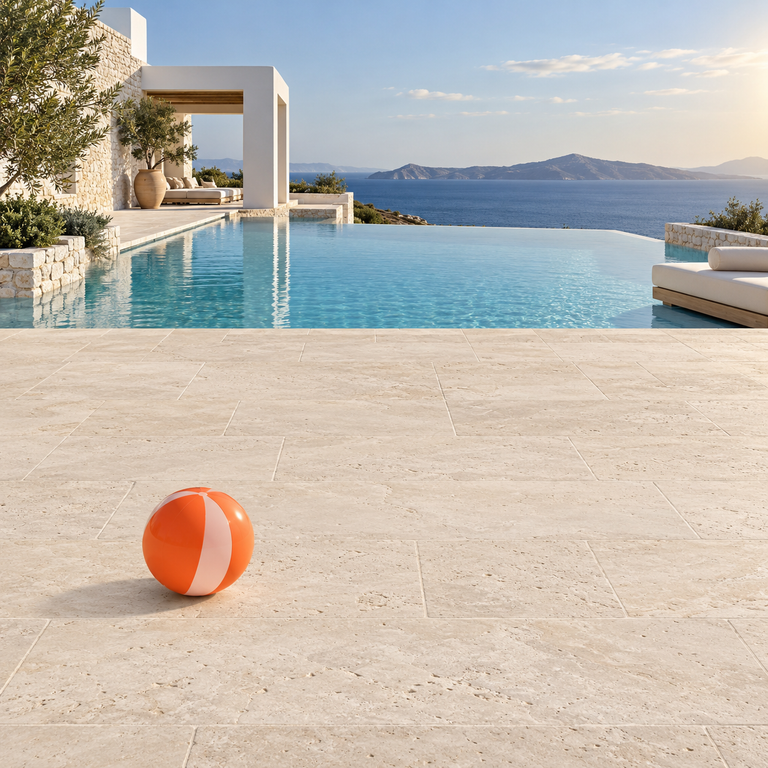
Original: Coastal infinity-pool terrace before and after removing a coral beach ball
Original
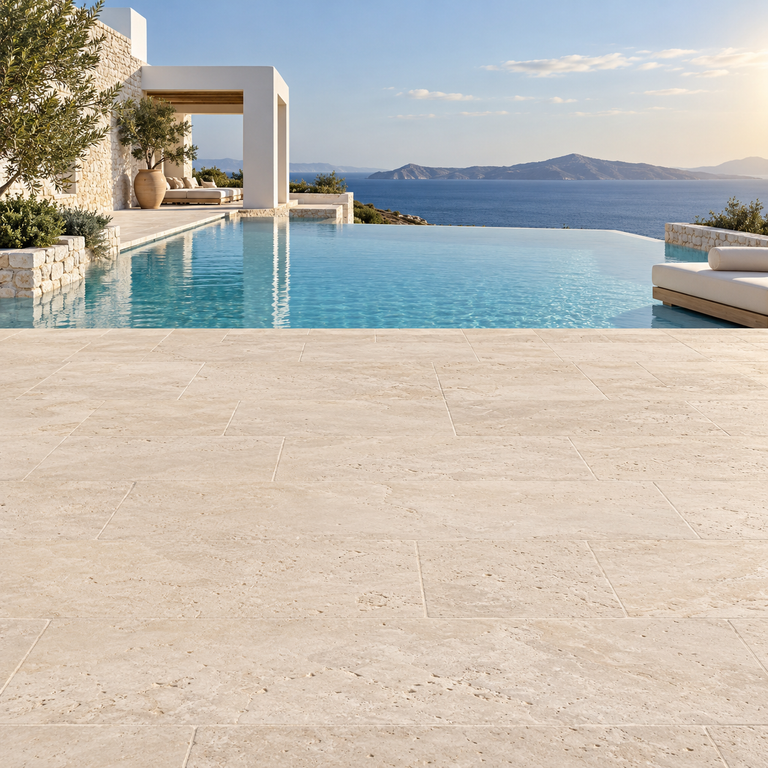
Ball removed: Coastal infinity-pool terrace before and after removing a coral beach ball
Ball removed

A focused workflow for your original image

01

Keep the scene, remove the distraction

Select the unwanted object and rebuild its area from the surrounding texture.

02

Define the input and the goal

Select the object you want to remove.

03

Compare the actual result

Check for repeated patterns and softened edges.

Clear the terrace. Keep the view.

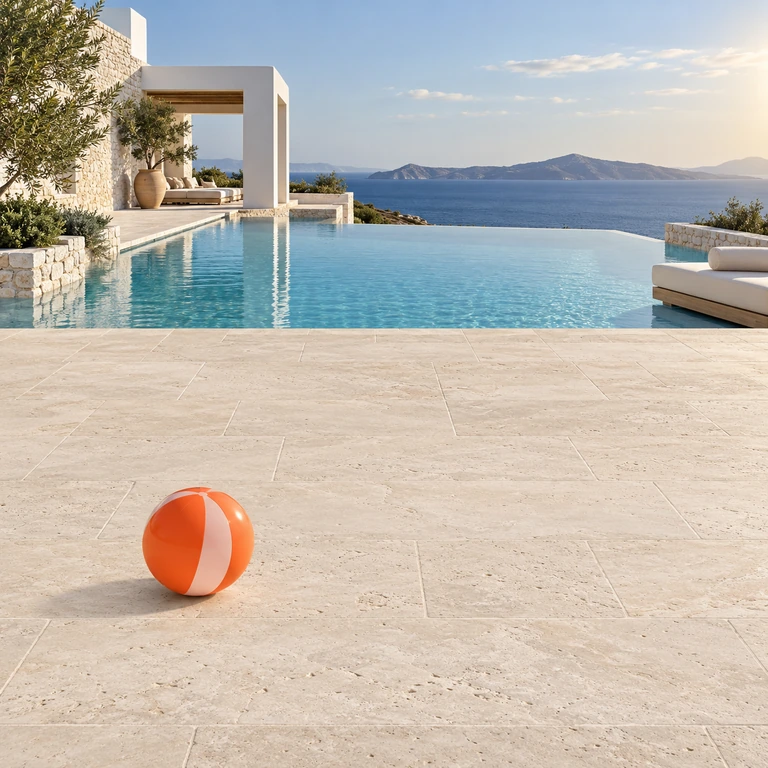
Remove the coral beach ball and its contact shadow, then compare the paving lines and the infinity-pool edge.

Use this tool
Original: Coastal infinity-pool terrace before and after removing a coral beach ball
Original
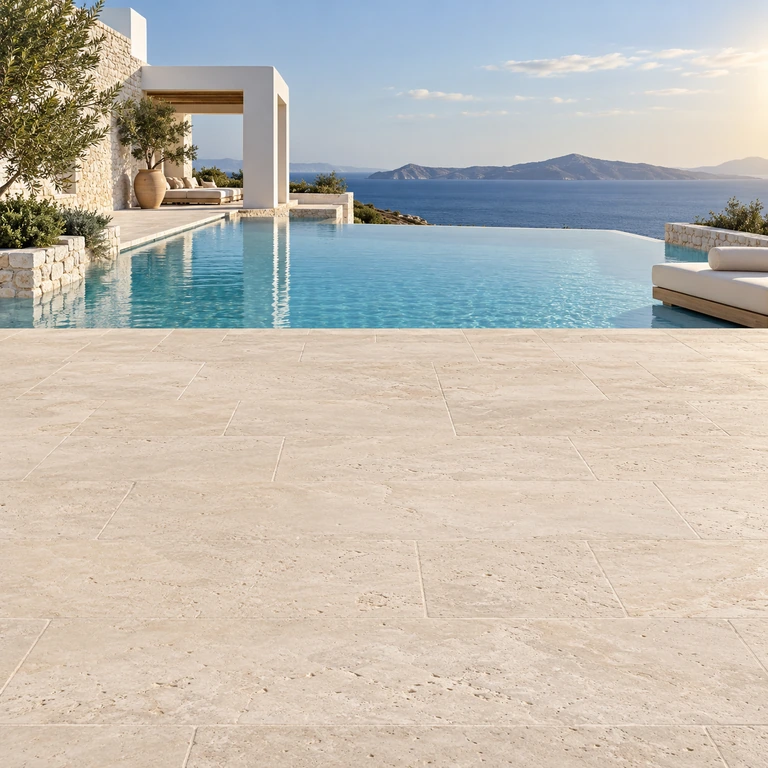
Ball removed: Coastal infinity-pool terrace before and after removing a coral beach ball
Ball removed

See the change from source to result

Select the unwanted object and rebuild its area from the surrounding texture.

Start creating
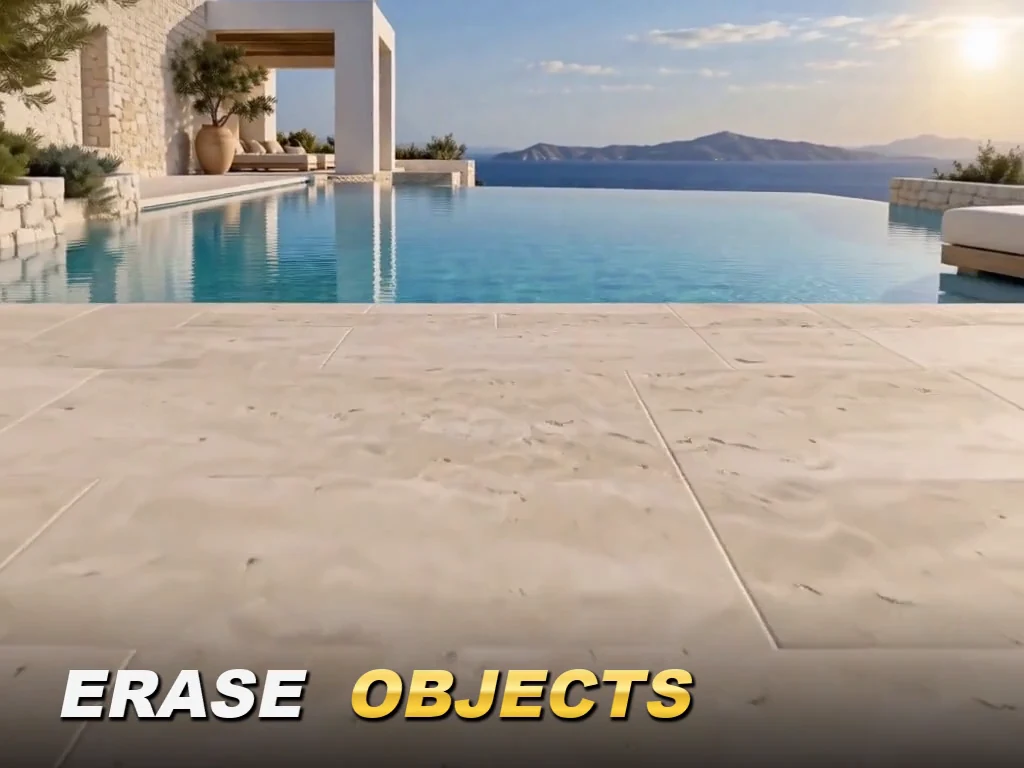
Coastal infinity-pool terrace before and after removing a coral beach ball

Where this tool fits your work

Cleaner product shots

Remove an unrelated prop around the product.

Travel photography

Clear a small distraction from an otherwise useful landscape.

Interior photographs

Remove a loose object while checking the floor and furniture lines.

Three details to check

  1. 01

    Select the full object, including its unwanted shadow.

  2. 02

    Leave enough surrounding texture to guide the fill.

  3. 03

    Check for repeated patterns and softened edges.

From your source to a result

  1. 01

    Upload your photograph.

  2. 02

    Select the object you want to remove.

  3. 03

    Generate the fill and inspect the repaired surface.

Download the sample source ↓

Questions before you edit

The eraser removes an object inside the scene and fills its area. A background remover isolates the main subject with transparency.

Large or complex selections provide fewer useful clues. Try a smaller area and inspect the stone, fabric or foliage pattern afterward.

Include a shadow that should disappear with the object. Leave shadows cast by other objects outside your selection.

This tool uses one rectangular selection. For distant objects, make separate edits and compare each result with your original.

Plans for your next creation

Use your plan credits for images and videos. Review the selected tool, settings and credit quote before each generation.

Starter

$9.99/ month

800 credits / month

Credits renew monthly and expire at the end of the billing period.

View plan

Creator

$24.99/ month

2,500 credits / month

Credits renew monthly and expire at the end of the billing period.

View plan

Pro

$59.99/ month

6,200 credits / month

Credits renew monthly and expire at the end of the billing period.

View plan
See all plans and credit packs

Guides for your next creation

Write a clear image prompt

↗

Turn a photo into a useful prompt

↗

Make a PNG and check its edges

↗

Keep the subject. Remove the background.

Need to isolate the subject instead? Open Background Remover.

Background Remover ↗

More image tools

AI Image GeneratorImage to Image AIAI Photo EditorWatermark RemoverImage UpscalerBackground RemoverFace Swap PhotoChat to Image

AI Image

  • AI Image Generator
  • Image to Image AI
  • AI Photo Editor
  • Watermark Remover
  • Magic Eraser
  • Image Upscaler
  • Background Remover
  • Face Swap Photo
  • Chat to Image

AI Video

  • AI Video
  • Text to Video
  • Image to Video
  • Reference to Video

AI Video Effects

  • AI Video Effects
  • AI Kiss Video Generator
  • AI Hug Video Generator
  • City flight
  • Everything blooms
  • Giant pet
  • Step out of the frame
  • Petal drift
  • Doodle to life
  • City folding
  • Vanish
  • Street Colossus
  • High Flip
  • Thunder Strike
  • Portal Reveal
  • Energy Wings
  • AI Twerk Video Generator
  • Bigfoot Video Generator

Product

  • Jynno
  • All AI Tools
  • Agent
  • Pricing

Resources

  • Creative guides
  • Privacy Policy
  • Terms of Service
© 2026 Jynno. All rights reserved.