

What is Nano Banana 2.1?
Nano Banana 2.1 is Google’s image creation and editing model. Turn a written idea into a new composition, work with text inside an image, or use references to guide a specific change.
Create images with purposeful typography
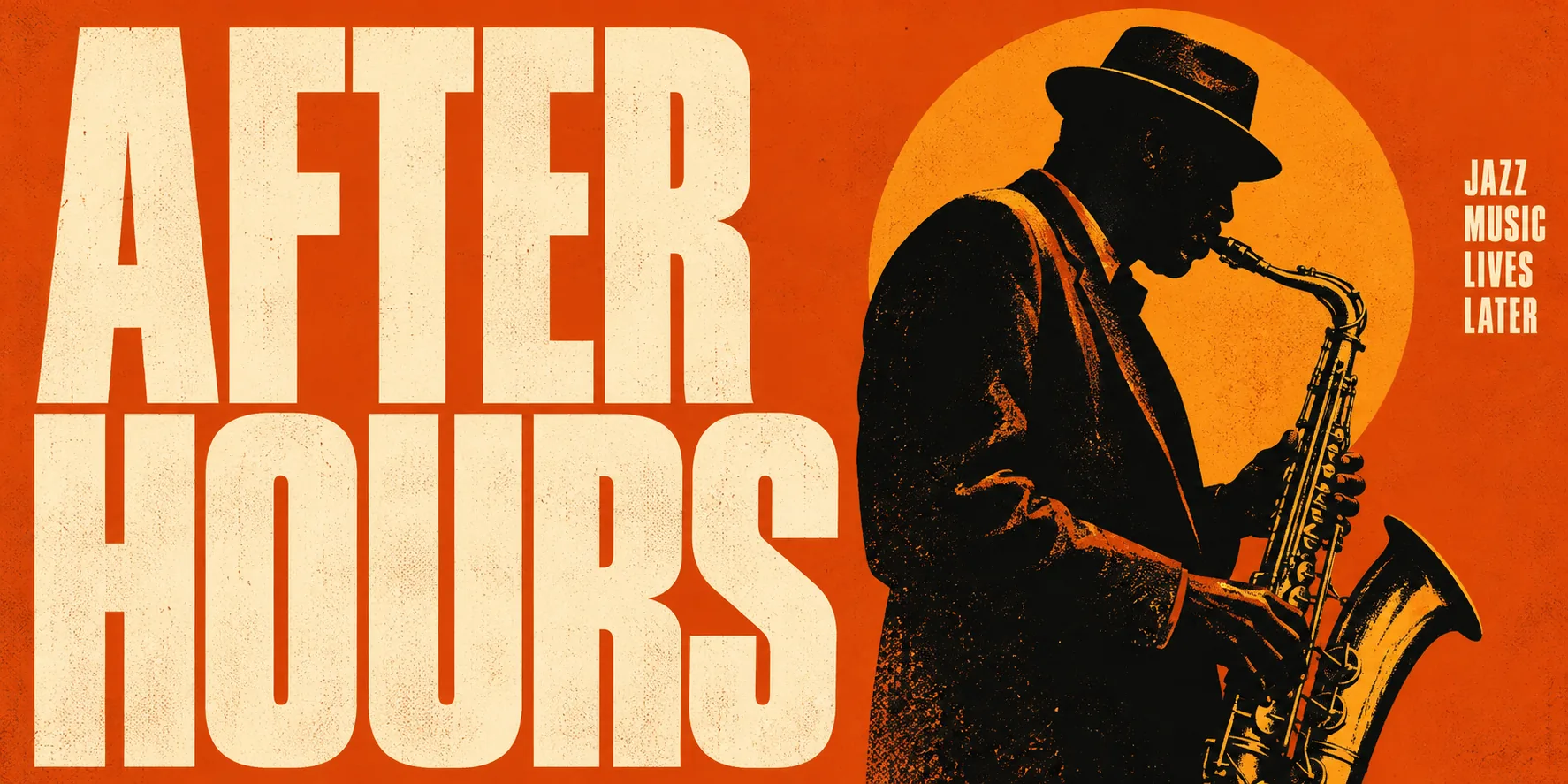
Describe the words, their placement, and the visual hierarchy alongside your image idea. Start with a short headline, then check spelling and letter shapes before publishing.
Useful for: event posters, campaign artwork, and social graphics.
Create an orange jazz poster titled “AFTER HOURS”, with cream condensed type and a saxophonist silhouette.
Combine a person, a product, and a direction
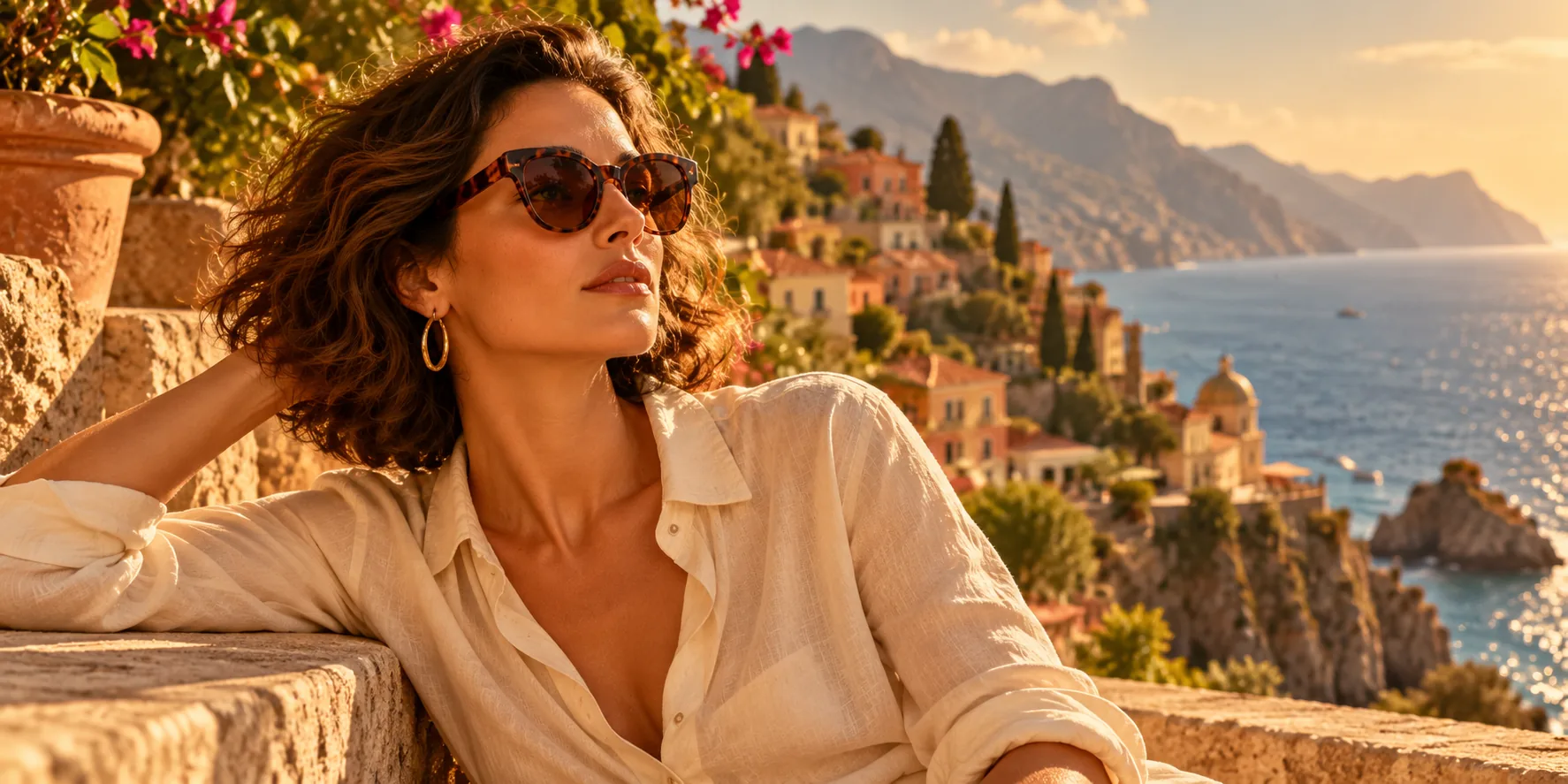
Bring a person and a product into the same scene. Give each reference a clear role, say which features to keep, and describe the setting you want to create.
Useful for: campaign concepts, product storytelling, and branded scenes.
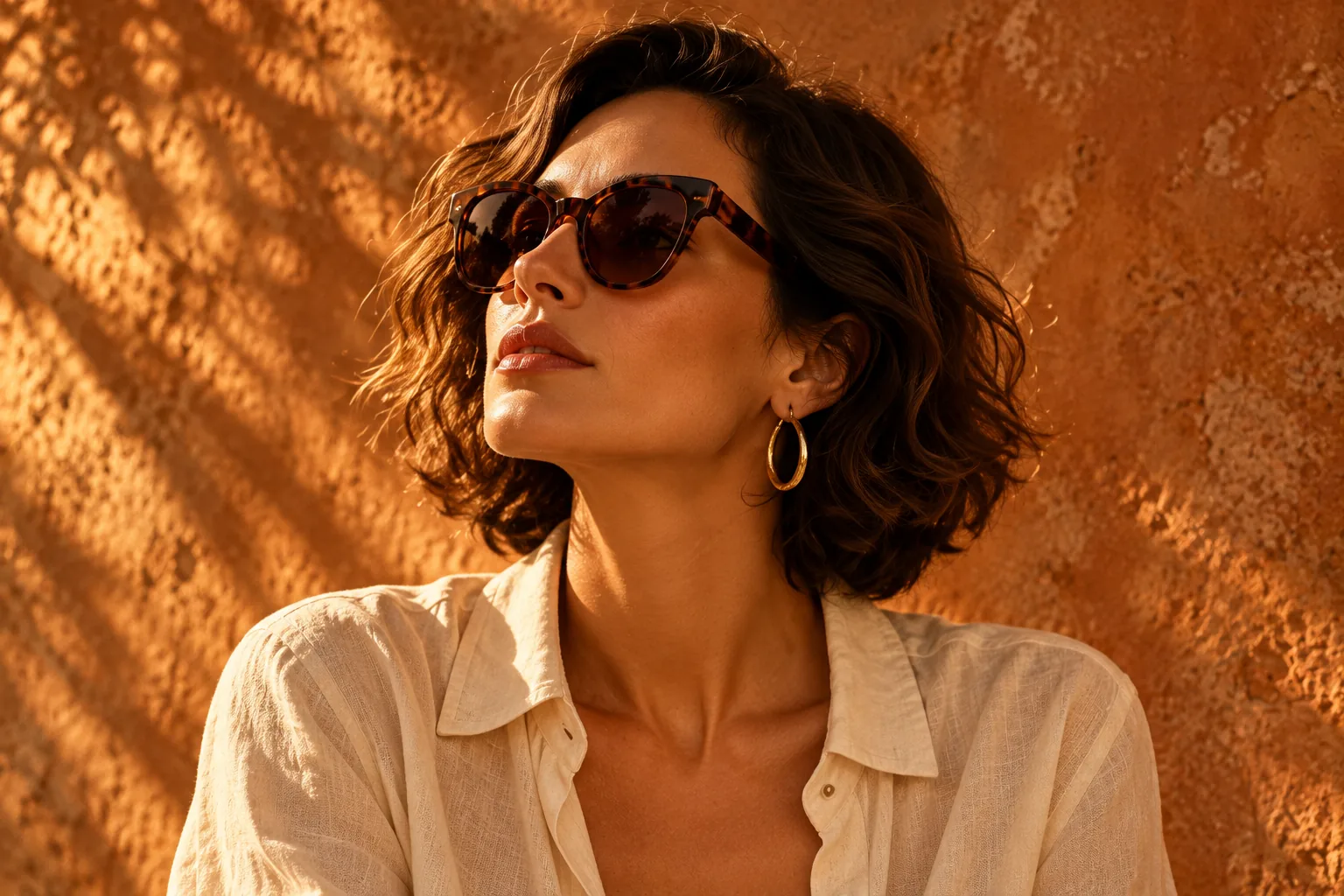
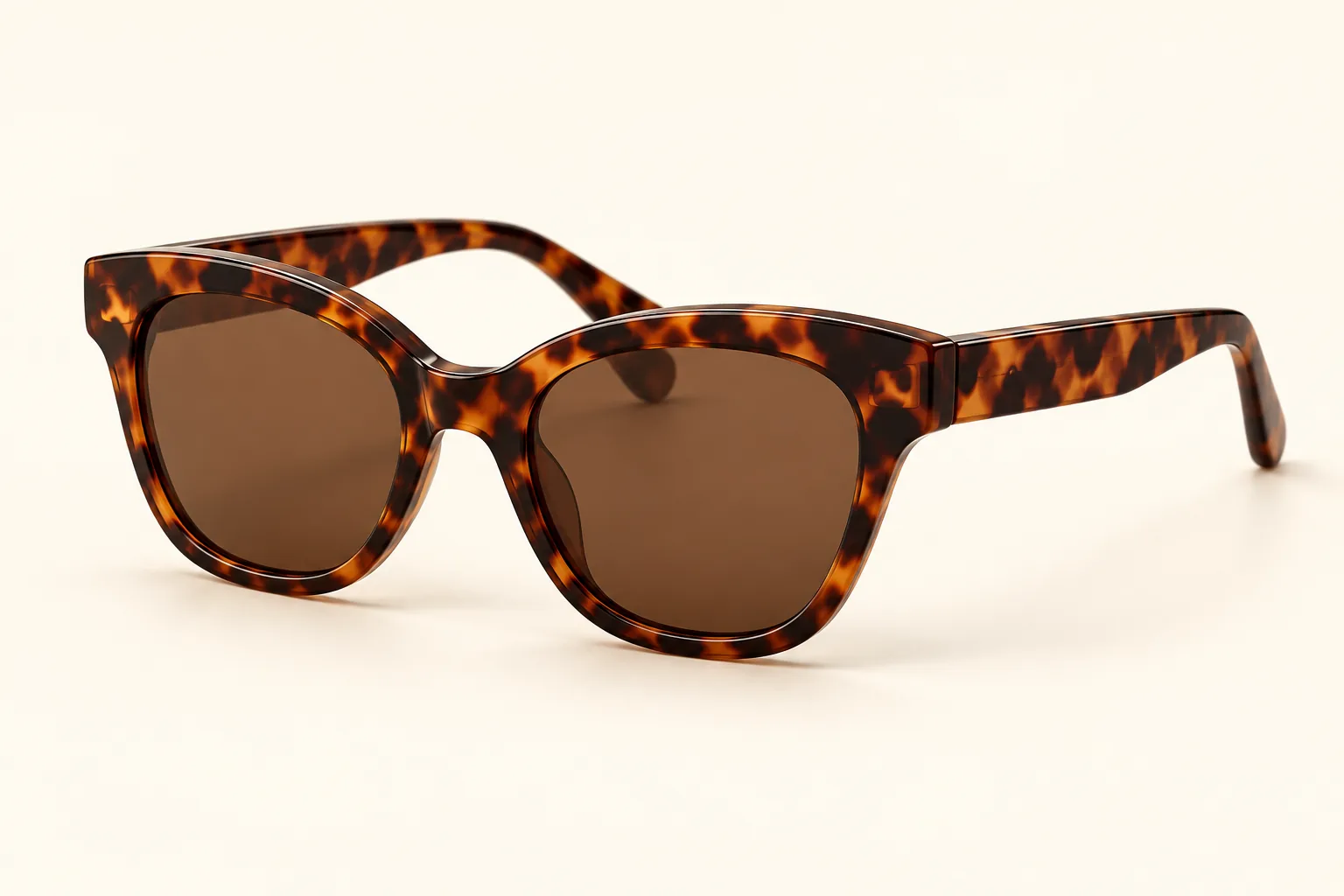
Keep her identity and the sunglasses. Create a sunlit coastal campaign.
Change a detail without restarting the idea
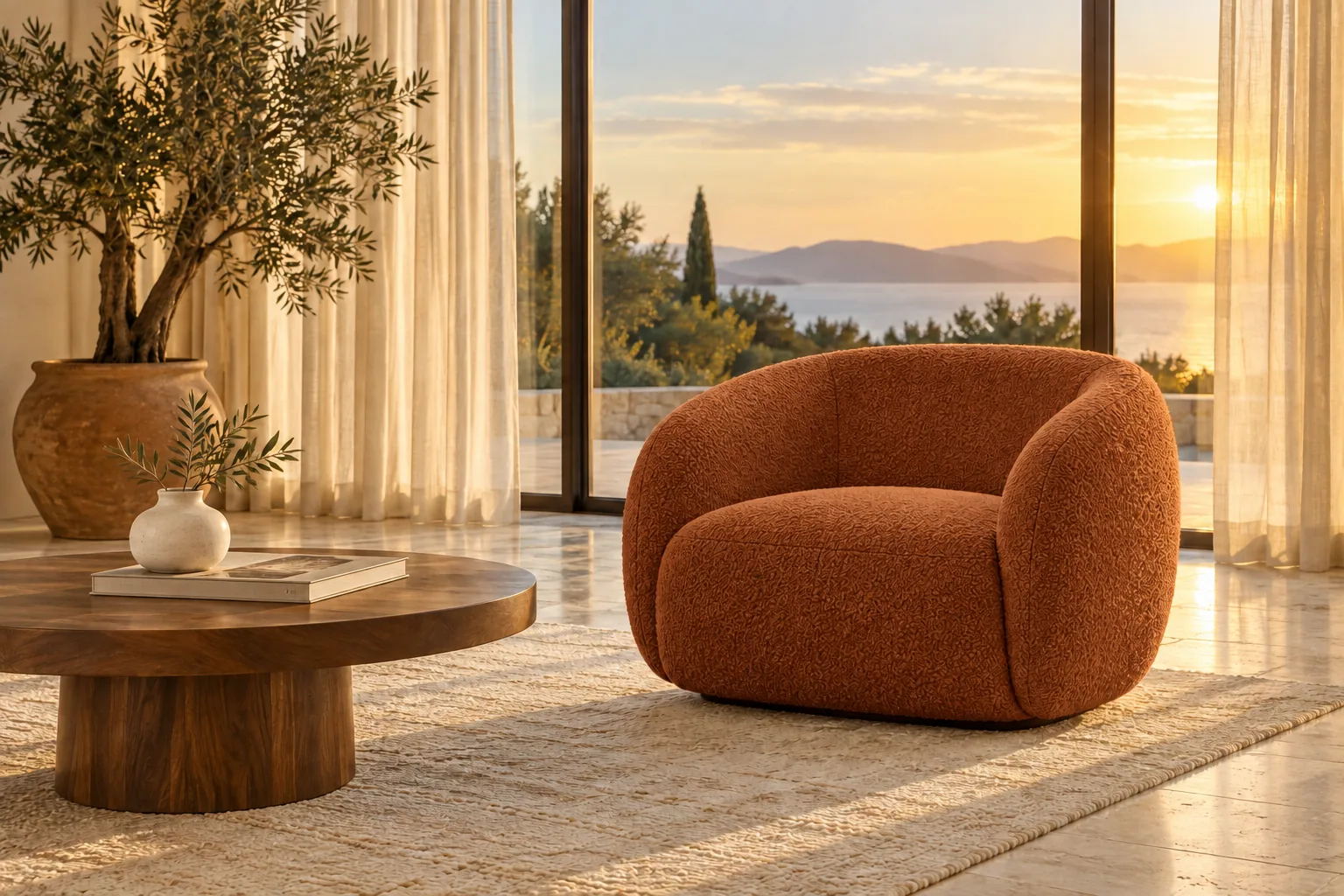
Name the detail to change and describe what should stay. A focused instruction helps you explore a new version while keeping the original composition in view.
Useful for: color variants, background exploration, and refining an existing composition.
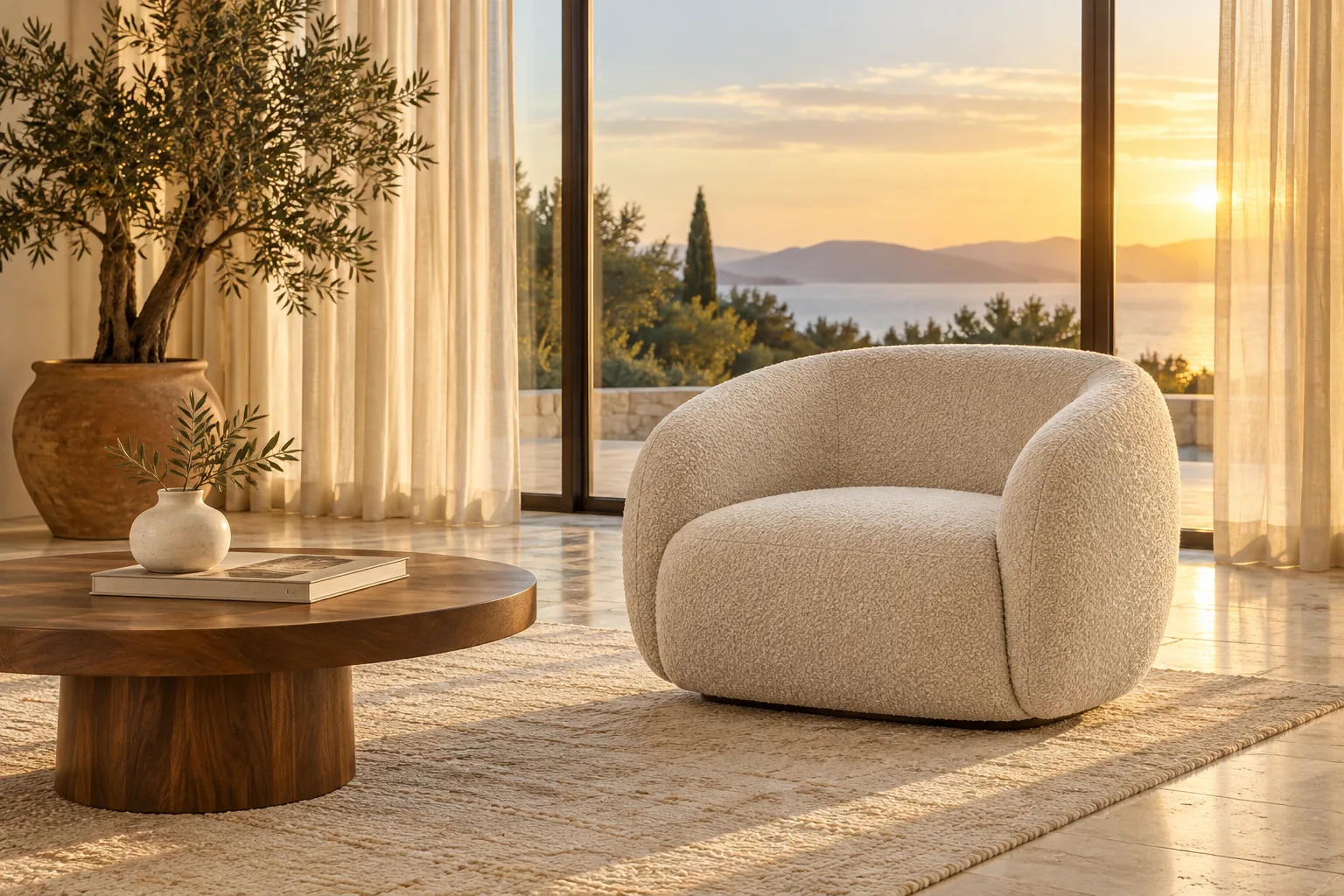
Change the chair fabric to terracotta. Keep the room and lighting.
Four ways to shape a better brief
Describe a visual style
Name the medium, mood, lighting, and texture you want to explore.
Guide the composition
Specify the focal point, framing, background, and space for your message.
Refine with intent
Change one instruction at a time so differences are easier to review.
Plan the final use
Consider where the image will appear before choosing its layout and content.
Where these workflows fit
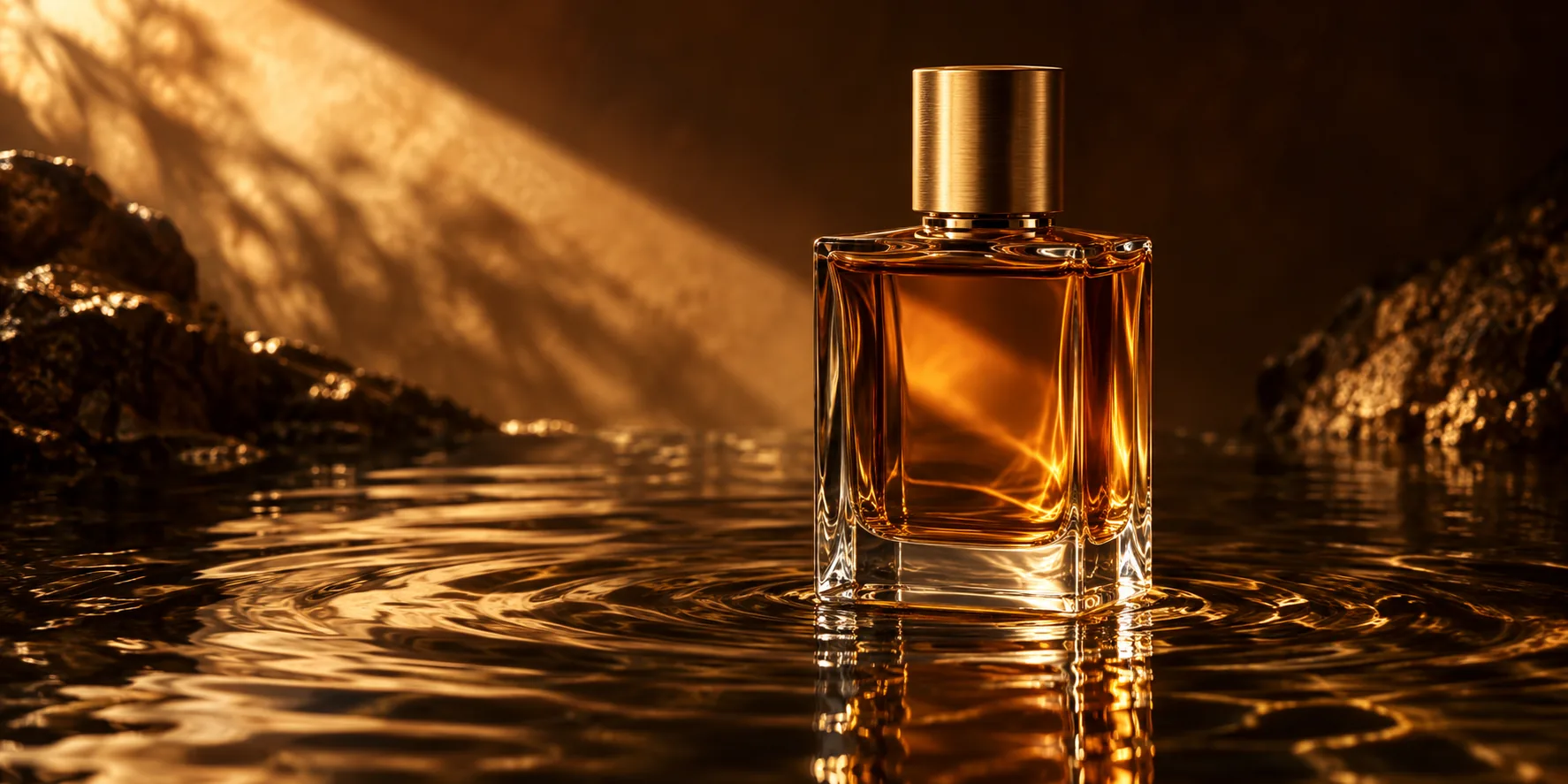
Advertising
Explore a fragrance campaign through amber glass, golden light, and water reflections.
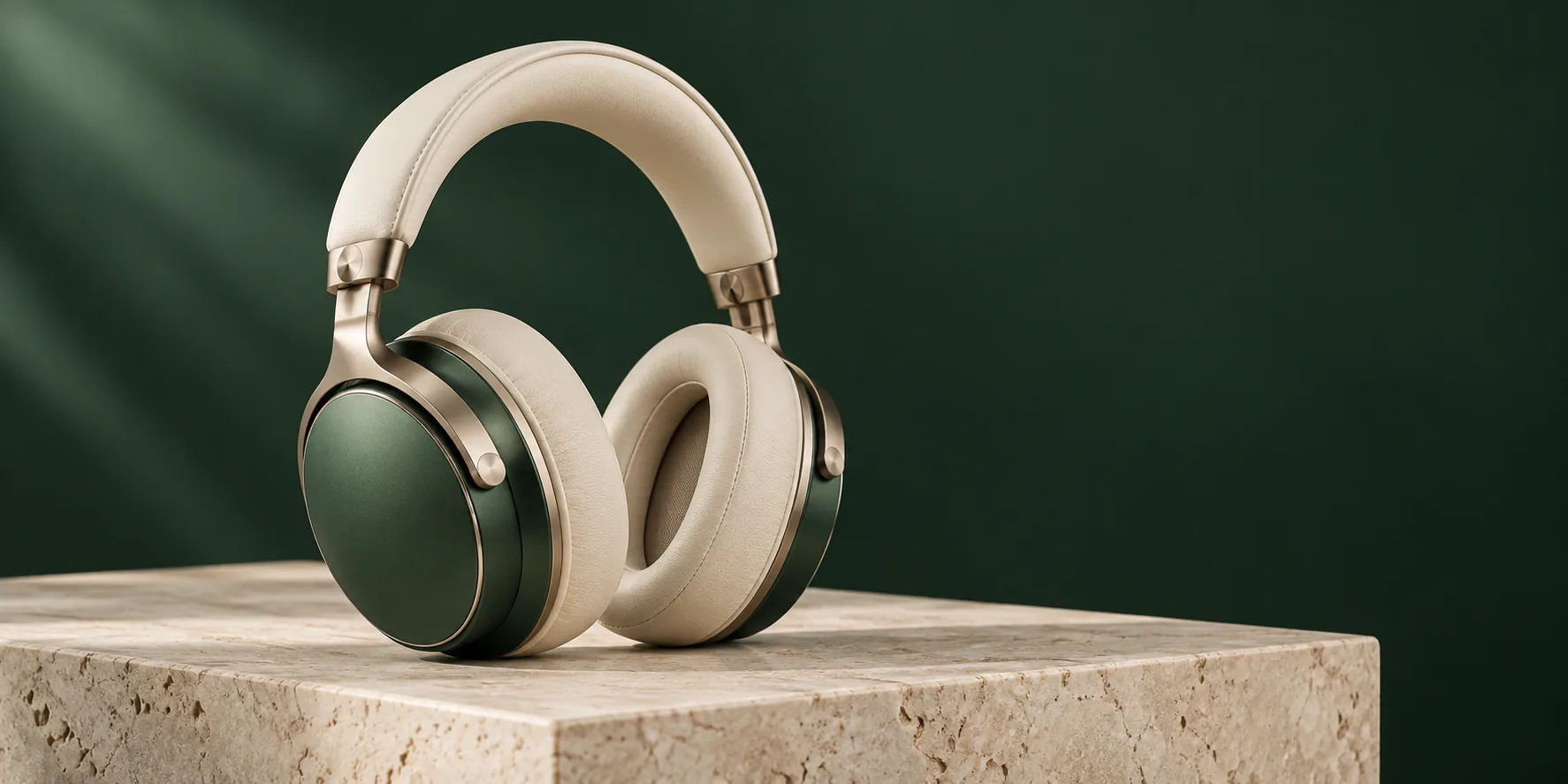
E-commerce
Present cream-and-green headphones with a clear silhouette and a simple travertine setting.
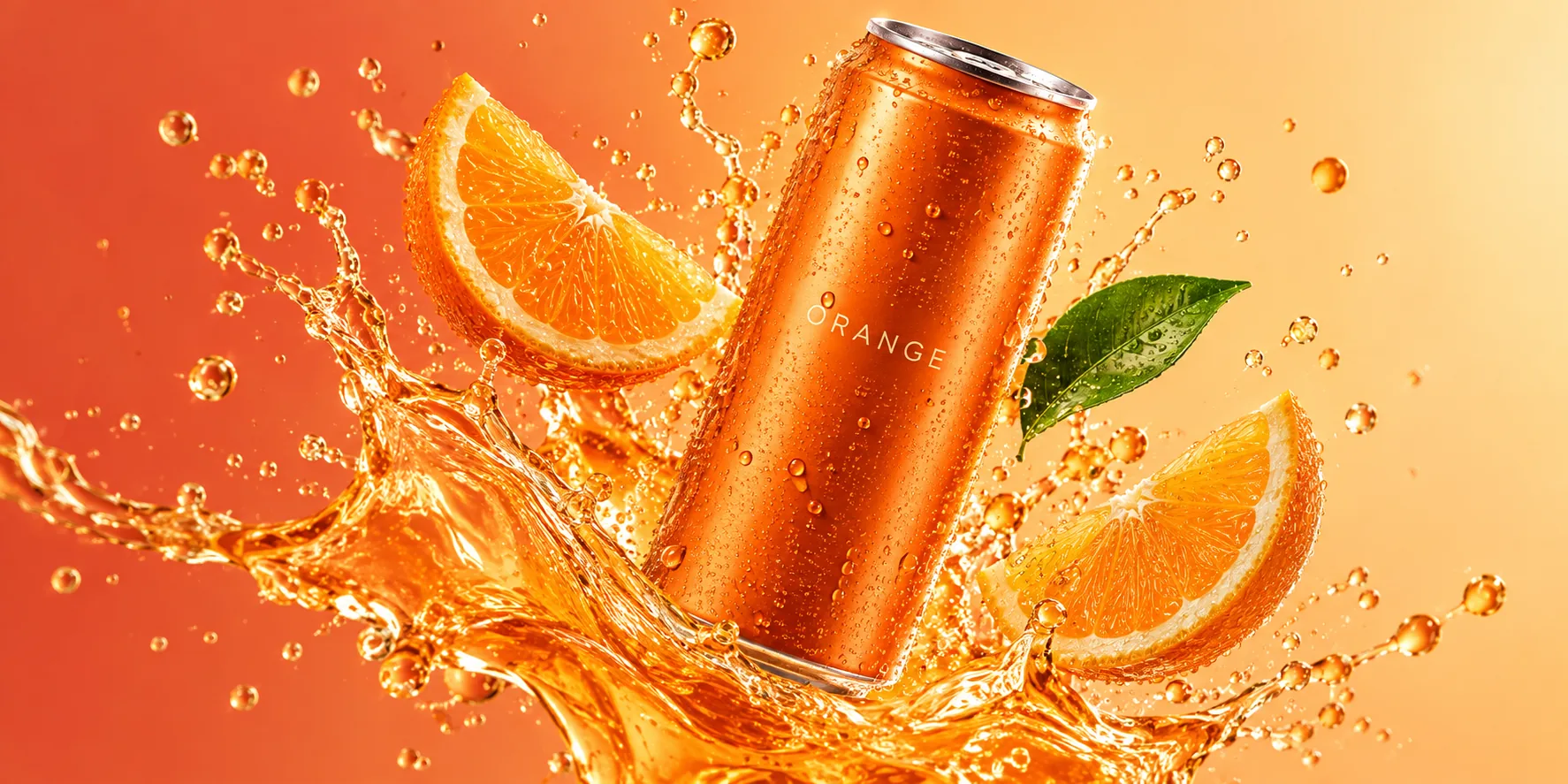
Social content
Bring citrus, splashes, and vivid color together around a clearly recognizable drink.
How to create an image on Jynno
- 1
Prepare your input
Start with an idea or a reference image you can use.
- 2
Write the direction
Describe the subject, style and text. For edits, say what changes and what stays.
- 3
Review and refine
Check settings and the credit quote. Generate, review, then refine.
Check settings before you generate
Jynno uses Nano Banana 2.1 Ext for single-image tasks. Choose a resolution and aspect ratio in the composer, then check the quote for your selected channel.
Image settings
Resolution & aspect ratio
Generation cost
Current quote in the composer
Nano Banana 2.1 — frequently asked questions
How can I improve text in an image?
Keep wording short, put exact text in quotes, and describe its position. Check spelling before publishing. Small text, dense layouts and long paragraphs may need extra review.
Can I start with an existing image?
Yes. Choose reference image editing or attach references in text-to-image mode. You can add up to 14 JPEG, PNG or WebP images, each up to 5 MiB. Use images you have permission to upload.
How should I describe a targeted edit?
Name the object, describe one change, and say what to keep. For example: “Change the chair fabric to terracotta; keep the room and lighting.” This page uses image references and text instructions, without a mask brush. Check the whole result for unintended changes.
Can I combine character and product references?
Yes. Give each reference a role: one for the person, another for the product. Name the features, shape and colors that matter. Compare the result with the originals, because details can change.
Where can I check image settings and pricing?
Choose 1K, 2K or 4K and an available aspect ratio in the composer. Each task creates one image. This model requires Starter or above; channel eligibility and credit balance are checked before submission. The button shows an estimate, and a changed server quote requires confirmation.
What should I review before publishing an image?
Check spelling, faces, hands, product shape and colors, as well as details outside the requested edit. Review the returned dimensions and confirm the image is suitable for your intended use.