• Workspace
Creation
  • AI Video
  • AI Image
Features
  • AI Video Effects
  • Text to Video
  • Image to Video
  • Reference to Video
  • AI Video Editor
  • Mimic Motion
  • Video to Video AI
  • Video Upscaler
  • Face Swap Video
  • Video Background Remover
  • AI Video Extender
  • Text to Image
  • Image to Image
  • Image to Prompt
  • PNG Maker
  • Pricing
Jynno

Text to Video AI

Describe a subject, an action and a camera move. Build a focused video request from the story you want to show.

See what a shot prompt can do
All AI Tools

Turn a text prompt into one clear video shot

Text to video AI is useful when you do not have an opening image. Write the scene in the order a viewer will see it: who is there, what happens, how the camera moves and how the shot ends.

Start from a specific product or photo

If a particular design, face or composition matters, upload its image to image to video. Text alone gives the model more room to invent details.


Guide a subject with visual references

For a scene informed by several views or a visual style, use a model with reference support. Check the image roles available before uploading.

See examples of focused motion prompts
Text to VideoDescribe the subject, action and camera for a new scene.Image to VideoUpload an opening image and describe what should happen next.Reference to VideoUse compatible reference images to guide the subject or scene.

Words become
A visual world

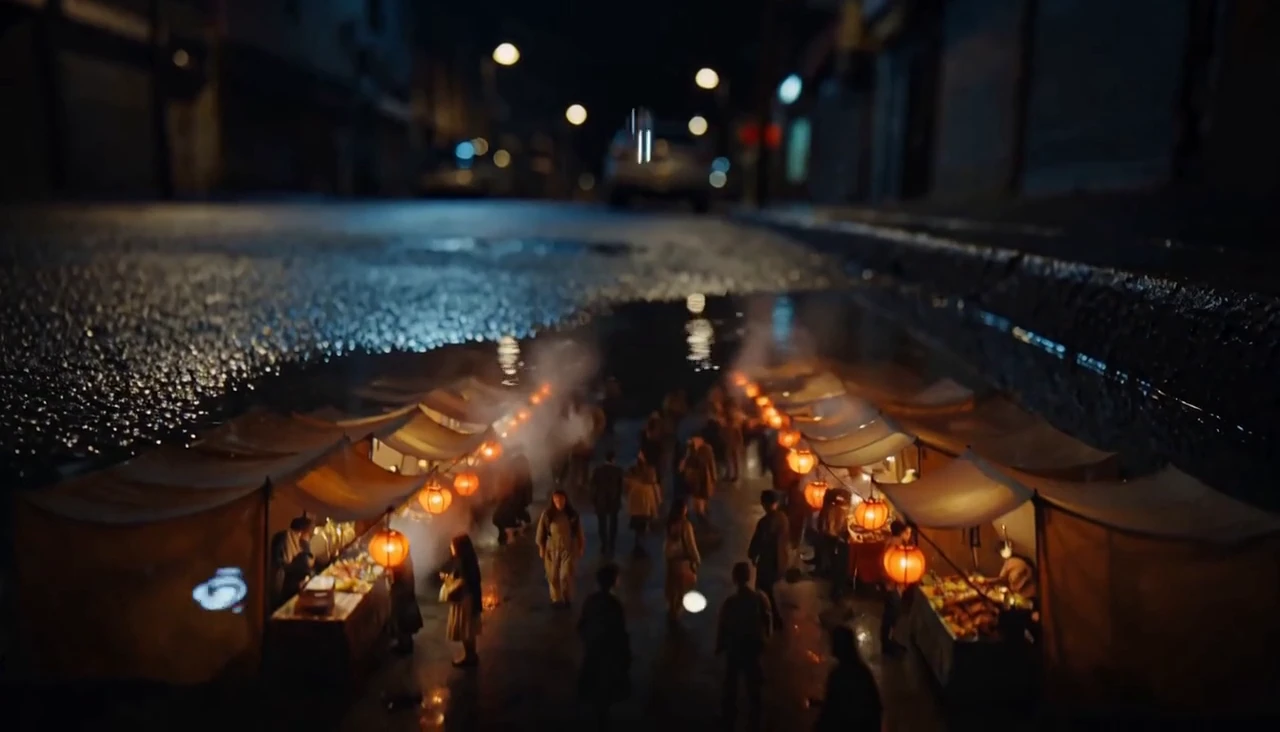
Try miniature scenes, character comedy or a large cinematic reveal. The writing should give each shot something specific to do.
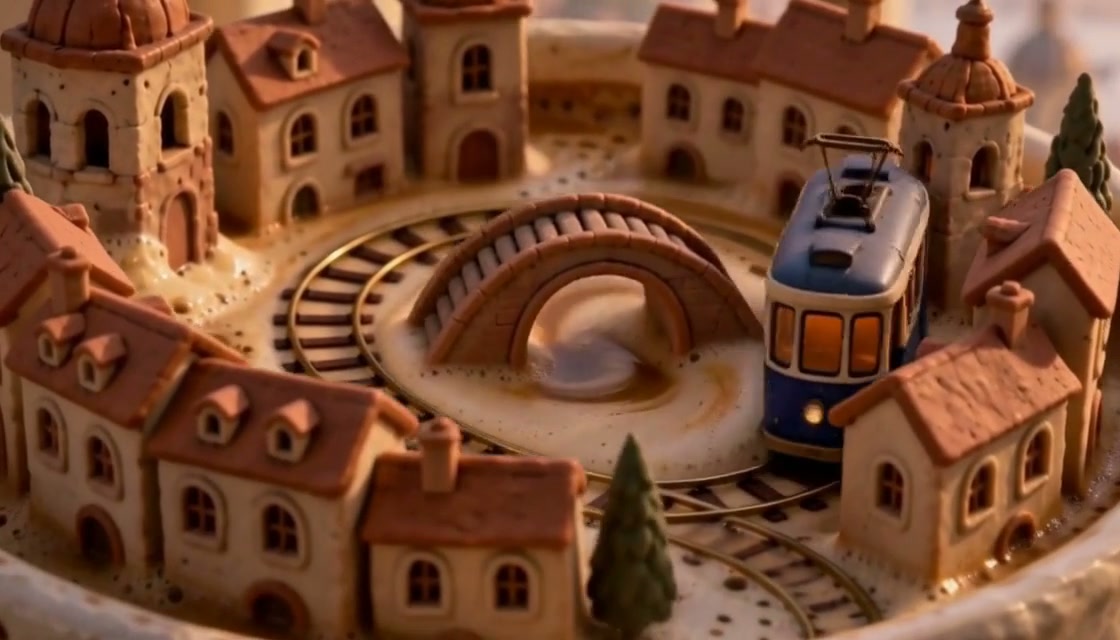
A miniature city rising from coffee

A written scene
With a visual direction

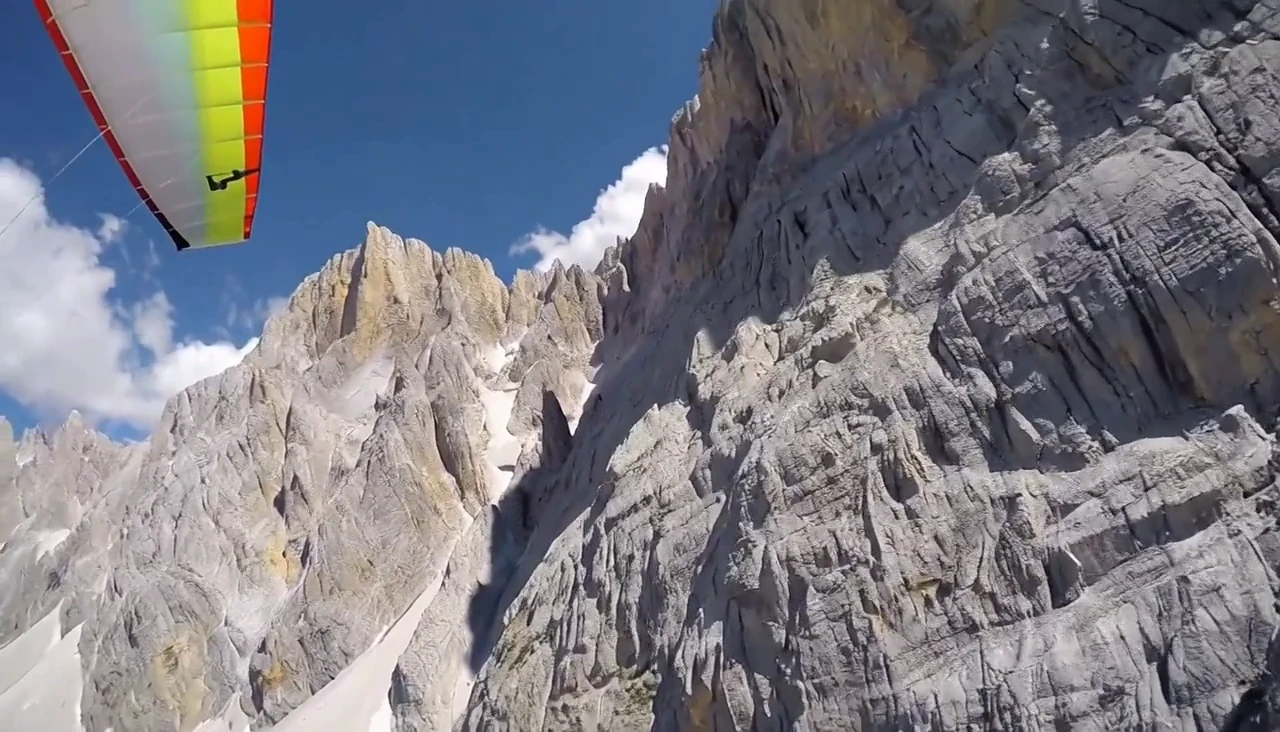
Direct a purposeful camera move

A point-of-view glide through an alpine valley gives the scene a destination. State where the camera starts, how it moves and what the viewer should discover.
Direct a purposeful camera move

A first-person paraglider glides beside a rocky mountain and descends toward an open alpine valley. Keep the forward flight smooth and show the destination clearly.

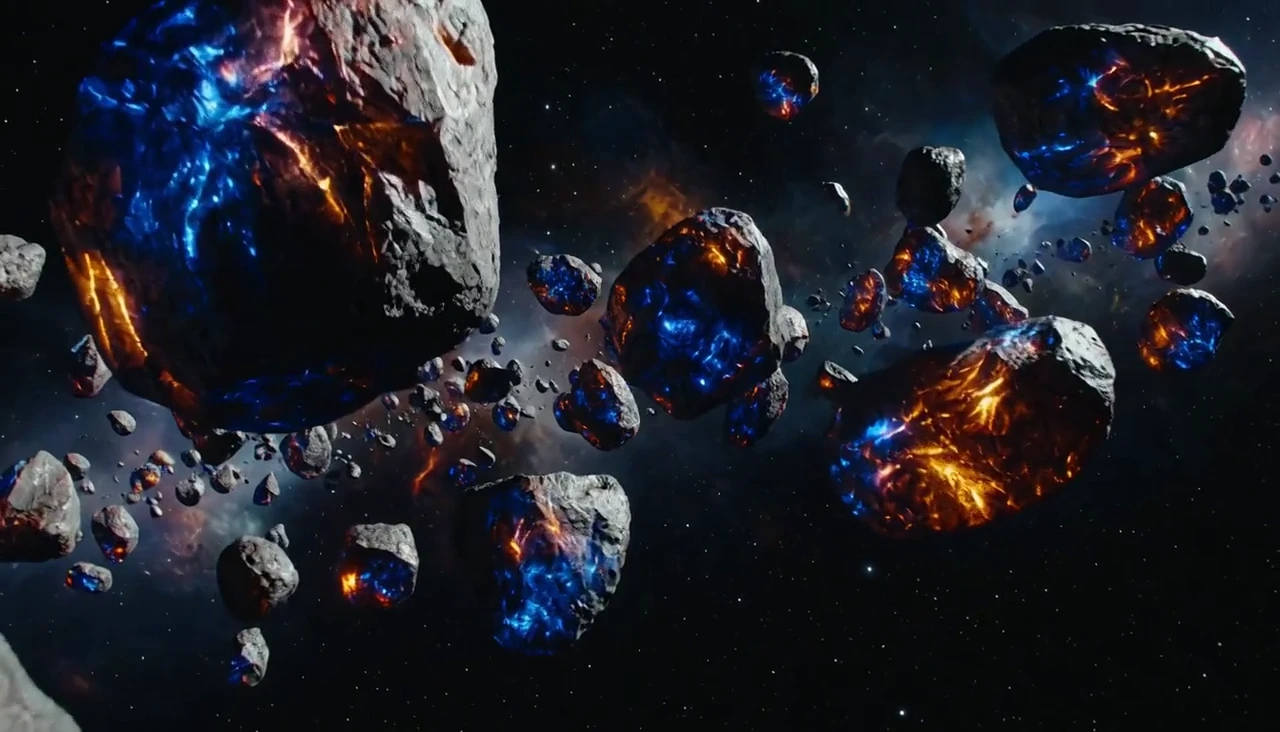
Describe light and material

Glowing cracks, dark rock and distant space tell the model more than a broad style word. Use a few connected visual details to shape the result.
Describe light and material

A large dark asteroid with bright blue and orange glowing cracks turns slowly in deep space. Smaller rocks drift around it. Move the camera closer while keeping the stone surface and scale readable.

Give characters readable reactions

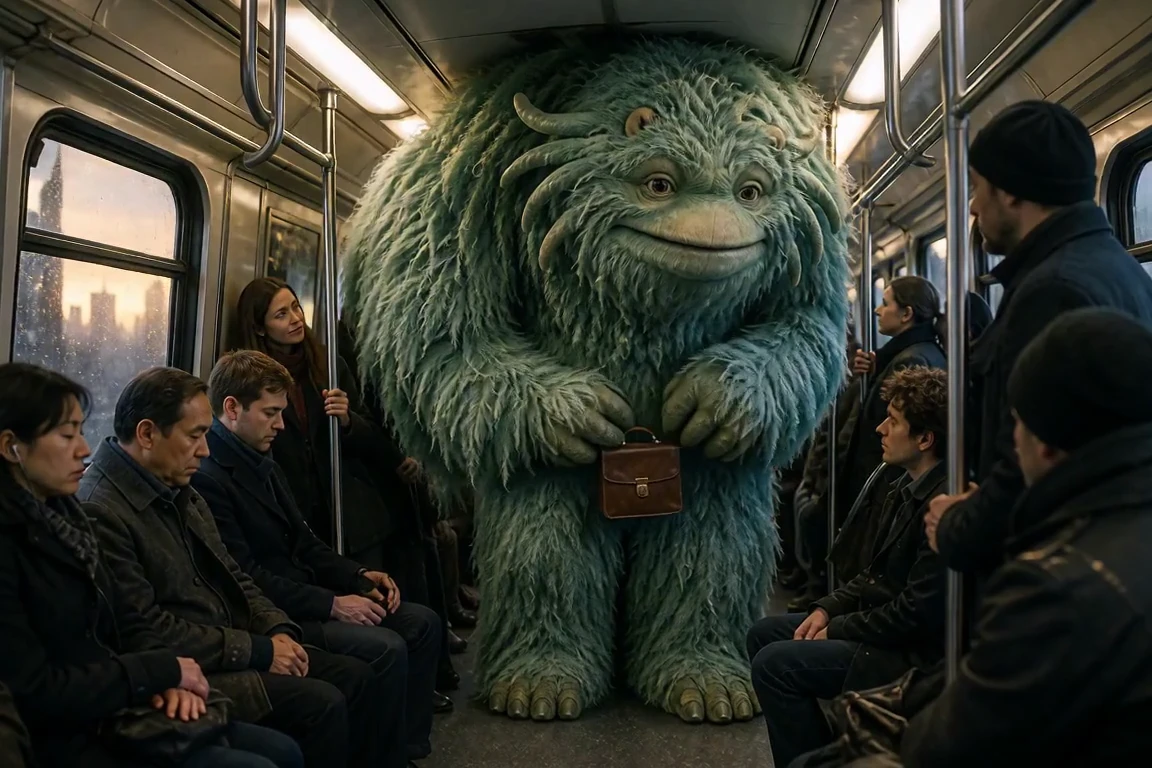
A fantastical commuter can feel at home in an ordinary train. Describe the posture, expression and response you want the viewer to notice.
Give characters readable reactions

A large friendly green creature rides in a crowded train. It shifts its gaze and smiles while the human passengers remain seated around it. Keep one steady interior view and readable expressions.

Stage motion with weight

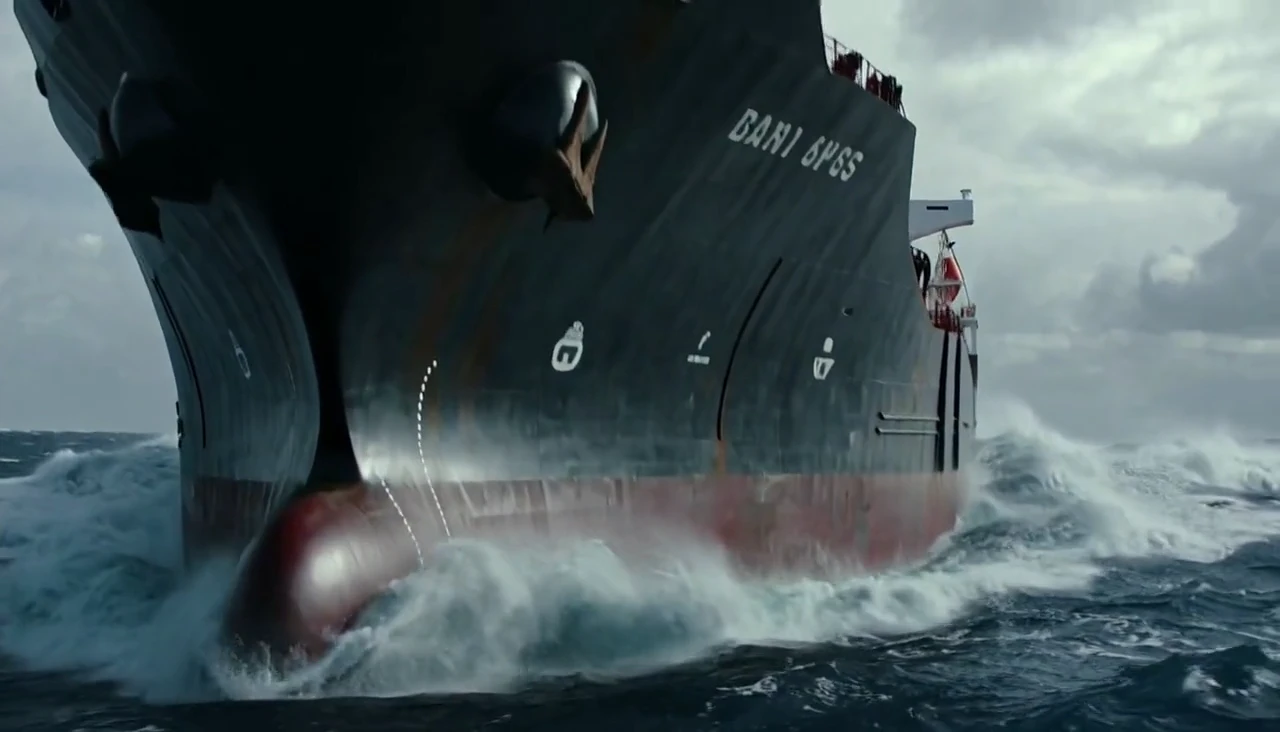
Connect the movement to its environment. Describe a ship rising through waves, the scale of the water and the camera distance that keeps the action understandable.
Stage motion with weight

A cargo ship pushes through large waves under a stormy sky. The bow rises and drops with the water. Keep a clear low camera angle that shows the ship’s weight and the scale of the sea.

Give the shot
A beginning and an ending

Write a connected shot instead of a list of unrelated effects. Establish the scene, name its visible event and decide what the final frame should reveal. Edit the example below into your own request.

Use one main event for a short clip. Plan essential cuts or location changes as separate shots, then edit the selected results.

Find a video model
For your next shot

Choose from the video models available in the generator. Input modes, duration and output settings vary by model.
Choose a model

Write for
The scene you need

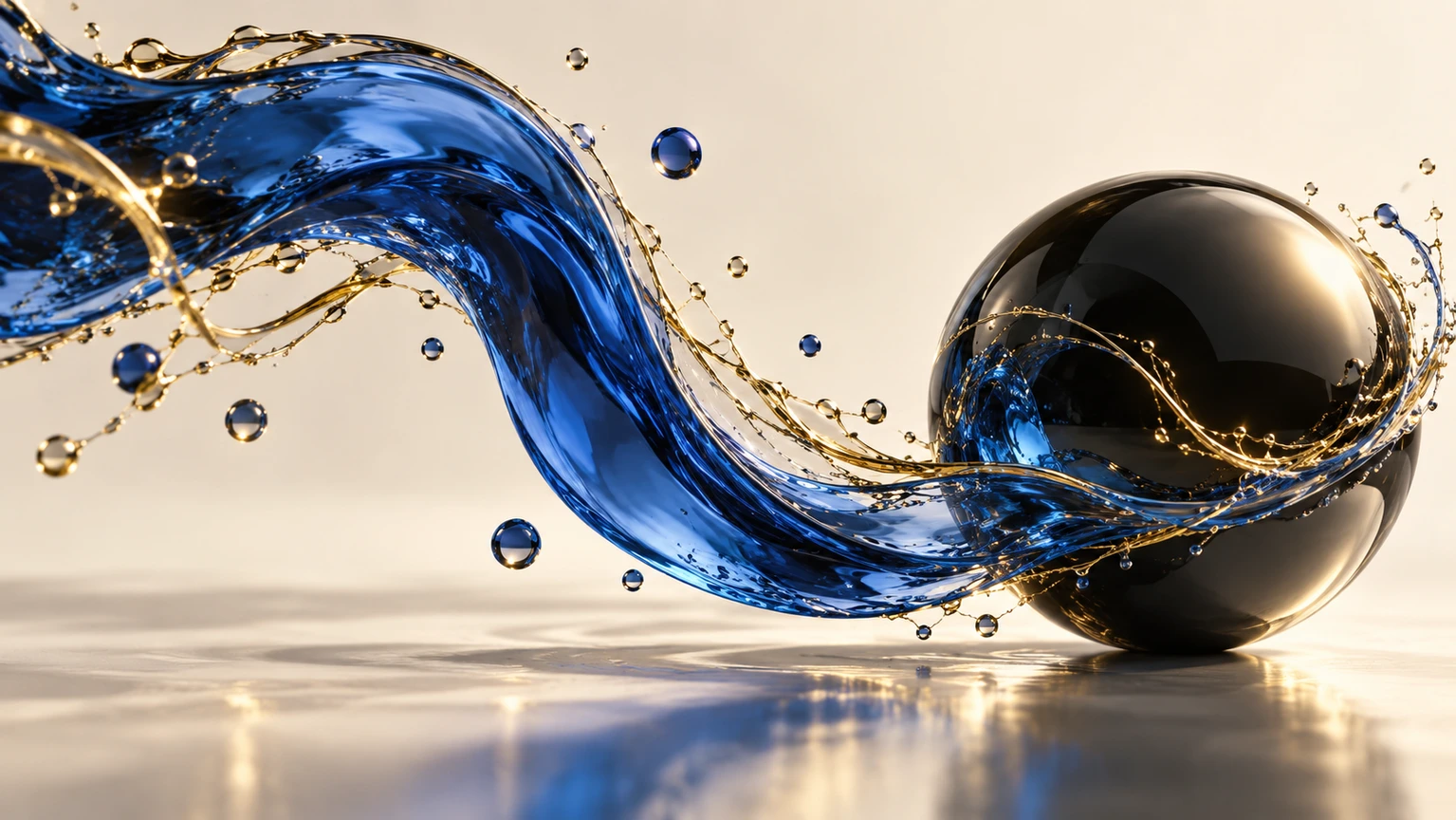
Fluid and light

Fluid and light

Give a sculptural product scene a clear material event, with blue and gold liquid circling a dark glass sphere.
Product motion

Product motion

Tie the movement to the product. A liquid arc, rolling ingredient or material reveal gives a short shot a purpose.
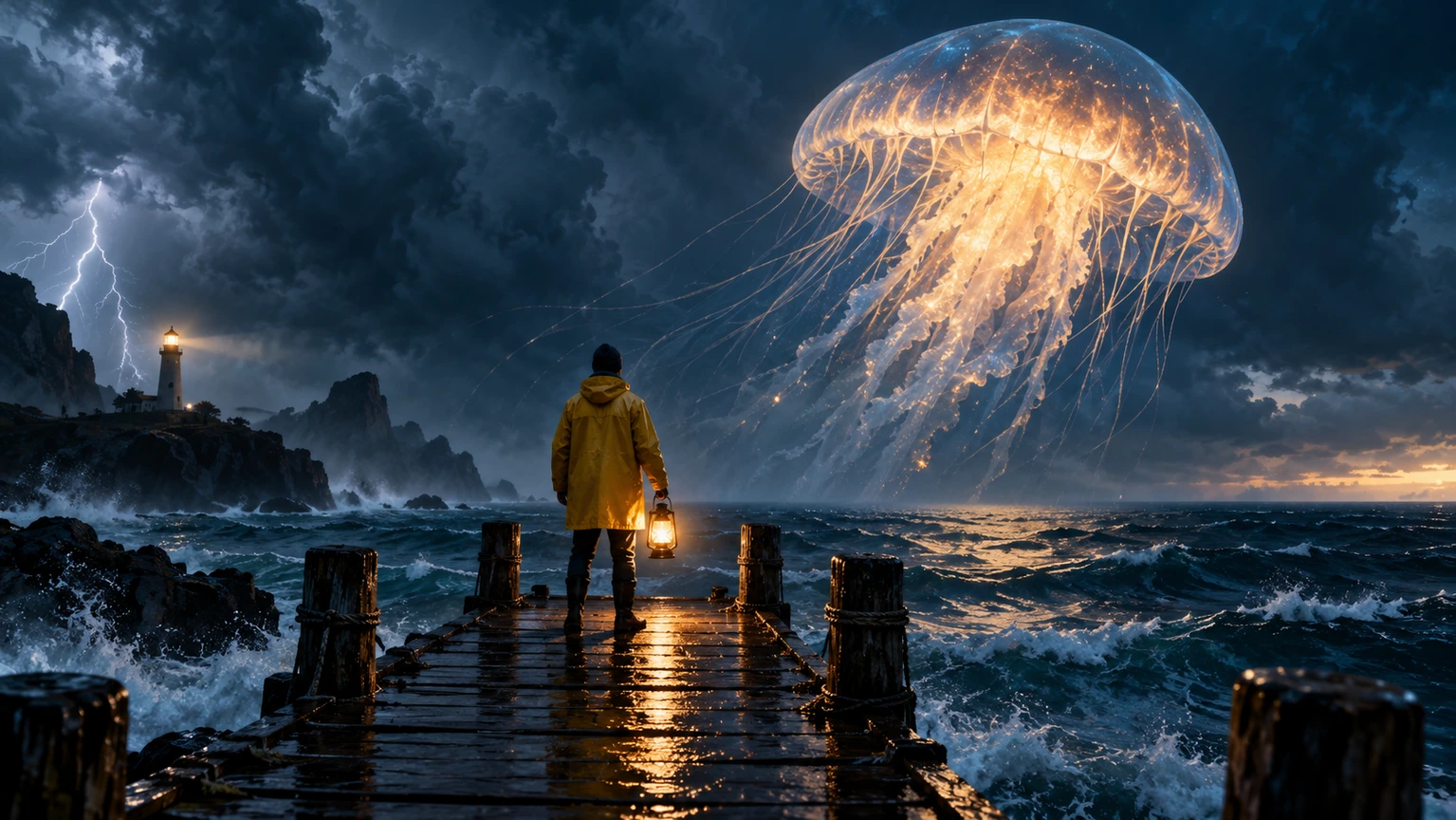
Visual storytelling

Visual storytelling

Describe a place, an event and the camera that reveals it.
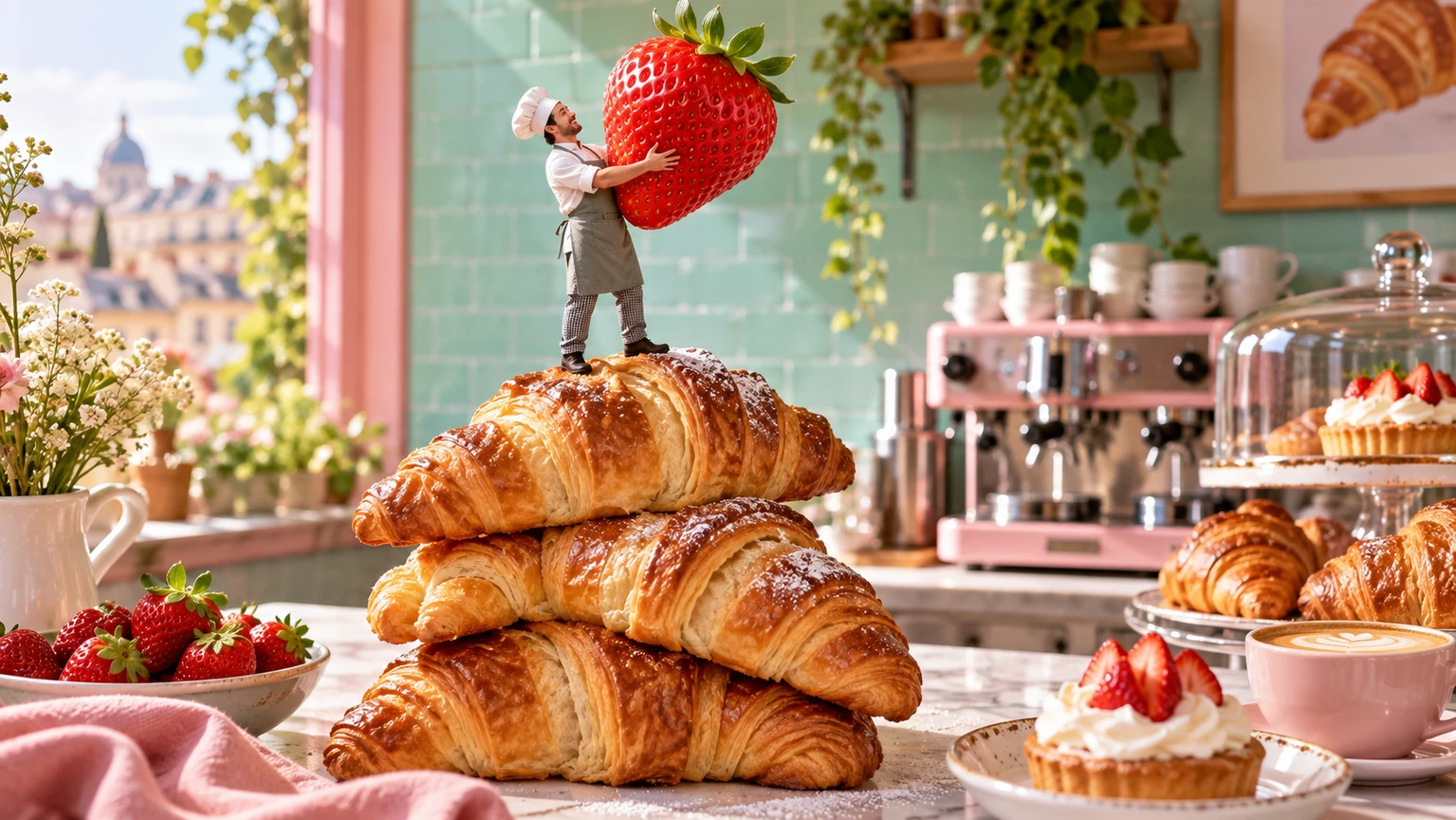
Social scenes

Social scenes

A tiny baker and an oversized strawberry create a simple visual idea with an immediate action to direct.

Take your idea
To its next step

Move between the available image and video tools as your project develops.

Text to Image

Describe an image and choose its format.

Image to Image

Give an existing image a new visual direction.

Image to Prompt

Turn visible image details into a starting prompt.

PNG Maker

Create an image with a transparent background.

Write less ambiguity
Get a clearer direction

  1. 01

    Define the scene

    Name the subject, location, framing and visual style. Put the essential idea before decorative details.

  2. 02

    Describe the event

    Explain what moves, what changes and where the camera goes. Keep the action achievable within the selected duration.

  3. 03

    Review the moving result

    Check timing, direction and the main reveal. Refine one instruction at a time instead of changing the entire scene.

A prompt is a direction, not a guarantee

  • Keep one main event in a short request; complex stories may need separate shots and editing.
  • Exact wording, visual details and camera paths may be interpreted differently by each model.
  • Available duration, resolution and credit cost are shown for the selected model before you generate.

One workspace
For different starting points

Choose whether your next scene starts with words, an opening image or visual references.

Give a product-led scene a clear reveal and a strong visual event.

Start creating

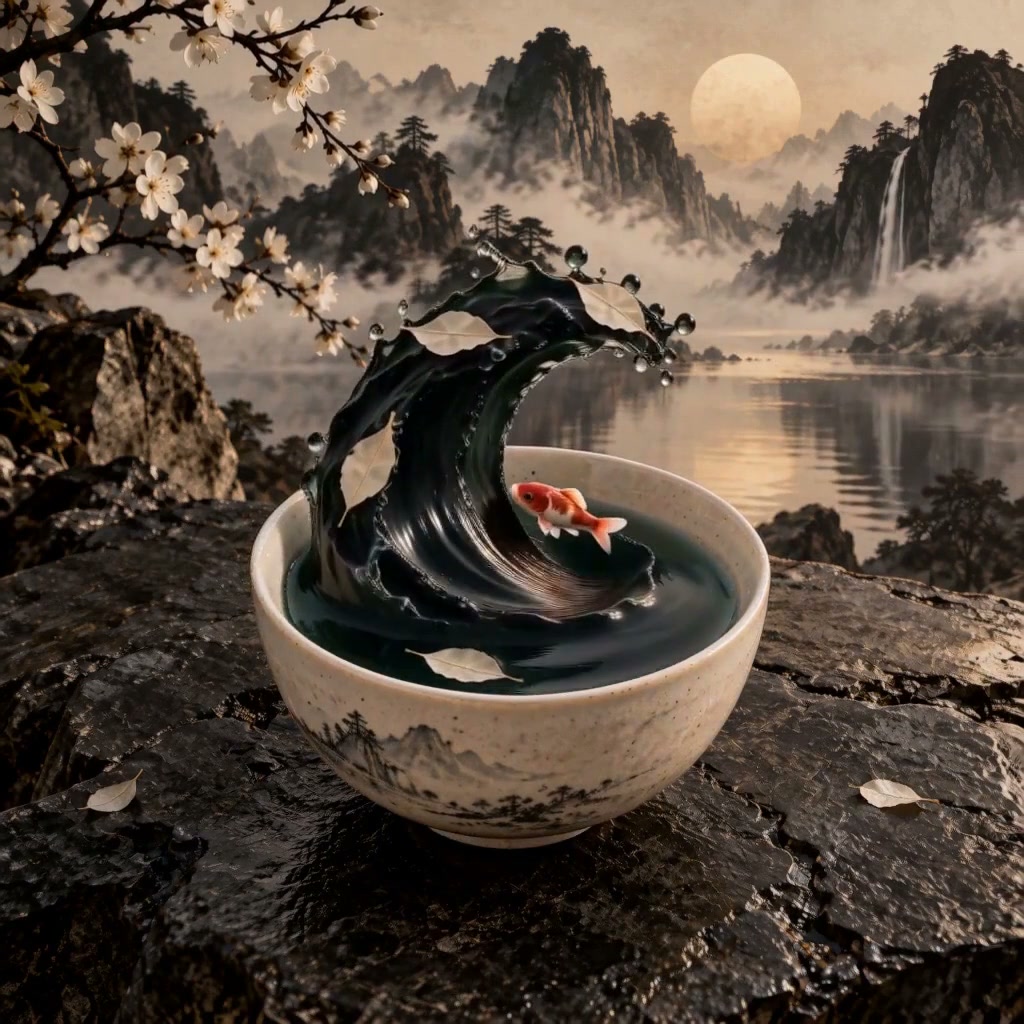
A ceramic fish, rising ink and paper leaves create one contained visual story.

Start creating

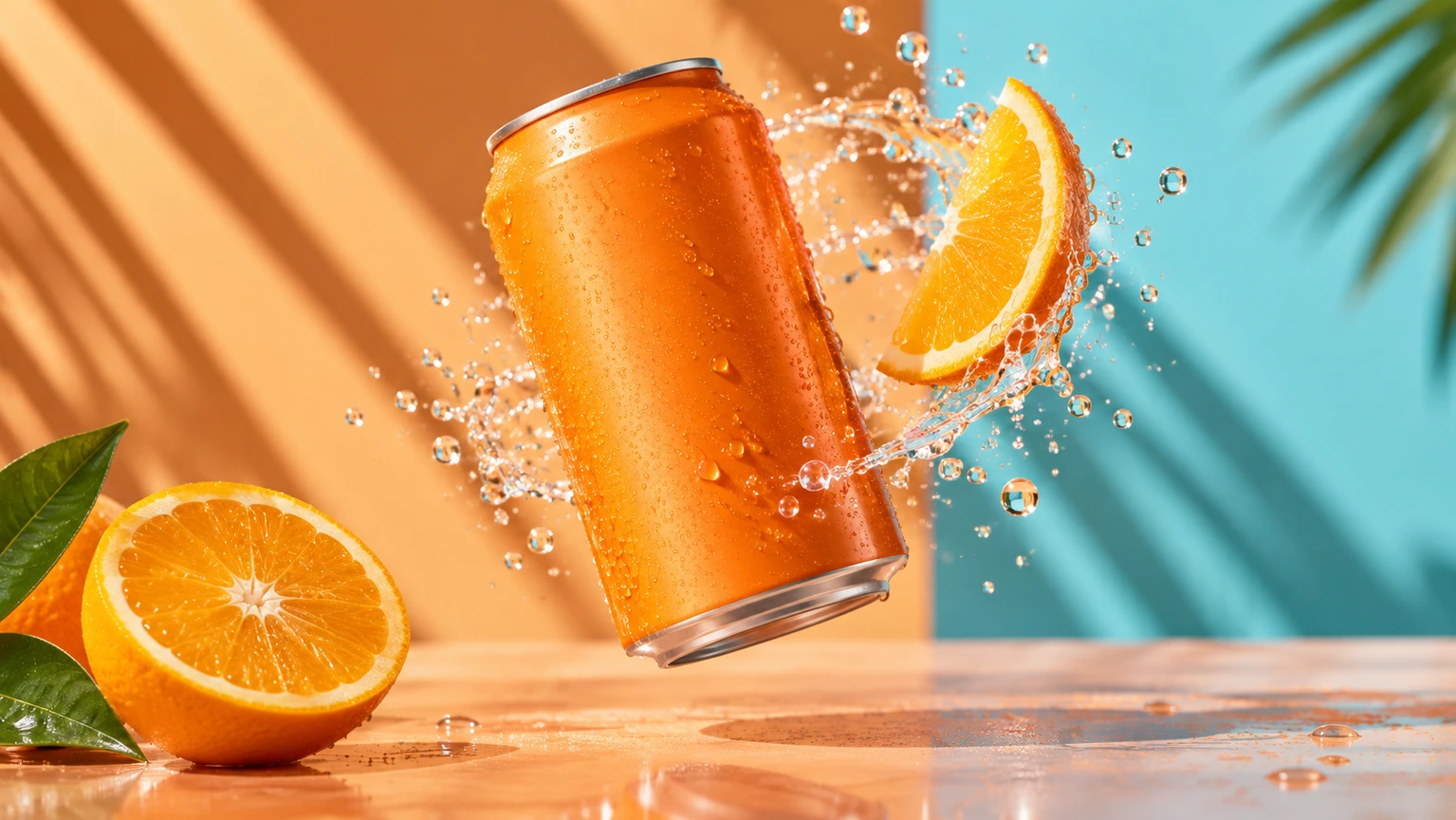
Shape a product shot with orange segments and a liquid arc that keeps the can visible.

Start creating

Plans for your next creation

Use your plan credits for images and videos. Review the selected tool, settings and credit quote before each generation.

Starter

$9.99/ month

800 credits / month

Credits renew monthly and expire at the end of the billing period.

View plan

Creator

$24.99/ month

2,500 credits / month

Credits renew monthly and expire at the end of the billing period.

View plan

Pro

$59.99/ month

6,200 credits / month

Credits renew monthly and expire at the end of the billing period.

View plan
See all plans and credit packs

Text to video FAQs

Include the subject and setting, a concrete action, camera framing and the look of the scene. Add the important change or reveal so the model has a clear event to interpret.

Use enough detail to remove ambiguity. A concise paragraph with one main event is often easier to refine than a long list of conflicting actions and camera moves.

You can describe a sequence, but short generations may compress or change the cuts. For more control, plan separate shots within supported durations and edit the selected results.

State the subject’s direction and how the camera follows it. For example, “the train travels left to right; track ahead of it without reversing.” Avoid adding a second, conflicting move.

Select a supported aspect ratio in the generator. Describe the subject and action so they fit the chosen frame; vertical framing works differently from a wide landscape shot.

Switch when you need a particular product, character design or opening composition. Create or upload that image first, then use a motion prompt to explain what should happen.

Continue from the scene you have

AI Video Generator

Compare the available creation modes.

Image to Video

Start from a defined image.

Reference to Video

Add visual guidance for your scene.

Text to Image

Explore a still frame before animating.

Guides for your next creation

Prepare an image and describe motion

↗

Plan a video from a product photo

↗

Write a clear image prompt

↗

Put your scene
Into motion

Write the subject, the event and the camera. Start with one shot you can clearly describe.

Start creating
AI Image

  • AI Image Generator
  • Image to Image AI
  • AI Photo Editor
  • Watermark Remover
  • Magic Eraser
  • Image Upscaler
  • Background Remover
  • Face Swap Photo
  • Chat to Image

AI Video

  • AI Video
  • Text to Video
  • Image to Video
  • Reference to Video

AI Video Effects

  • AI Video Effects
  • AI Kiss Video Generator
  • AI Hug Video Generator
  • City flight
  • Everything blooms
  • Giant pet
  • Step out of the frame
  • Petal drift
  • Doodle to life
  • City folding
  • Vanish
  • Street Colossus
  • High Flip
  • Thunder Strike
  • Portal Reveal
  • Energy Wings
  • AI Twerk Video Generator
  • Bigfoot Video Generator

Product

  • Jynno
  • All AI Tools
  • Agent
  • Pricing

Resources

  • Creative guides
  • Privacy Policy
  • Terms of Service
© 2026 Jynno. All rights reserved.