
Give the subject a transparent background
Isolate the subject, then inspect the PNG on light and dark surfaces.


Isolate your subject with a transparent background.
No model is currently available for this feature.
Create an image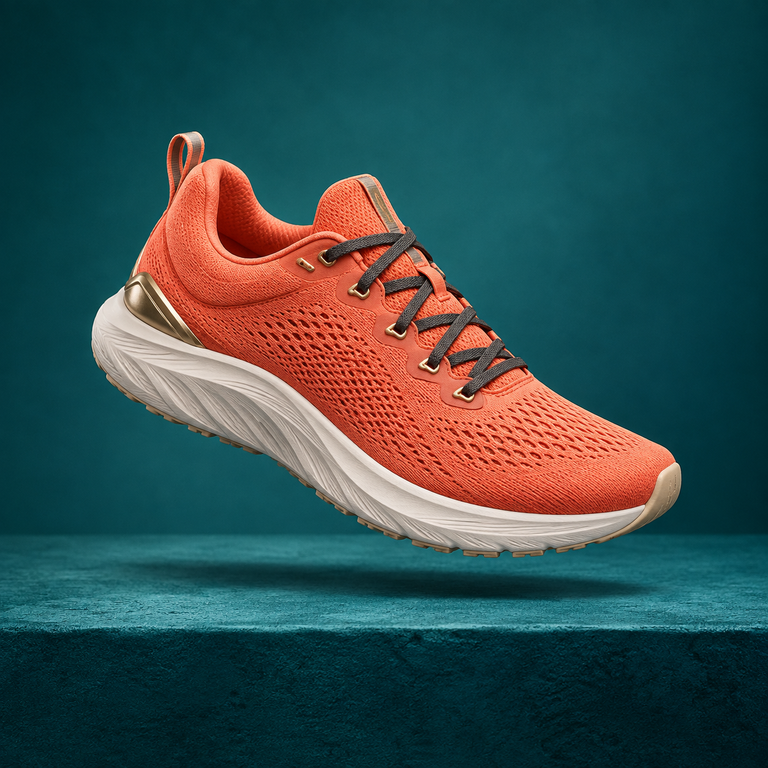
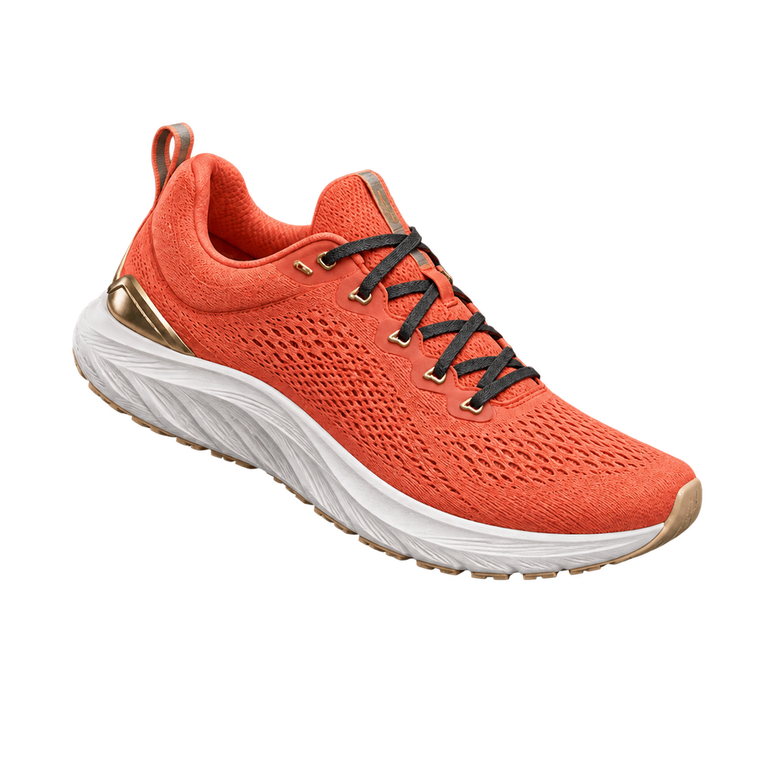
Isolate the subject, then inspect the PNG on light and dark surfaces.
Generate the background removal.
Check the cutout on both light and dark backgrounds.
Separate the coral sneaker from its teal studio setting. Check the sole, laces and outer silhouette on light and dark backgrounds.
Use this tool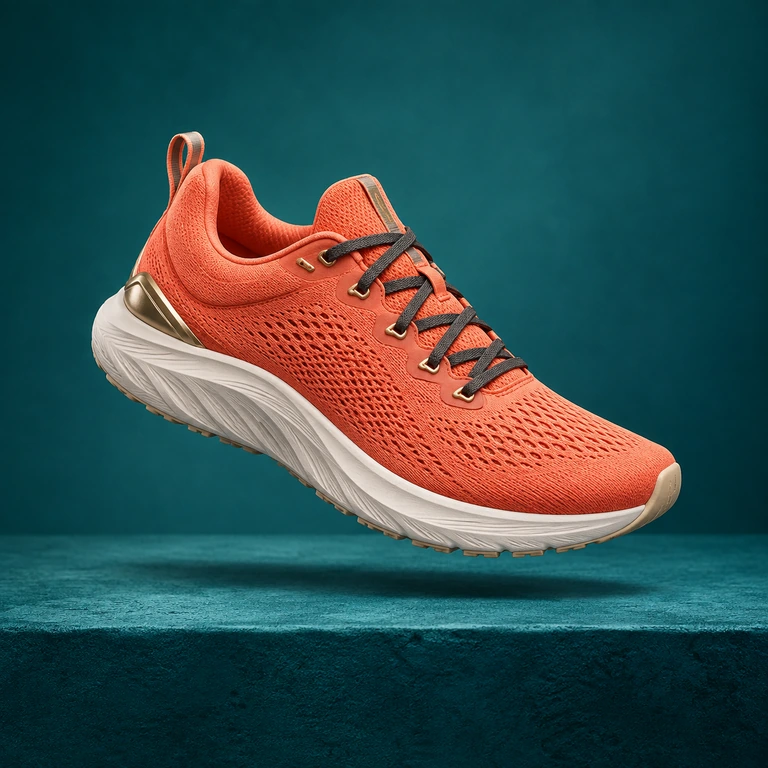

Isolate the subject, then inspect the PNG on light and dark surfaces.
Start creating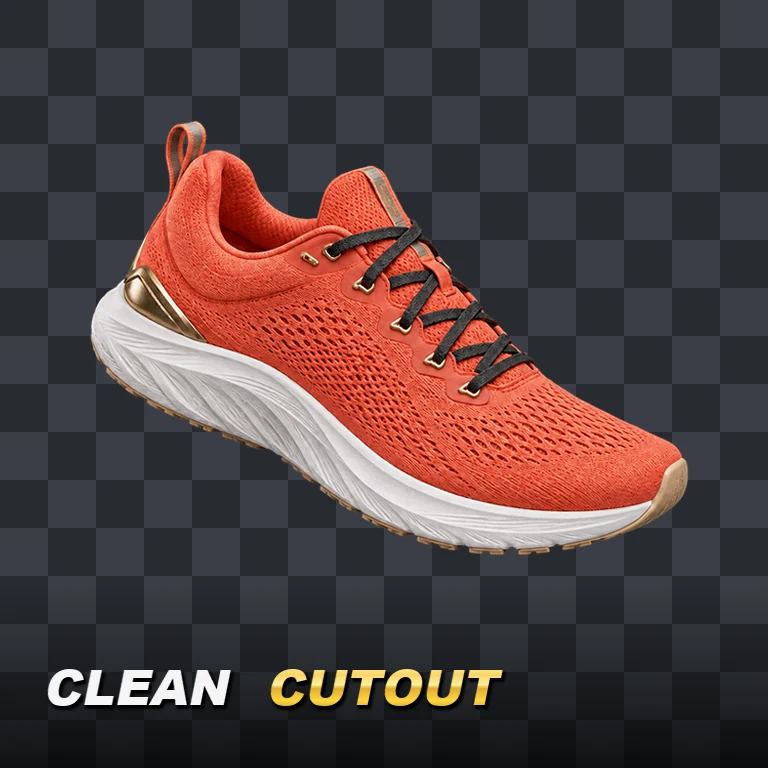
Place a product cutout into a clean catalogue layout.
Reuse the subject over a background you choose.
Separate a portrait for a new composition and check hair edges.
Use a source with a clear subject outline.
Inspect internal holes and fine edge detail.
Check the cutout on both light and dark backgrounds.
Upload the subject photo.
Generate the background removal.
Inspect transparency and download the cutout.
No. The checkerboard is a preview surface for transparent pixels. The cutout example contains a real alpha channel.
Use your plan credits for images and videos. Review the selected tool, settings and credit quote before each generation.
$9.99/ month
800 credits / month
Credits renew monthly and expire at the end of the billing period.
View plan$24.99/ month
2,500 credits / month
Credits renew monthly and expire at the end of the billing period.
View plan$59.99/ month
6,200 credits / month
Credits renew monthly and expire at the end of the billing period.
View planExplore a new setting for your cutout with Image to Image.
Image to Image ↗