• Workspace
Creation
  • AI Video
  • AI Image
Features
  • AI Video Effects
  • Text to Video
  • Image to Video
  • Reference to Video
  • AI Video Editor
  • Mimic Motion
  • Video to Video AI
  • Video Upscaler
  • Face Swap Video
  • Video Background Remover
  • AI Video Extender
  • Text to Image
  • Image to Image
  • Image to Prompt
  • PNG Maker
  • Pricing
Jynno

Reference to Video AI

Use reference images to describe the subject, look or setting of a scene. Choose a model that supports the kind of visual guidance you need.

Explore references and moving scenes
All AI Tools

Reference images and opening frames have different roles

Reference to video gives a supported model visual guidance for a subject or style. An opening frame defines how a shot starts; a reference can guide what appears without being that exact first frame.

Animate one exact opening composition

Choose image to video when you already have the opening shot. Describe the movement that follows, and keep important details visible in the image.


Prepare a clearer visual reference

Create the look you want before requesting motion. Matching the subject, light and framing across references can make your direction easier to interpret.

Learn to separate visual guidance from motion instructions
Text to VideoDescribe the subject, action and camera for a new scene.Image to VideoUpload an opening image and describe what should happen next.Reference to VideoUse compatible reference images to guide the subject or scene.

Plan connected scenes from references

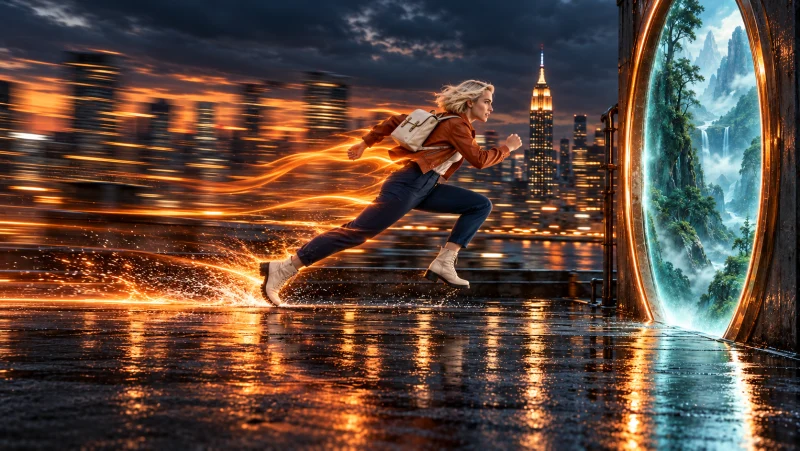
Use shot-specific references to plan a sequence with shared visual anchors. Create and review the individual shots, then join the selected clips into a connected story.
Plan connected scenes from references
Reference images 1
01
Reference images 2
02
Reference images 3
03
Reference images 4
04

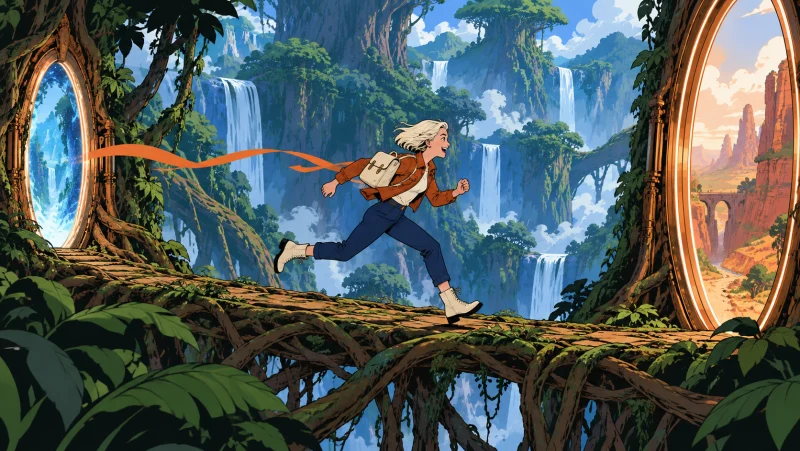
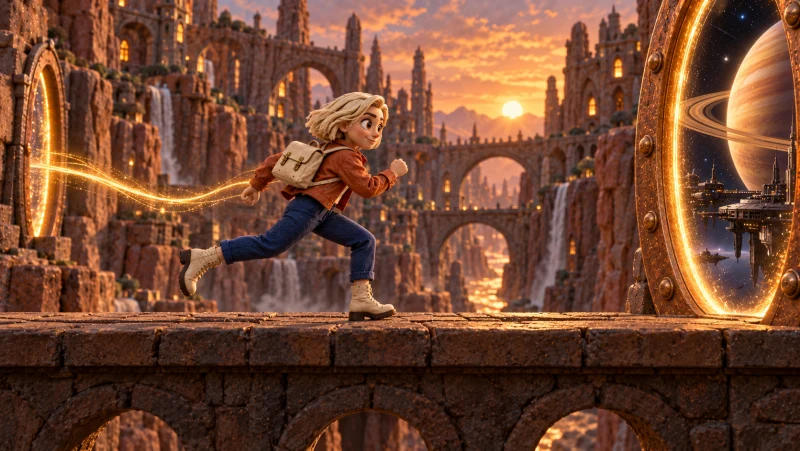
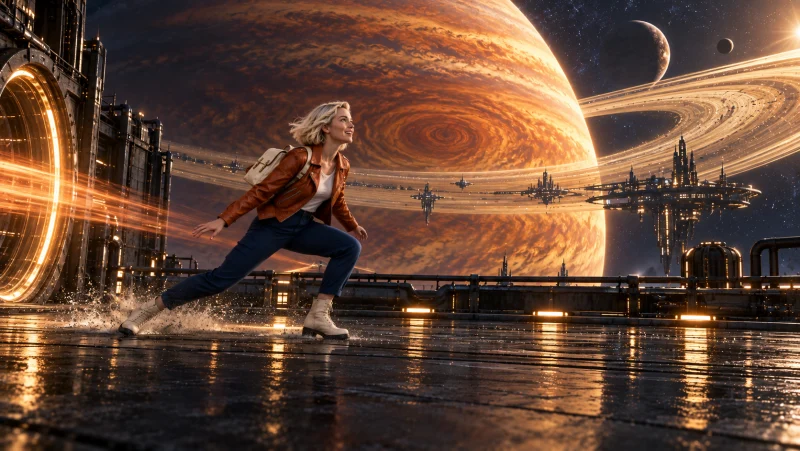
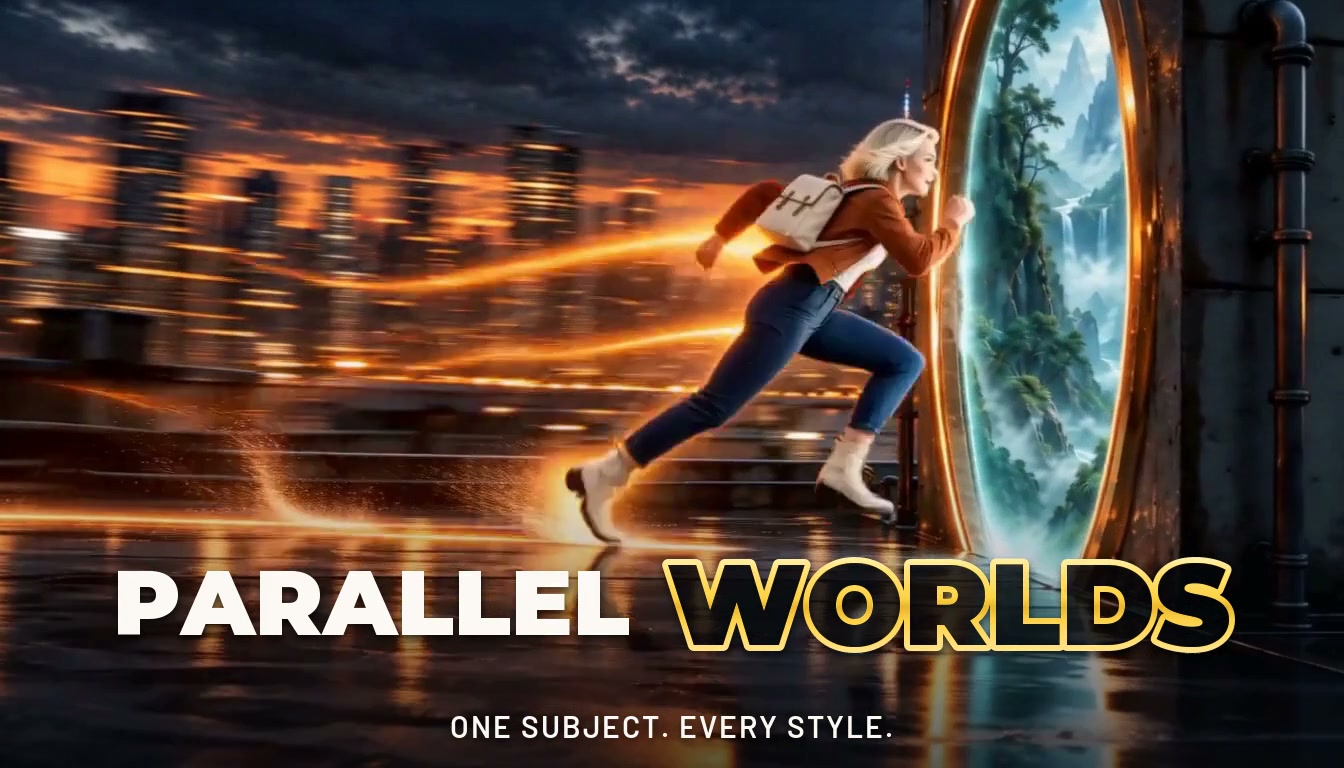
Plan a world-changing sequence as connected shots, then join the selected clips. Each model sets its own reference roles and image limit; choose the inputs that fit each shot.

Use the silhouette as a visual anchor

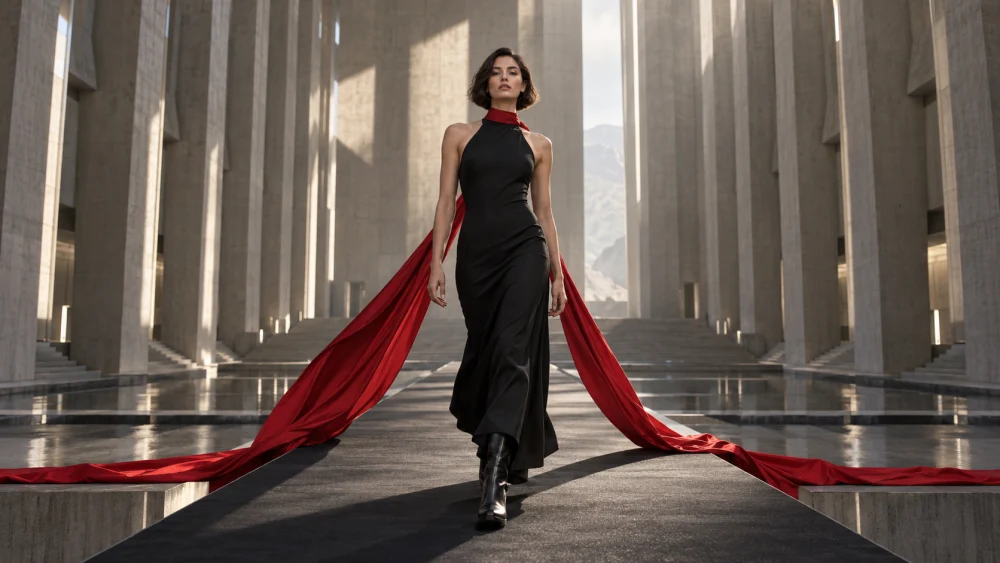
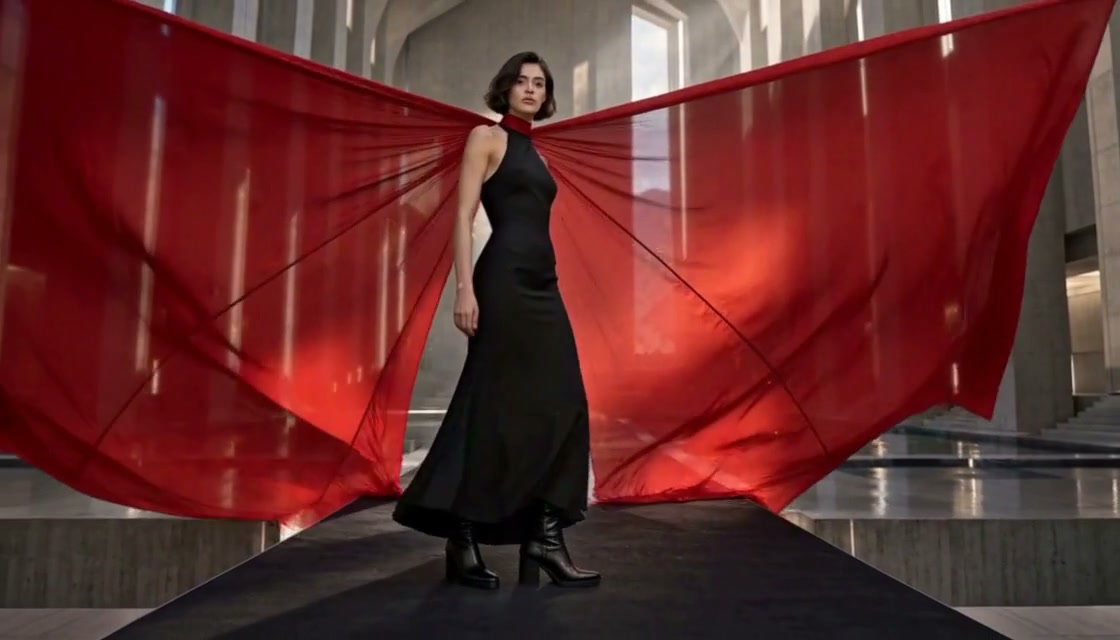
A distinctive costume can carry the direction. Describe how the red material moves around the subject, then review the result for the details that matter.
Reference images
Reference images 1
Shot direction

A woman in a sculptural red outfit moves as the attached material expands and curves around her. Preserve the red silhouette and direct one clear flowing movement.
Use the silhouette as a visual anchor
Moving result

Bring a product into its own setting

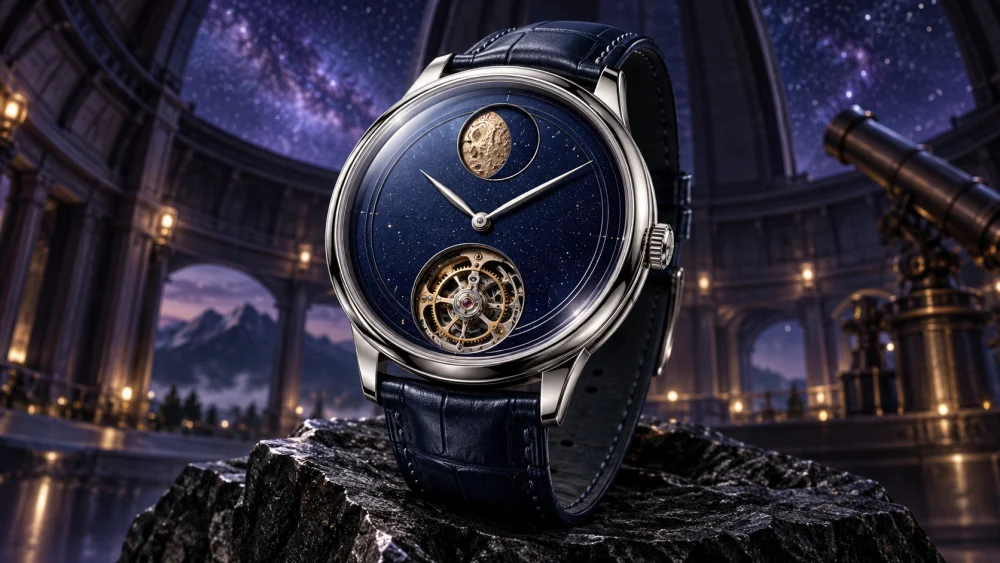
Let a clear reference establish the watch and its material. Direct the surrounding mechanical world without hiding the object the viewer should recognize.
Reference images
Reference images 1
Shot direction

A watch sits inside a miniature mechanical world. The surrounding rings and structures turn to reveal the dial. Keep the watch readable through the camera movement.
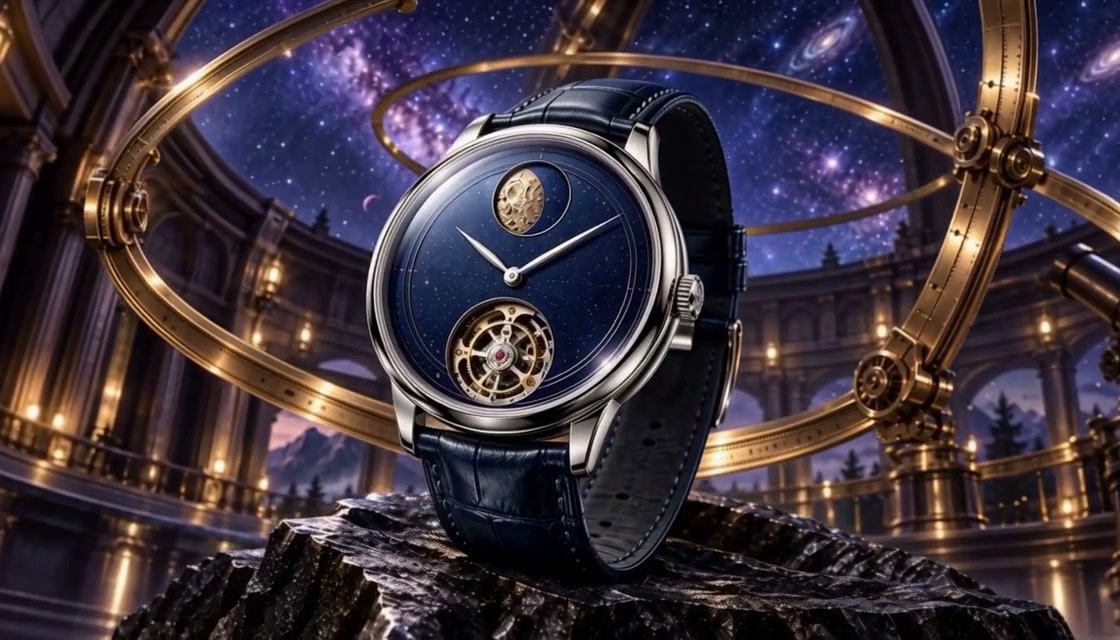
Bring a product into its own setting
Moving result

Direct movement around a defined object

Begin with a readable glass form, then describe how its rings open and move. Keep the action focused on the object rather than adding unrelated subjects.
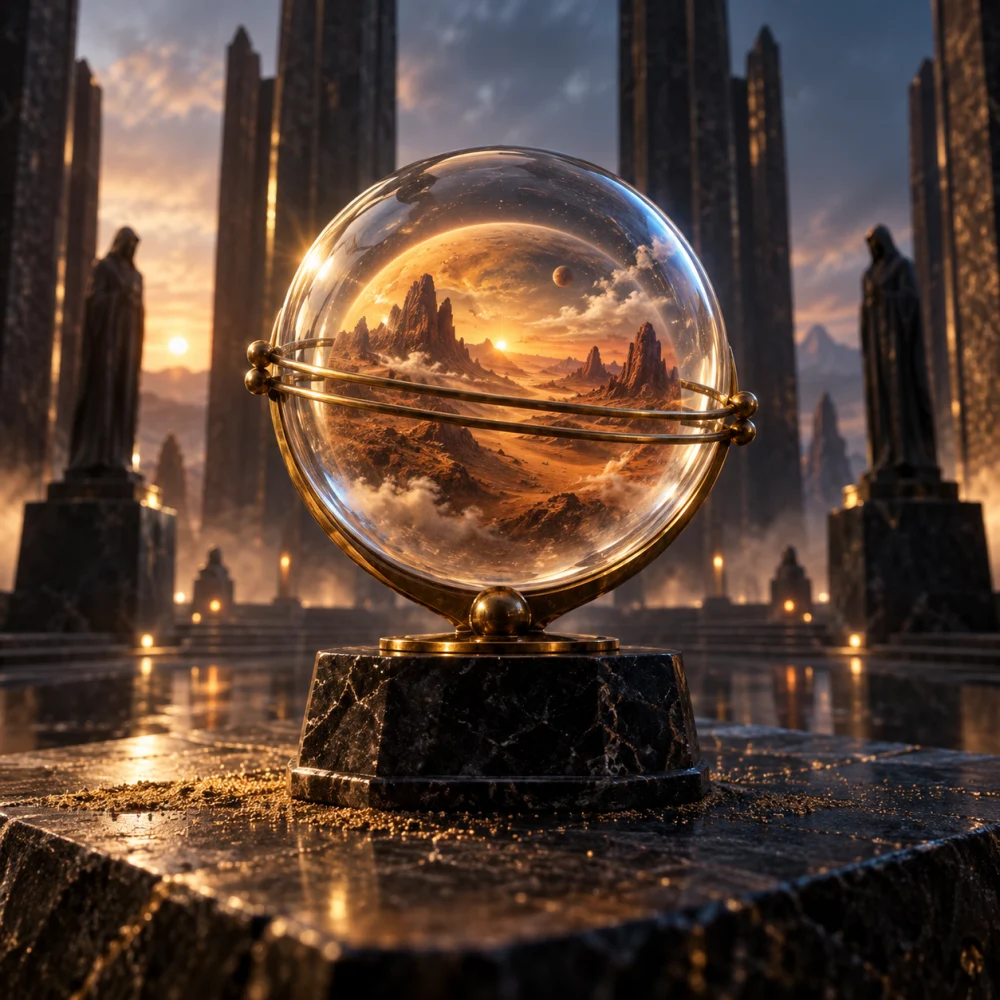
Reference images
Reference images 1
Shot direction

A clear glass sphere opens its delicate rings in one controlled movement. Keep the glass material, central object and a steady framing visible.
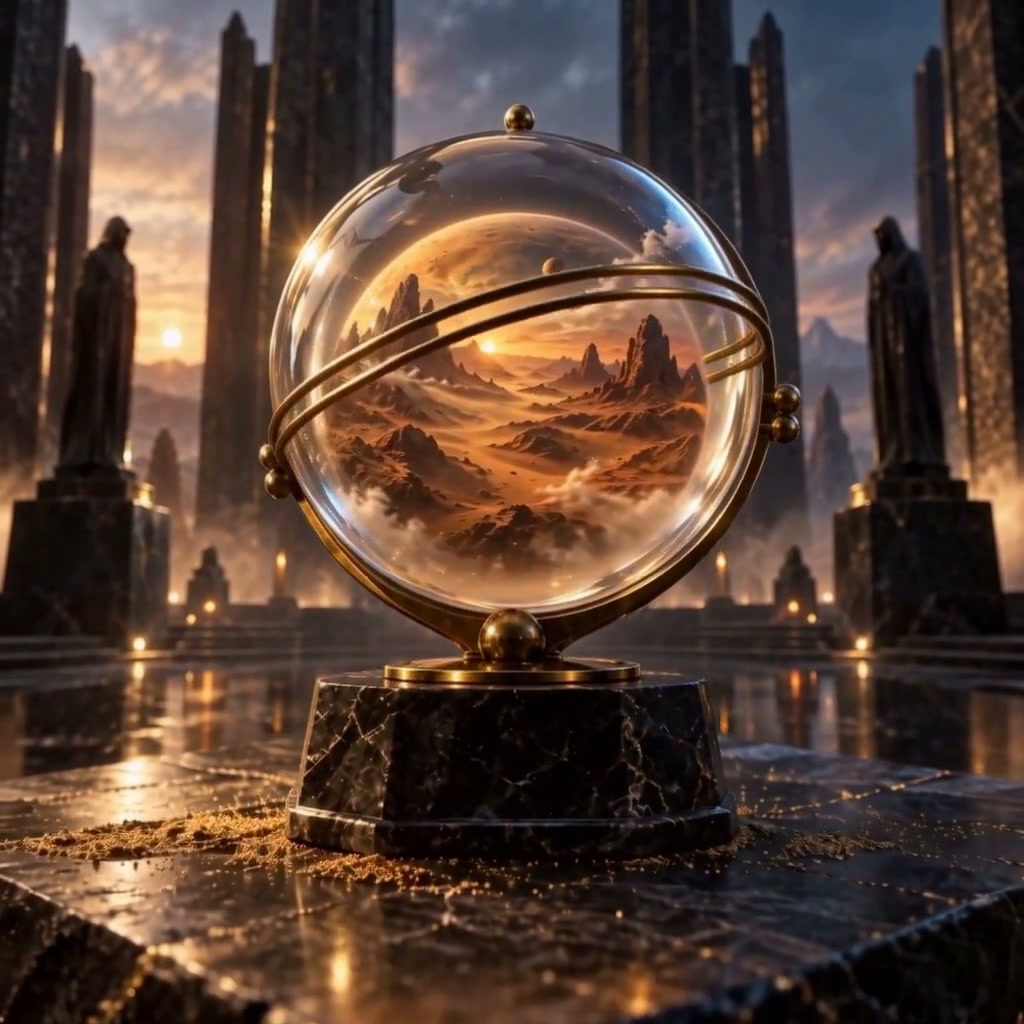
Direct movement around a defined object
Moving result

Let material guide the scene

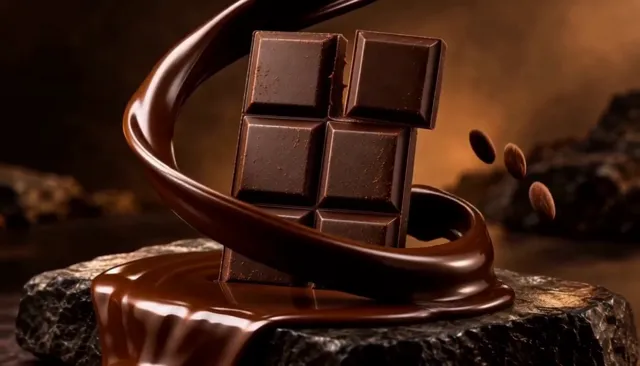
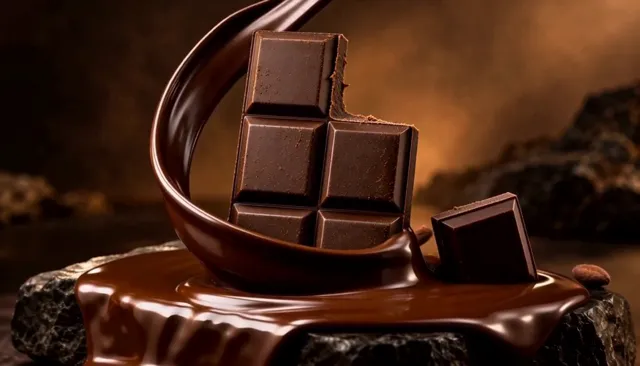
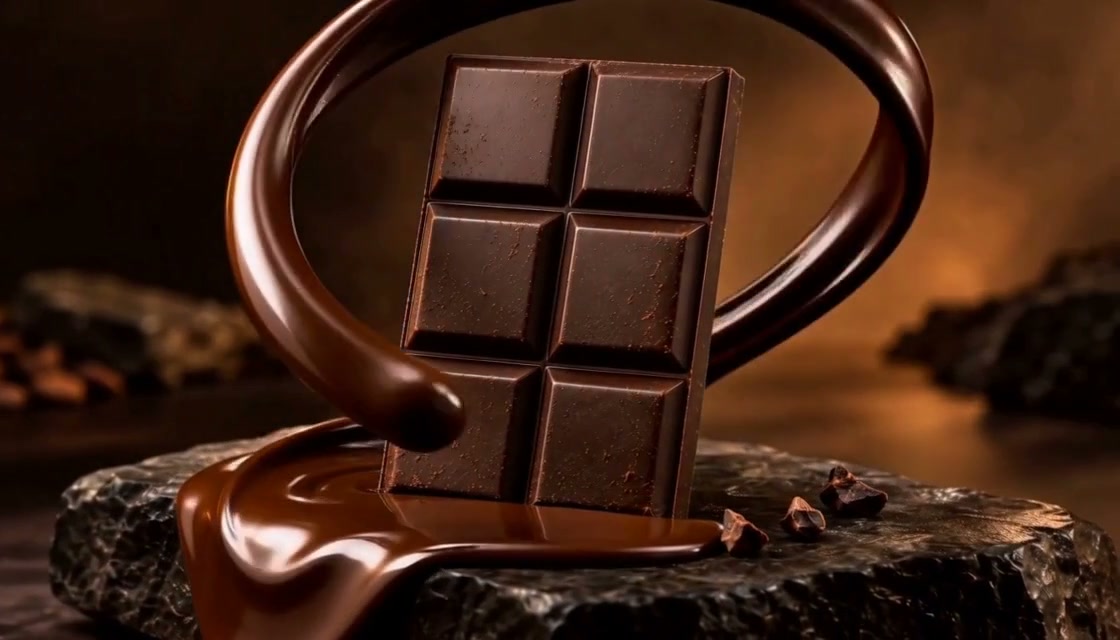
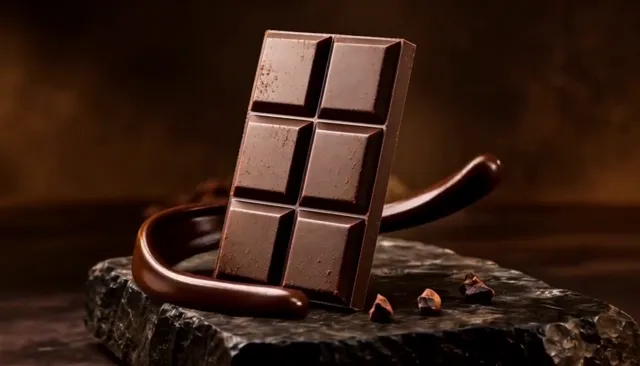
A reference can establish texture, shape and color. Use those details to direct a chocolate reveal and check that the product remains understandable through the movement.
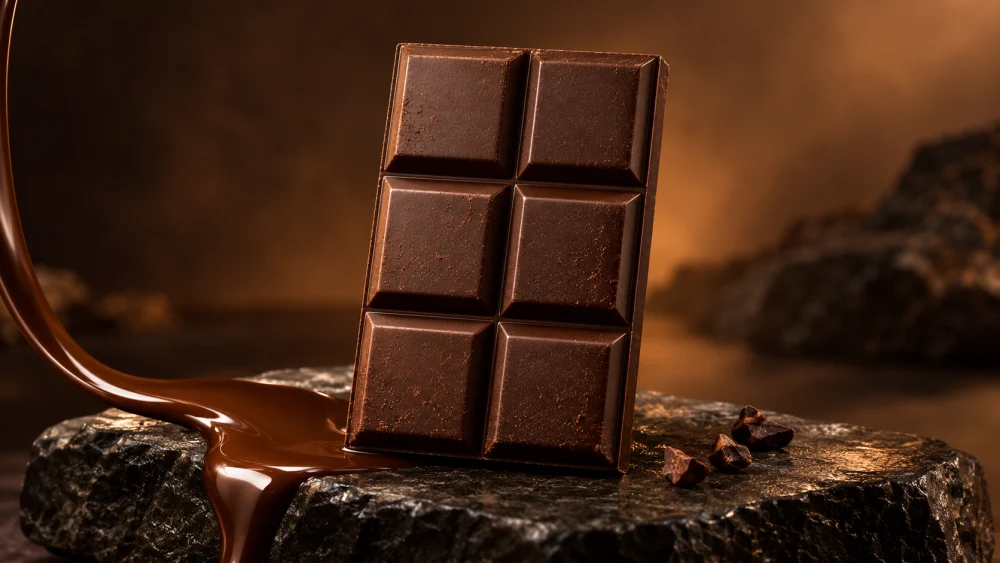
Reference images
Reference images 1
Shot direction

A dark chocolate bar stays visible as a thick chocolate ribbon rises around its pedestal, reveals one broken segment, and settles. Keep the rectangular product and glossy material clear.
Let material guide the scene
Moving result
Moving result 00:00
00:00
Moving result 00:02
00:02
Moving result 00:04
00:04

Plan a readable start and finish

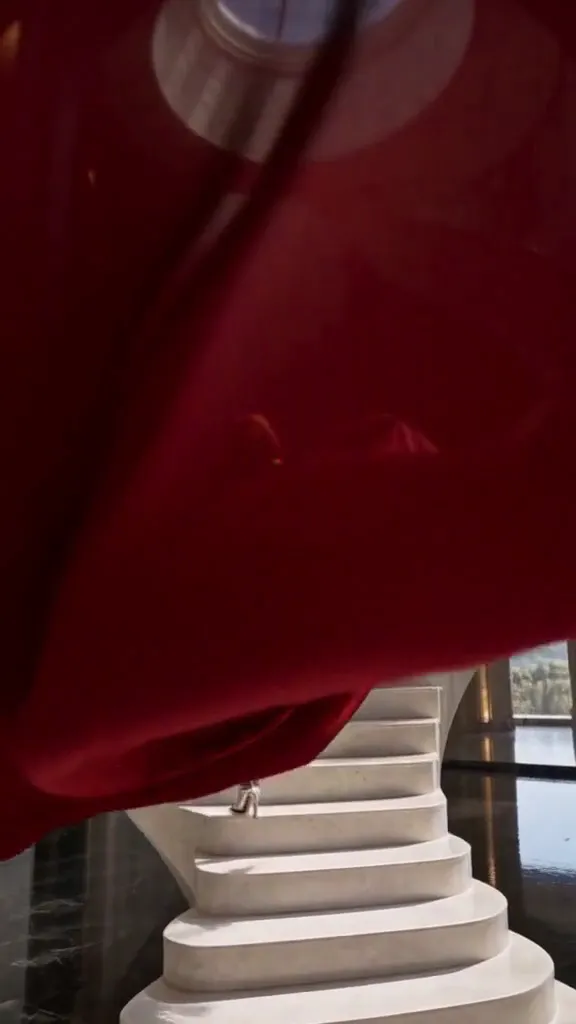
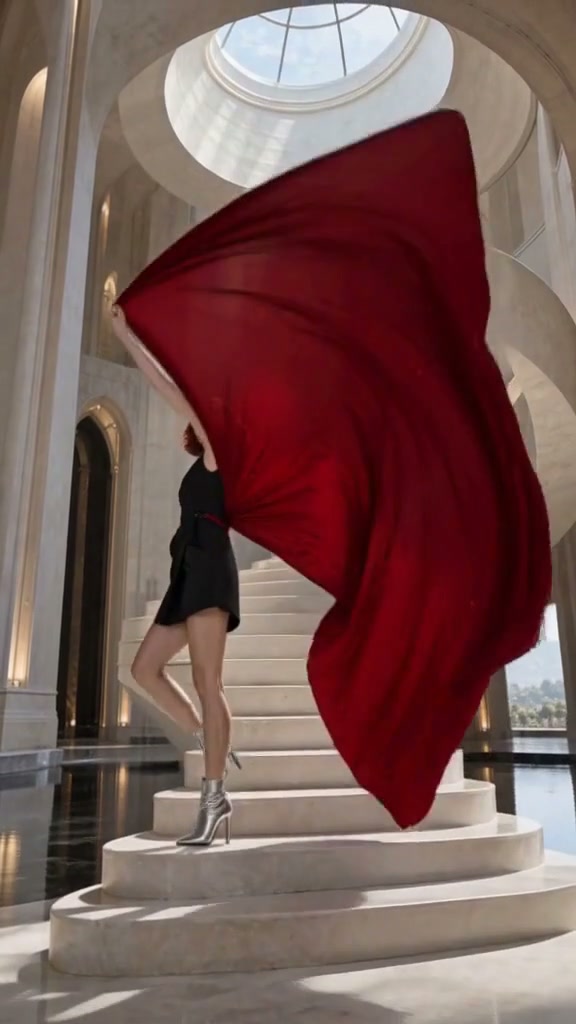
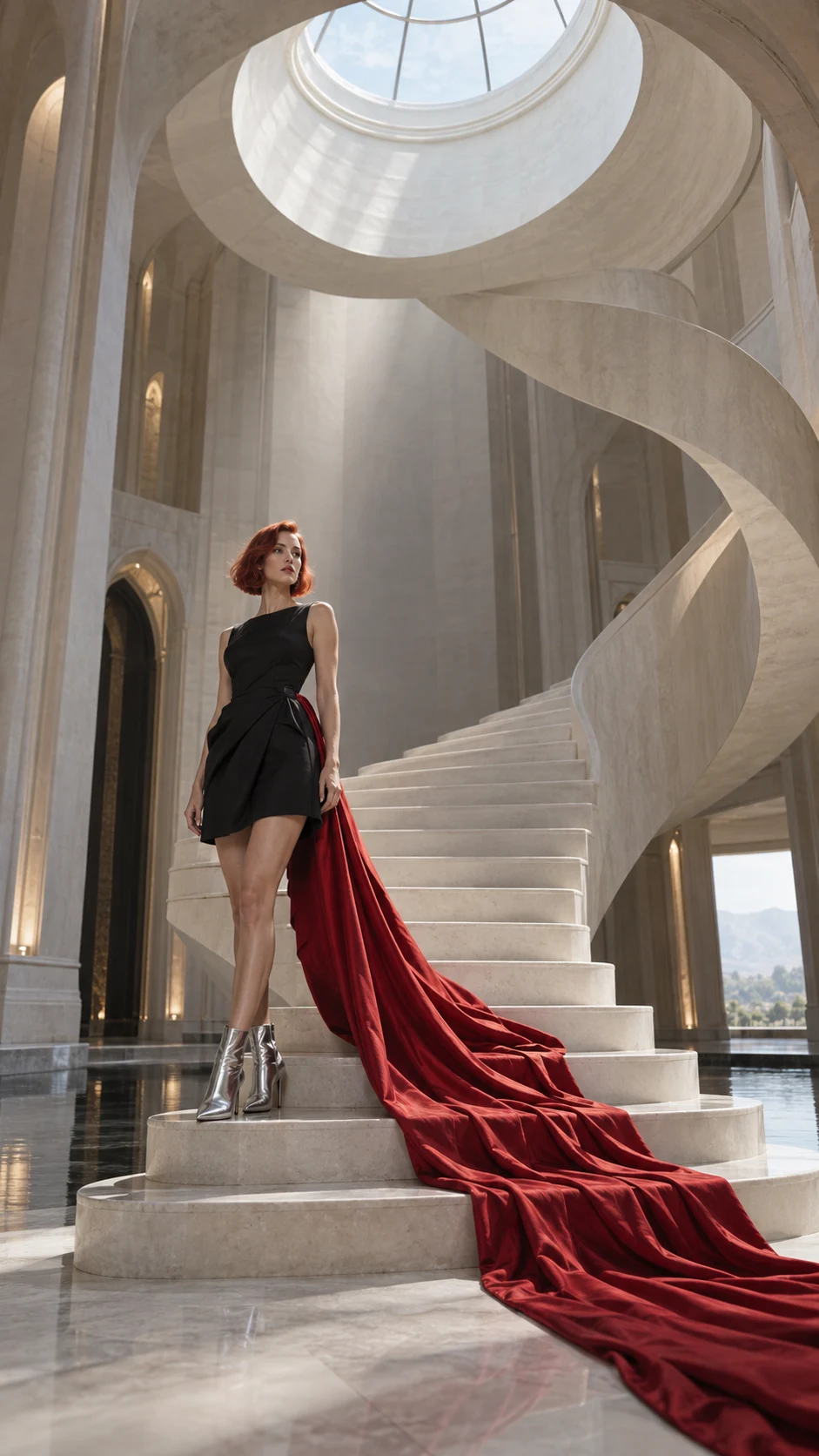
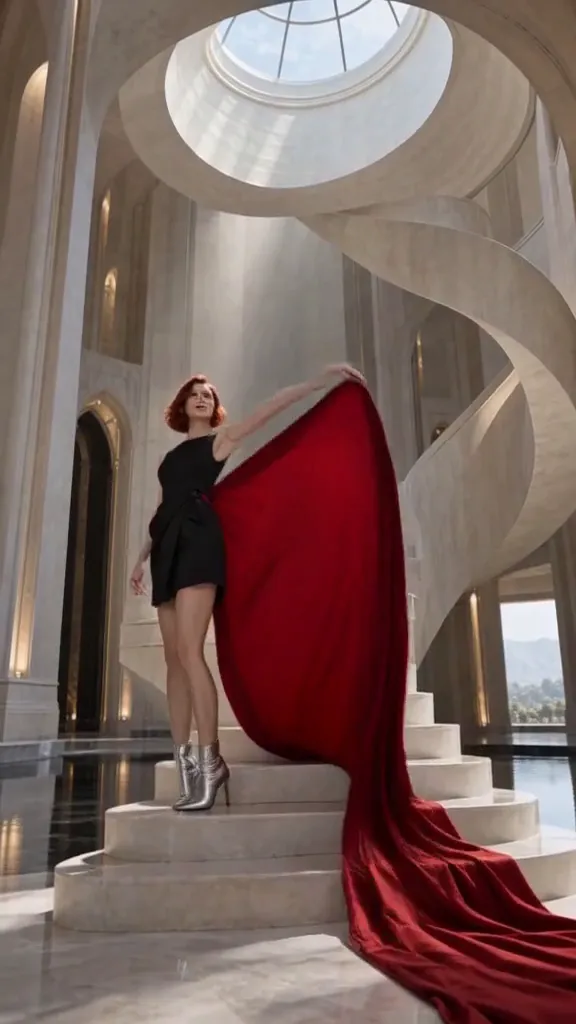
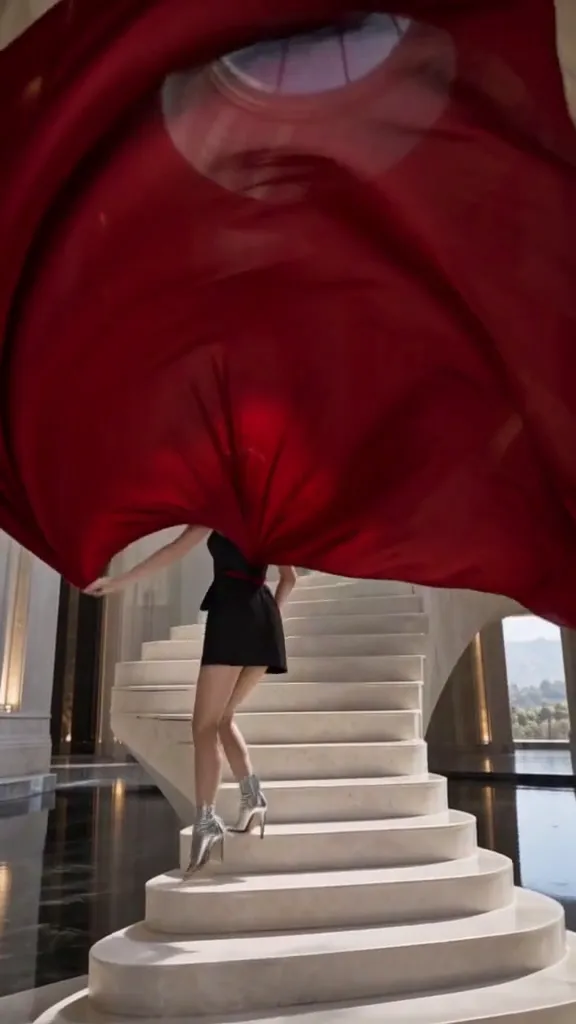
Give fabric one connected motion from the first moment to the last. Direct the subject, costume and camera together so the shot has a clear beginning and end.
Reference images
Reference images 1
Shot direction

A woman in a crimson dress climbs a sculptural staircase. Her attached silk train rises into a large curve before passing across the view. Keep the same costume and a readable full-body composition.
Moving result 00:00
00:00
Moving result 00:01
00:01
Moving result 00:02
00:02
Plan a readable start and finish
Moving result

Make each reference
Do a clear job

Identify what each supported reference should guide, then direct one scene. For an edited sequence, plan the next scene separately and check the shared subject details between the selected clips.

Upload references into the actual slots shown by the model. Use applies text only; reference count and supported roles vary by model.
References for
A focused scene

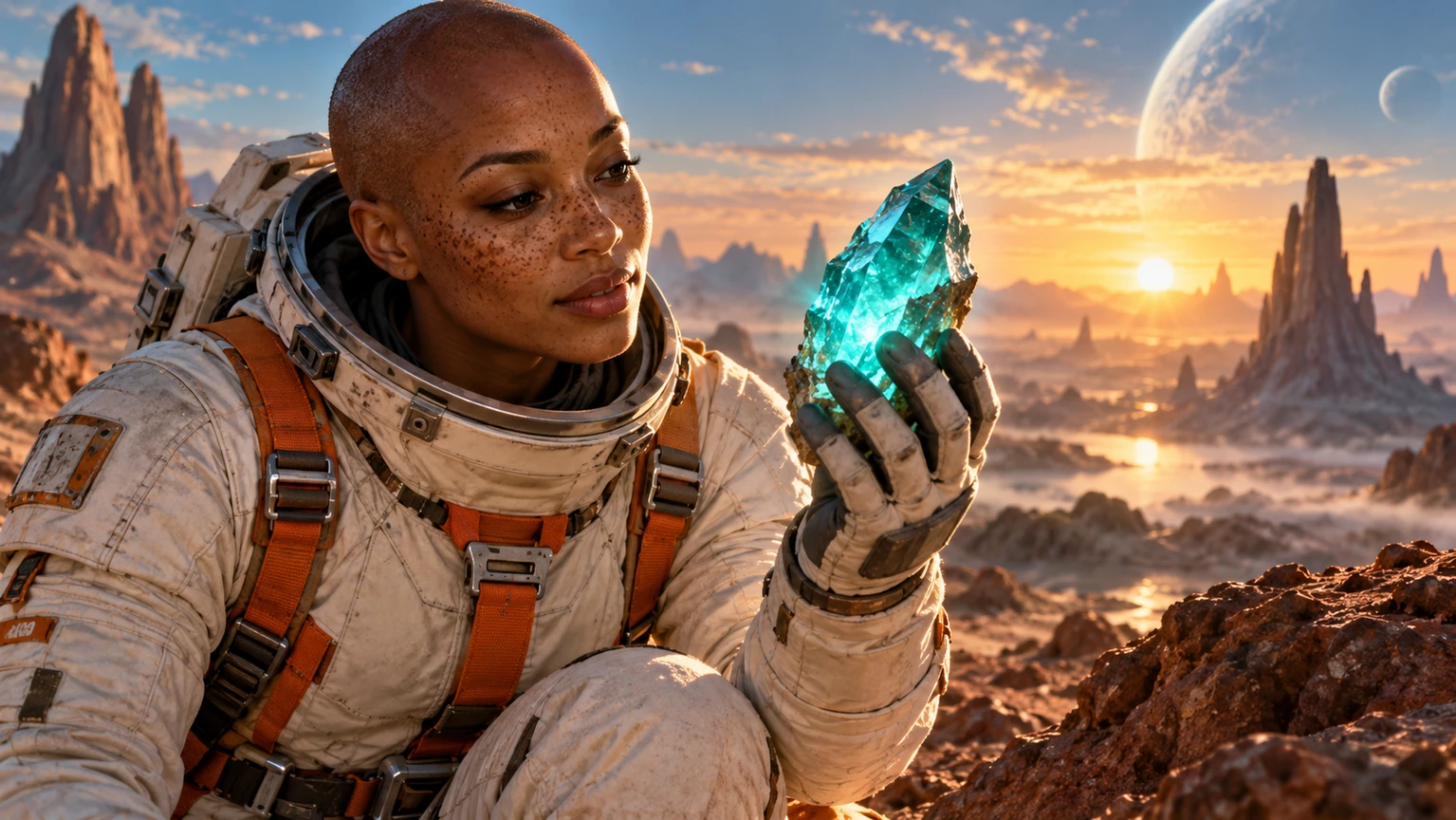
Character direction

Character direction

Establish the costume and subject before planning an astronaut’s discovery in a crystal landscape.
Product direction

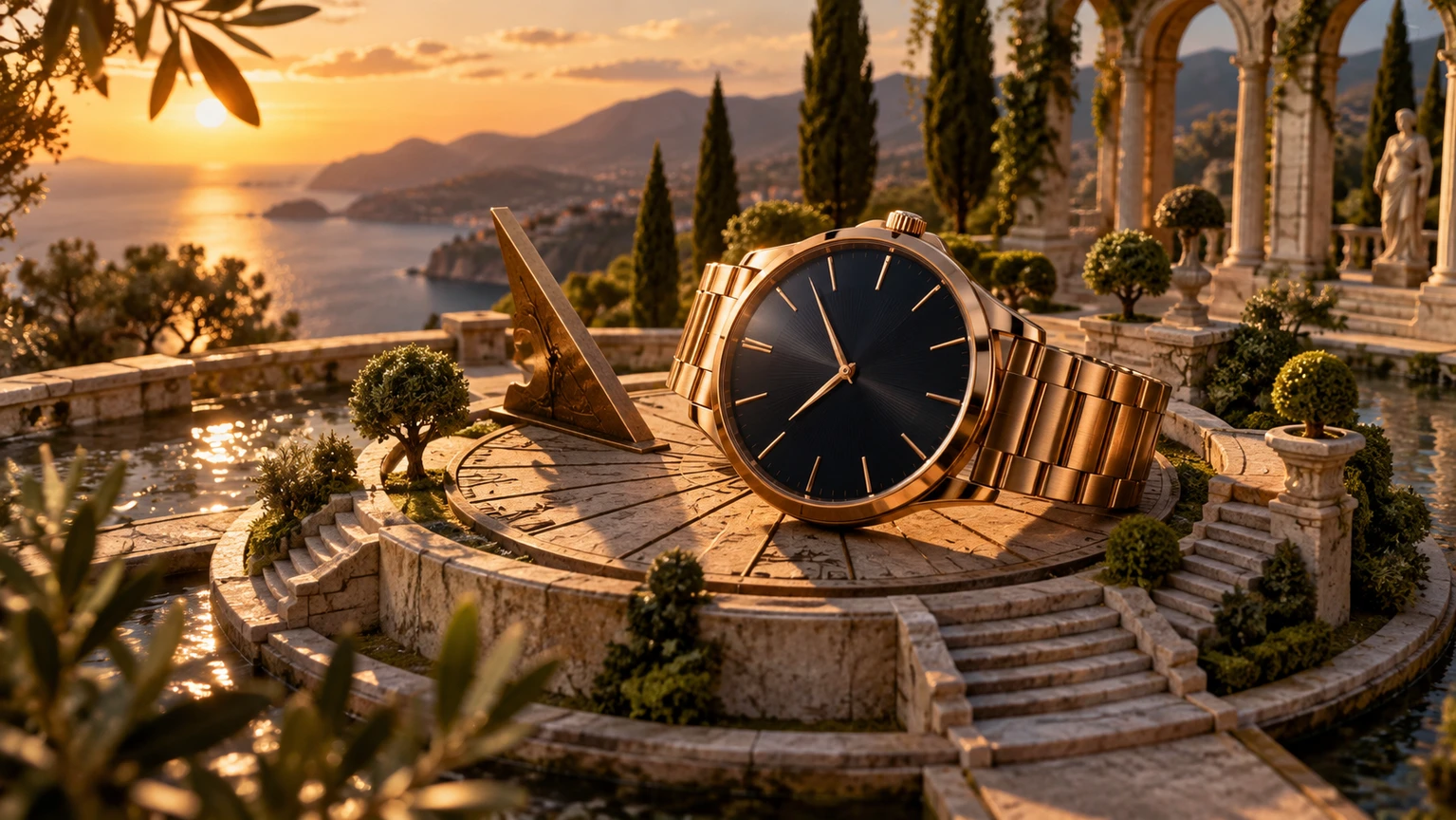
Product direction

Use a clear product reference to establish the visual details you want to guide.

Character animation

Character animation

Develop the costume, silhouette and action with compatible visual references.
Social scenes

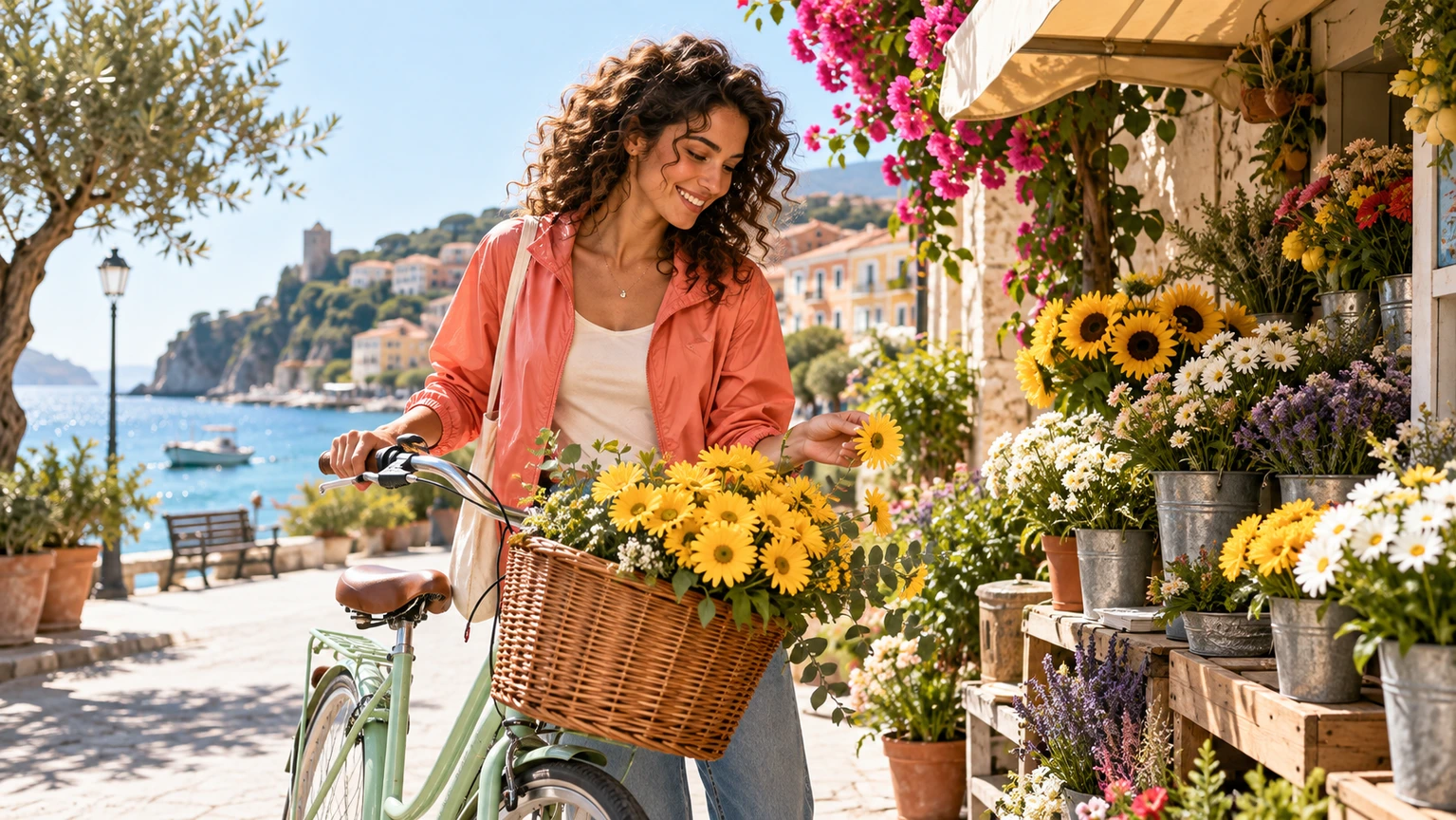
Social scenes

Plan a focused visual idea with a readable subject and an immediate event.

Organize the references
Then direct the scene

  1. 01

    Choose compatible images

    Pick clear references for the subject and setting. Avoid conflicting designs when you want the scene to hold a recognizable visual direction.

  2. 02

    Check the model’s input roles

    Select reference mode, then use the number and type of images accepted by that model. A reference is not always treated as an opening frame.

  3. 03

    Describe the action and review

    Write what should happen around the visual anchors. Check the result for identity, shape and continuity, then refine the reference or motion request.

Visual guidance depends on the model

  • Reference count, image roles and how strongly references guide the scene vary by model.
  • Multiple images do not guarantee exact character identity, product shape or frame-by-frame continuity.
  • A style-changing sequence is a creative direction; plan separate shots and editing when precise transitions are important.

Choose a reference-capable model

Reference roles and image limits depend on the selected model. Check the available image slots before preparing your request.

Choose a model

Take your idea
To its next step

Move between the available image and video tools as your project develops.

Text to Image

Describe an image and choose its format.

Image to Image

Give an existing image a new visual direction.

Image to Prompt

Turn visible image details into a starting prompt.

PNG Maker

Create an image with a transparent background.

Plans for your next creation

Use your plan credits for images and videos. Review the selected tool, settings and credit quote before each generation.

Starter

$9.99/ month

800 credits / month

Credits renew monthly and expire at the end of the billing period.

View plan

Creator

$24.99/ month

2,500 credits / month

Credits renew monthly and expire at the end of the billing period.

View plan

Pro

$59.99/ month

6,200 credits / month

Credits renew monthly and expire at the end of the billing period.

View plan
See all plans and credit packs

Reference to video FAQs

Image-to-video usually starts from one defined frame. Reference mode uses the visual inputs supported by the chosen model to guide a subject, scene or other available role. Check the model’s specific input rules.

The limit is model-specific. Use the image slots shown in the generator; do not assume every model accepts the same number or the same combination of reference roles.

Use consistent references when you want one subject to remain recognizable. Different angles can help describe a design, while conflicting outfits, shapes or identities may make the direction ambiguous.

Visual references guide appearance but cannot guarantee exact identity through every movement or style change. Keep the shot controlled and review faces, clothing, hands and small details.

Use a model whose available reference roles support that approach. State which image describes the subject and which describes the setting, then give them a compatible camera view and action.

Plan a short sequence of shots with shared visual anchors. Keep the subject references organized and review continuity between the selected outputs before editing them together.

Choose the right visual starting point

AI Video Generator

Compare ways to start a video.

Text to Video

Start from a scene description.

Image to Video

Animate one defined opening frame.

AI Image Generator

Explore images for your visual direction.

Guides for your next creation

Prepare an image and describe motion

↗

Plan a video from a product photo

↗

Write a clear image prompt

↗

A clear reference
Gives the scene direction

Choose compatible images, check their supported roles and describe the movement you want to explore.

Start creating

AI Image

  • AI Image Generator
  • Image to Image AI
  • AI Photo Editor
  • Watermark Remover
  • Magic Eraser
  • Image Upscaler
  • Background Remover
  • Face Swap Photo
  • Chat to Image

AI Video

  • AI Video
  • Text to Video
  • Image to Video
  • Reference to Video

AI Video Effects

  • AI Video Effects
  • AI Kiss Video Generator
  • AI Hug Video Generator
  • City flight
  • Everything blooms
  • Giant pet
  • Step out of the frame
  • Petal drift
  • Doodle to life
  • City folding
  • Vanish
  • Street Colossus
  • High Flip
  • Thunder Strike
  • Portal Reveal
  • Energy Wings
  • AI Twerk Video Generator
  • Bigfoot Video Generator

Product

  • Jynno
  • All AI Tools
  • Agent
  • Pricing

Resources

  • Creative guides
  • Privacy Policy
  • Terms of Service
© 2026 Jynno. All rights reserved.