• Workspace
Creation
  • AI Video
  • AI Image
Features
  • AI Video Effects
  • Text to Video
  • Image to Video
  • Reference to Video
  • AI Video Editor
  • Mimic Motion
  • Video to Video AI
  • Video Upscaler
  • Face Swap Video
  • Video Background Remover
  • AI Video Extender
  • Text to Image
  • Image to Image
  • Image to Prompt
  • PNG Maker
  • Pricing
Jynno

Image to Video AI

Start with a photo, product shot or illustration. Describe the movement that should follow from the frame you already have.

Explore image-to-video examples

Guide the transition with a start and end image

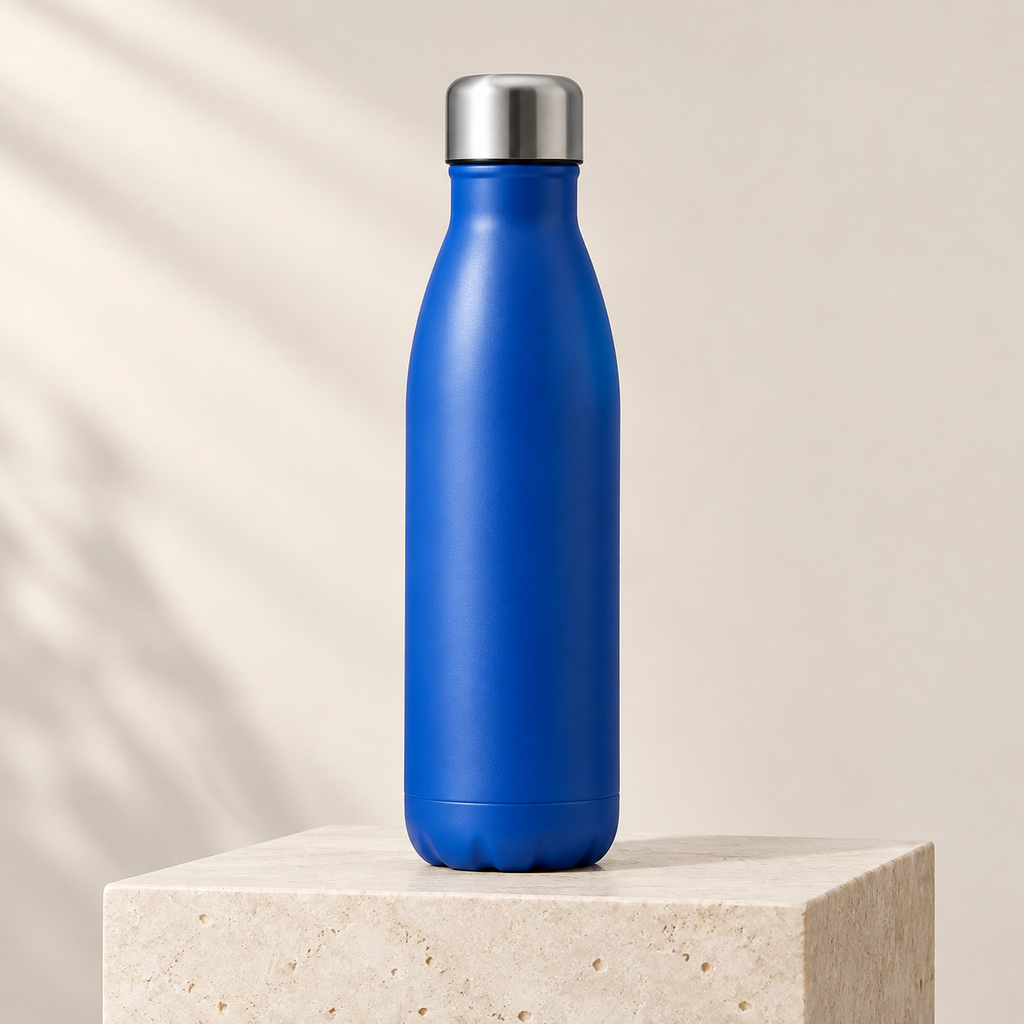
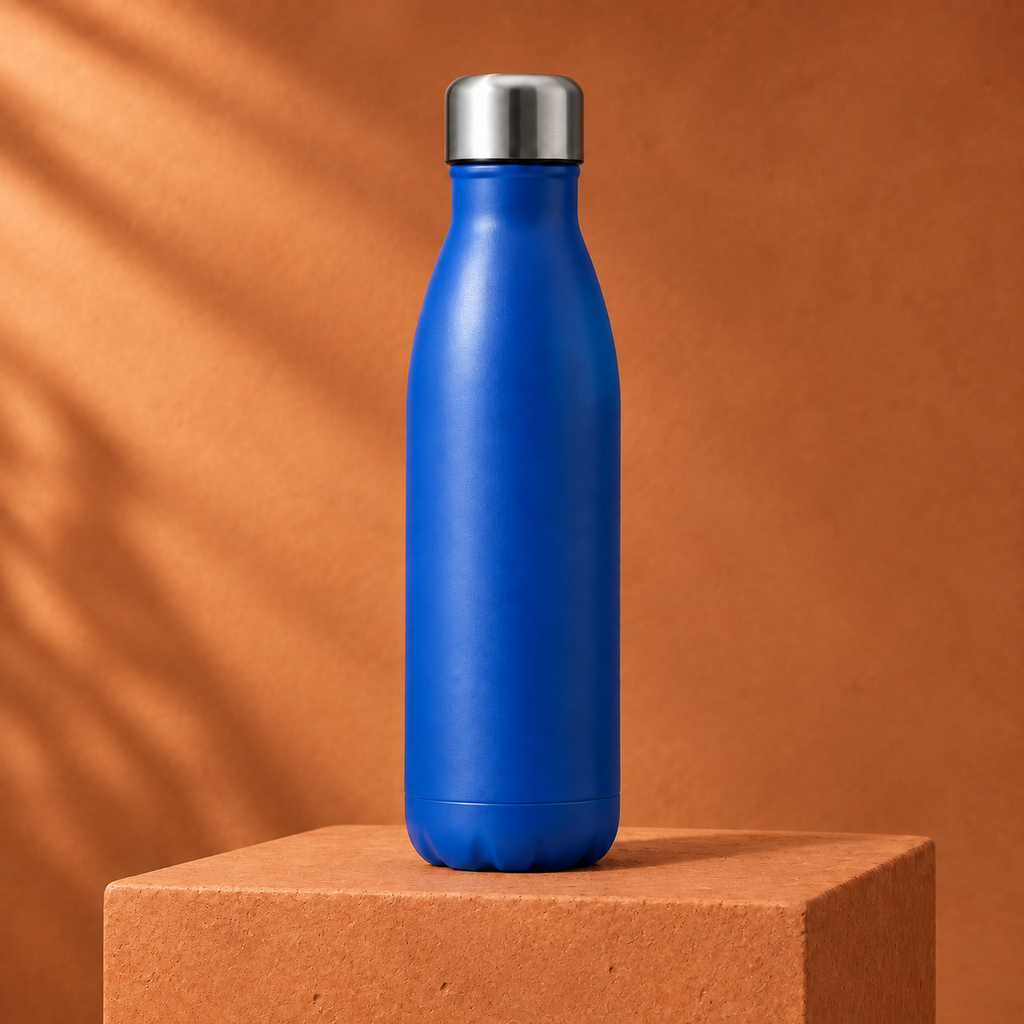
The cream and orange images define the opening and ending. The bottle stays centered while the background warms between them. Choose a model that supports both frame roles, then describe how the scene should change.

Blue bottle and silver cap on a pale cream pedestal
Start Frame
The same blue bottle and silver cap on a warm orange pedestal
End Frame
Moving result
Moving result
All AI Tools

Photo to video for portraits, products and artwork

Image to video AI uses a still image as the starting visual for a moving shot. A clear subject and room for the planned motion help you turn a photo into a readable clip.

Prepare the picture before animating it

Fix the crop, background or visual direction in image to image first. Keep the motion prompt focused on what happens after the opening frame.


Plan a product video with several shots

Use the product ad workflow when you need a brief and shot plan around a product. Keep product references ready and review each selected result.

Turn a product photo into a better video brief
Text to VideoDescribe the subject, action and camera for a new scene.Image to VideoUpload an opening image and describe what should happen next.Reference to VideoUse compatible reference images to guide the subject or scene.

An image is
Only the beginning

Move a character, animate a product or let a crafted object change. Give the motion a clear relationship to the starting image.
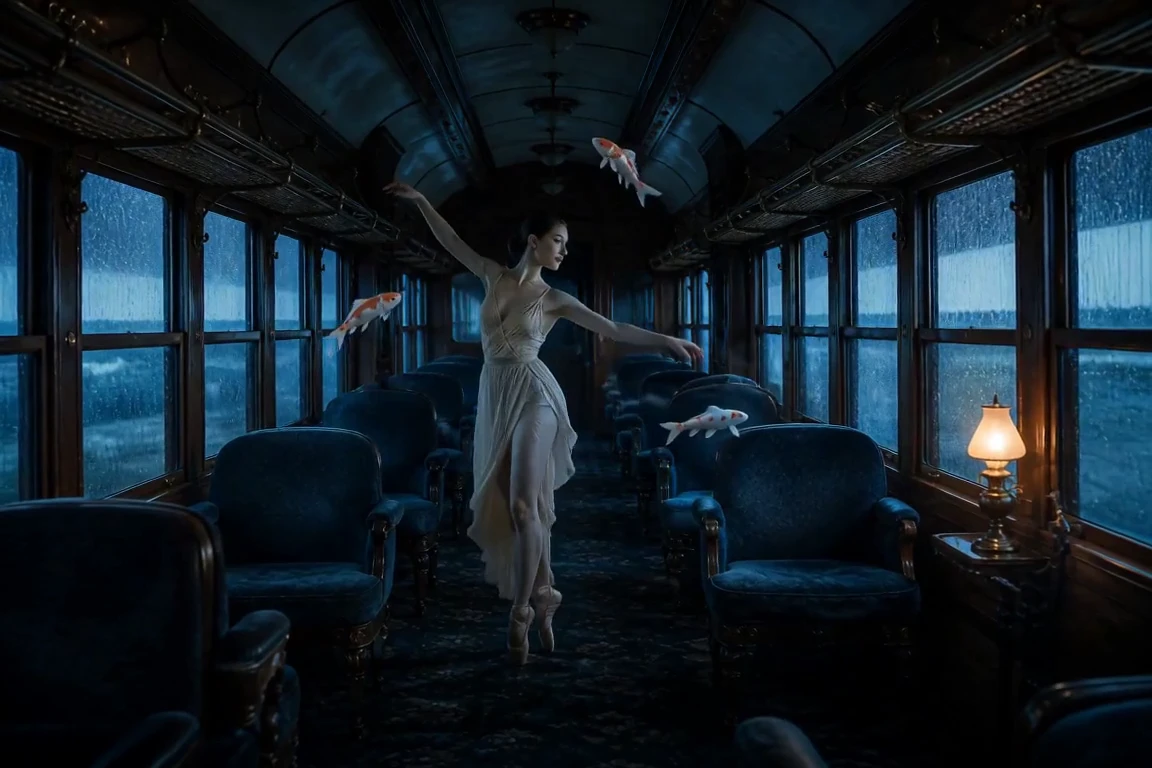
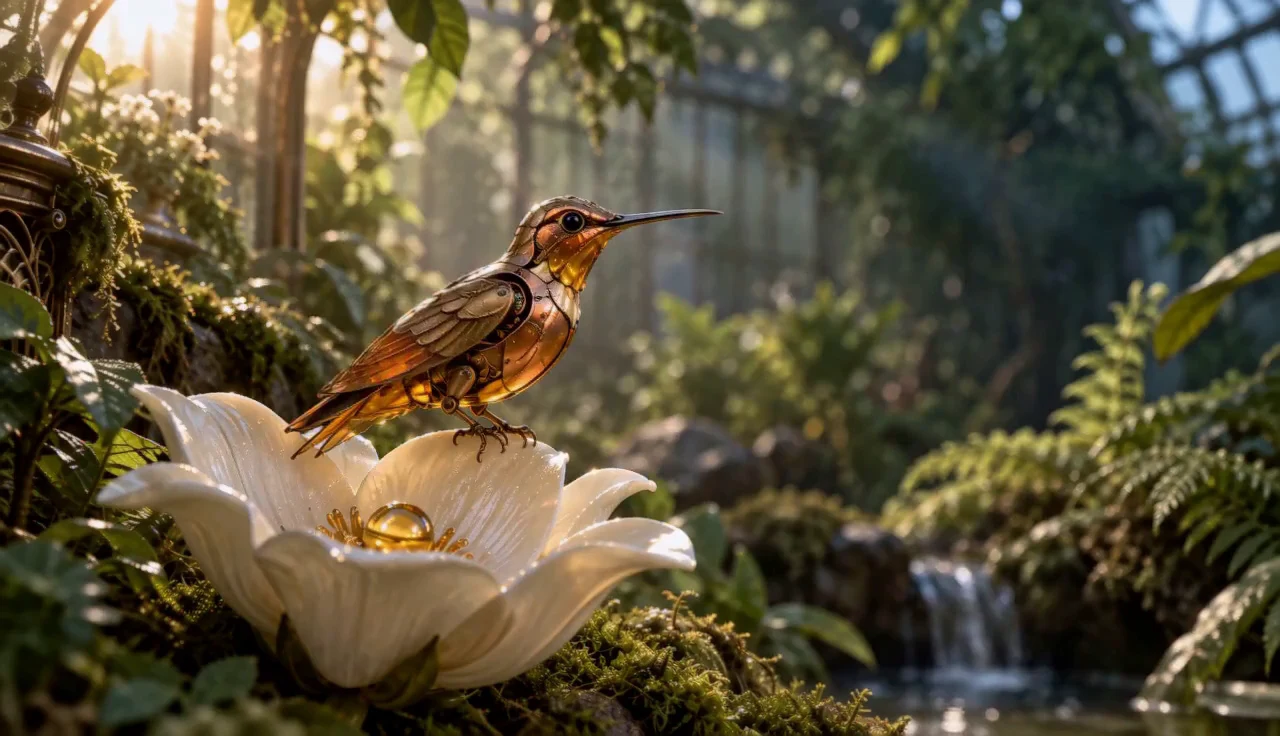
A porcelain train carries a moving koi world
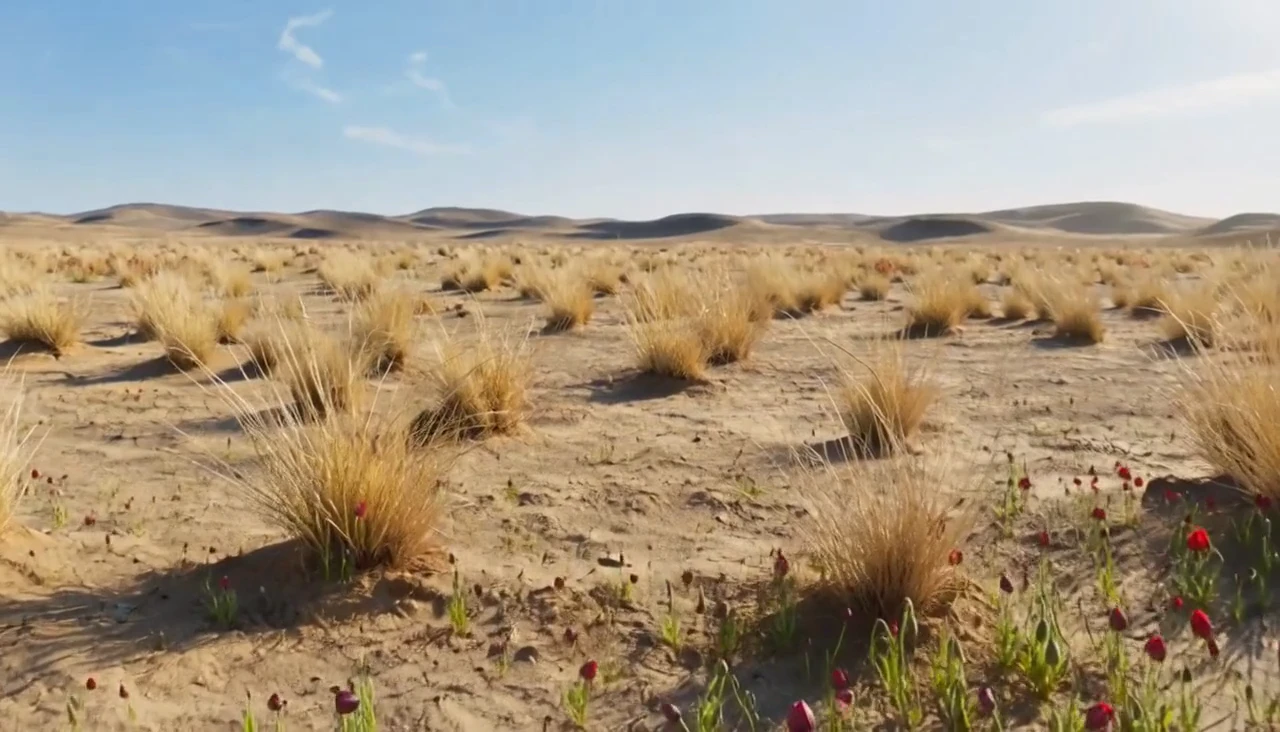
A desert opens into a field of flowers
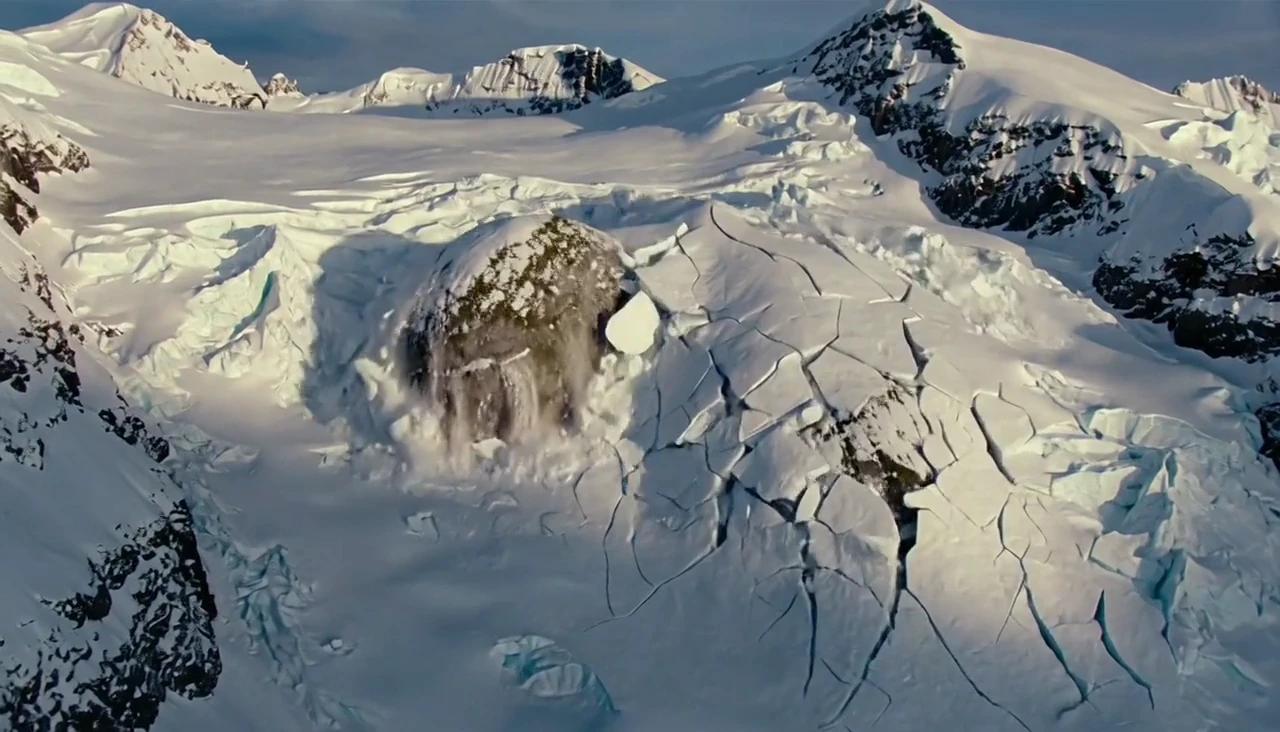
A giant rises among ice and mountains
A porcelain train carries a moving koi world
A desert opens into a field of flowers

Your image is the start
The action comes next

Let your opening image lead

Start with an image whose subject and composition are clear. Describe how the object should move while the camera keeps the opening design easy to recognize.
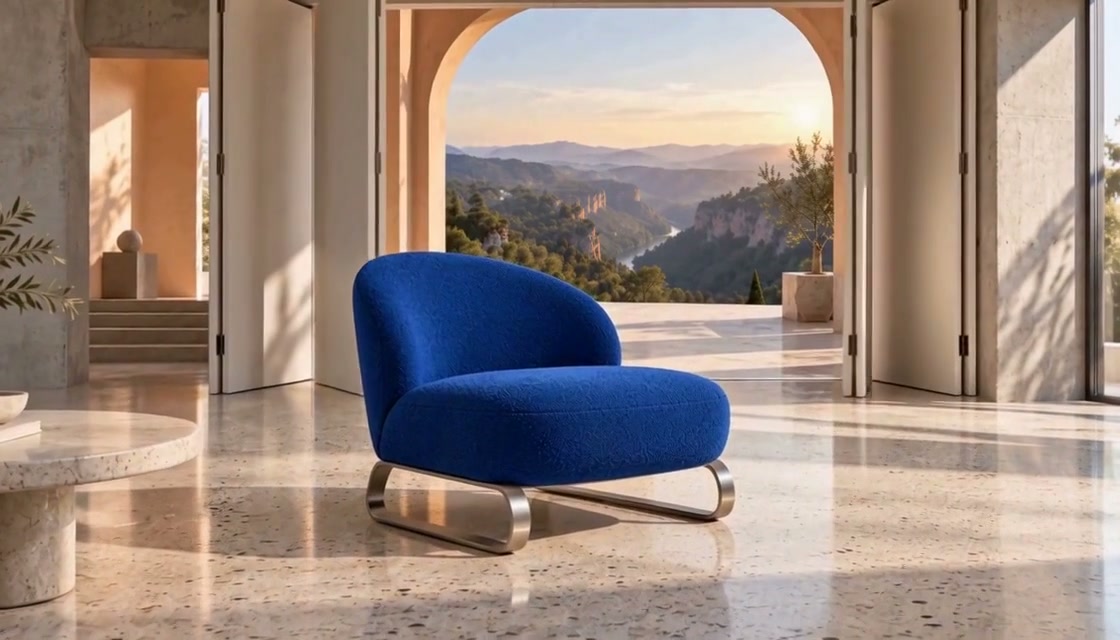
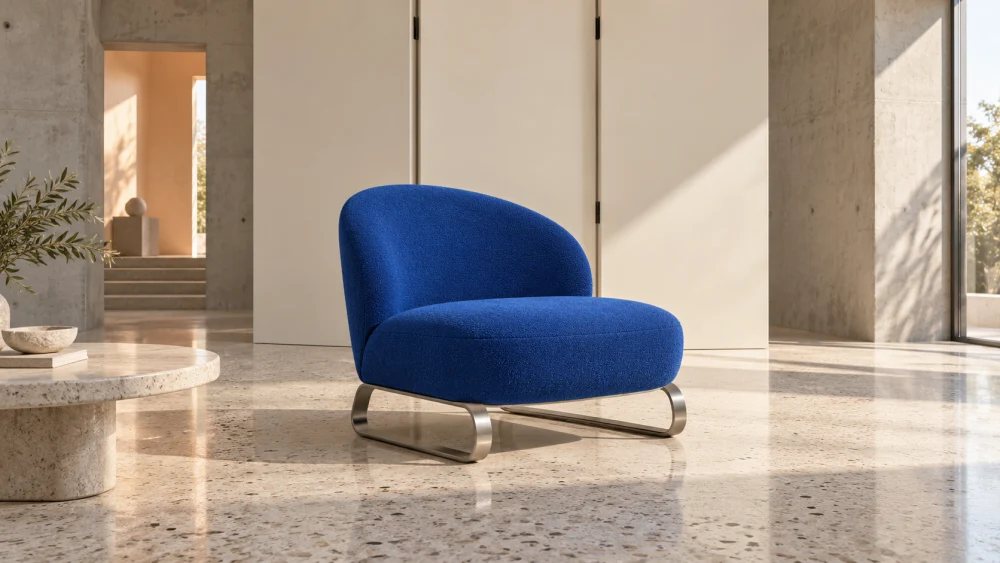
Let your opening image lead
Starting image
Starting image
Moving result

Turn one pose into a performance

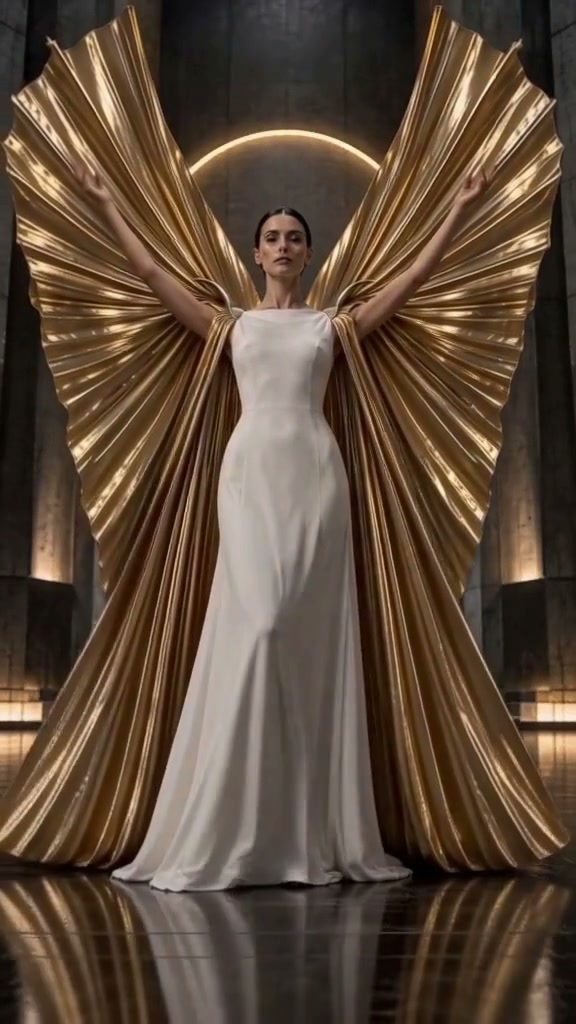
A still pose becomes a sequence through a specific action. Direct the dancer and the attached ribbon together, with room for the motion to unfold.
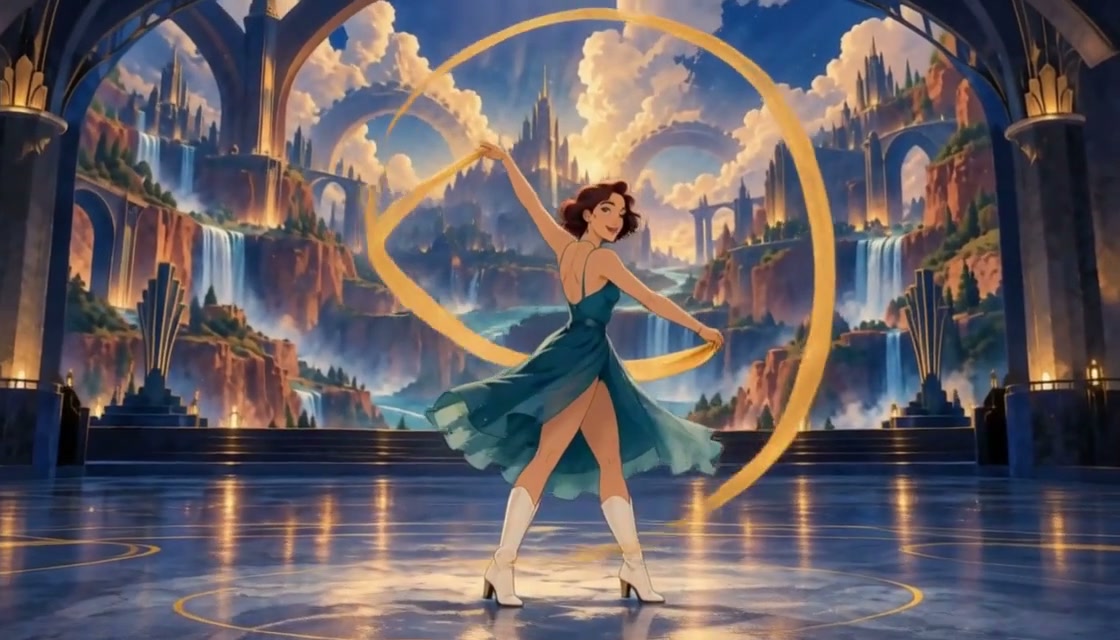
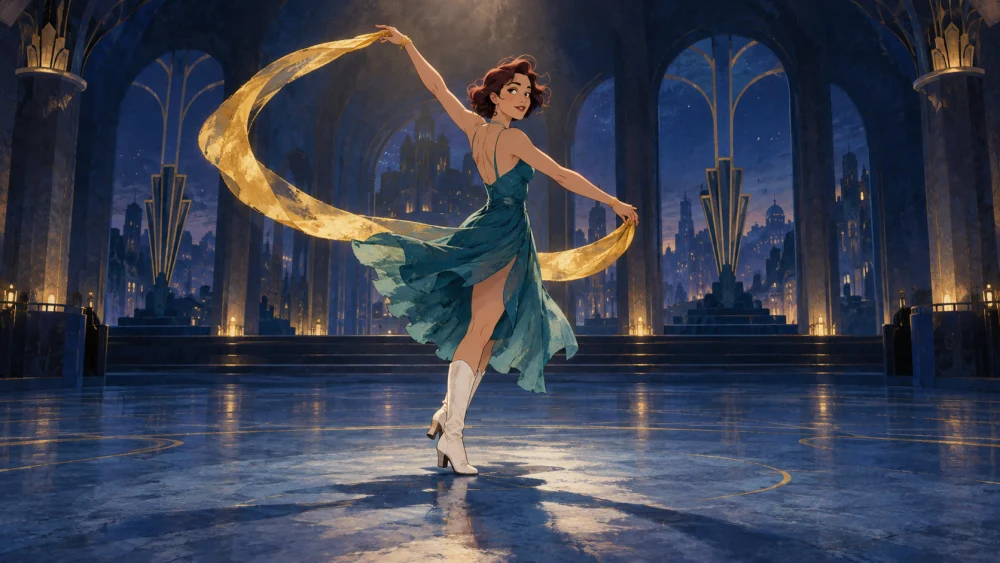
Turn one pose into a performance
Starting image
Starting image
Moving result

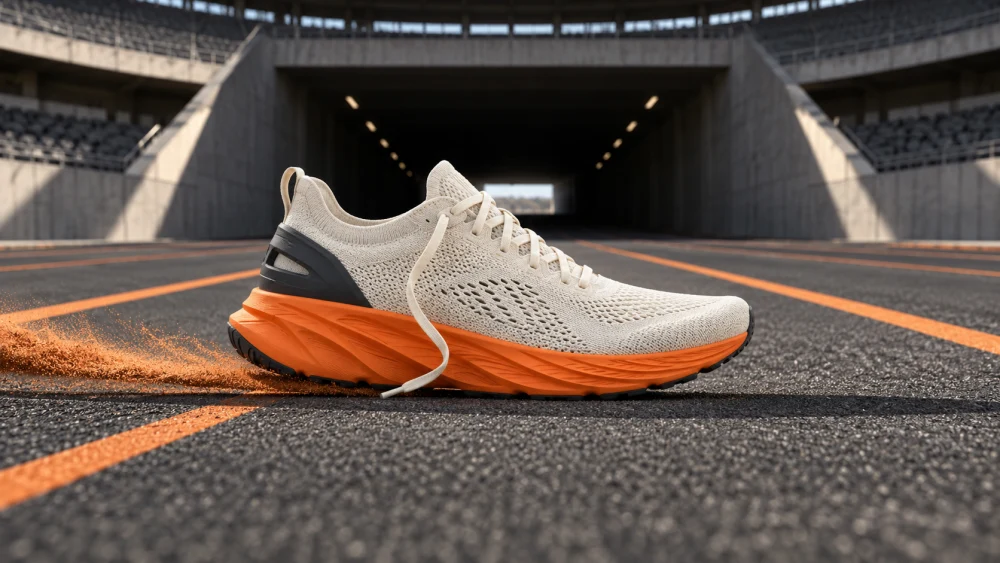
Give products a visual event

Choose a movement that fits the product. Describe the shoe lifting, the surrounding material reacting and the final view where its shape is still readable.
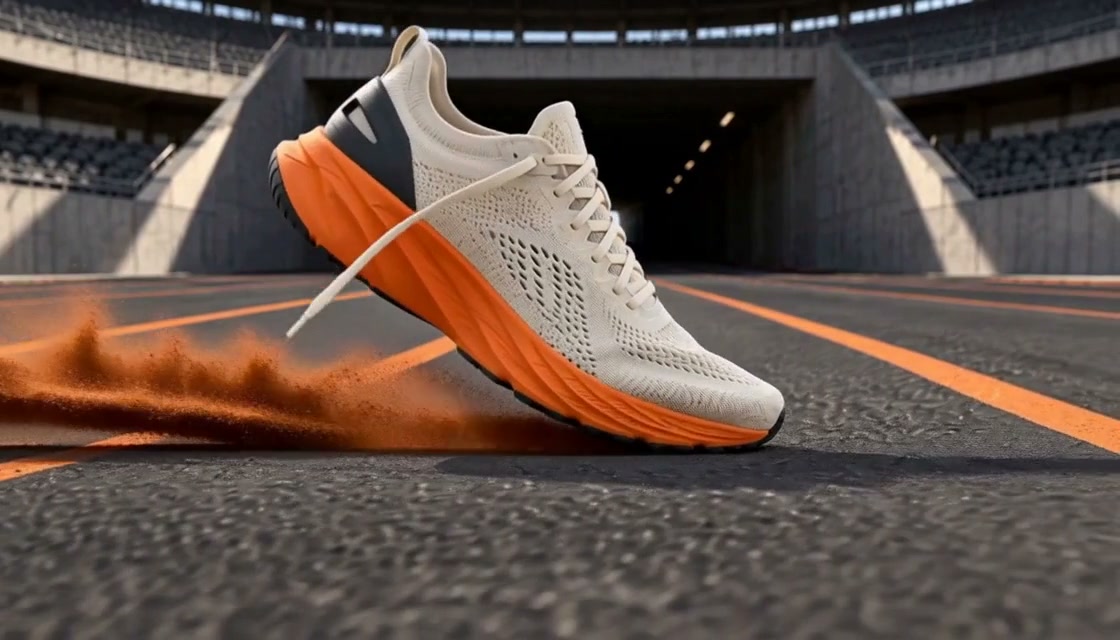
Give products a visual event
Starting image
Starting image
Moving result

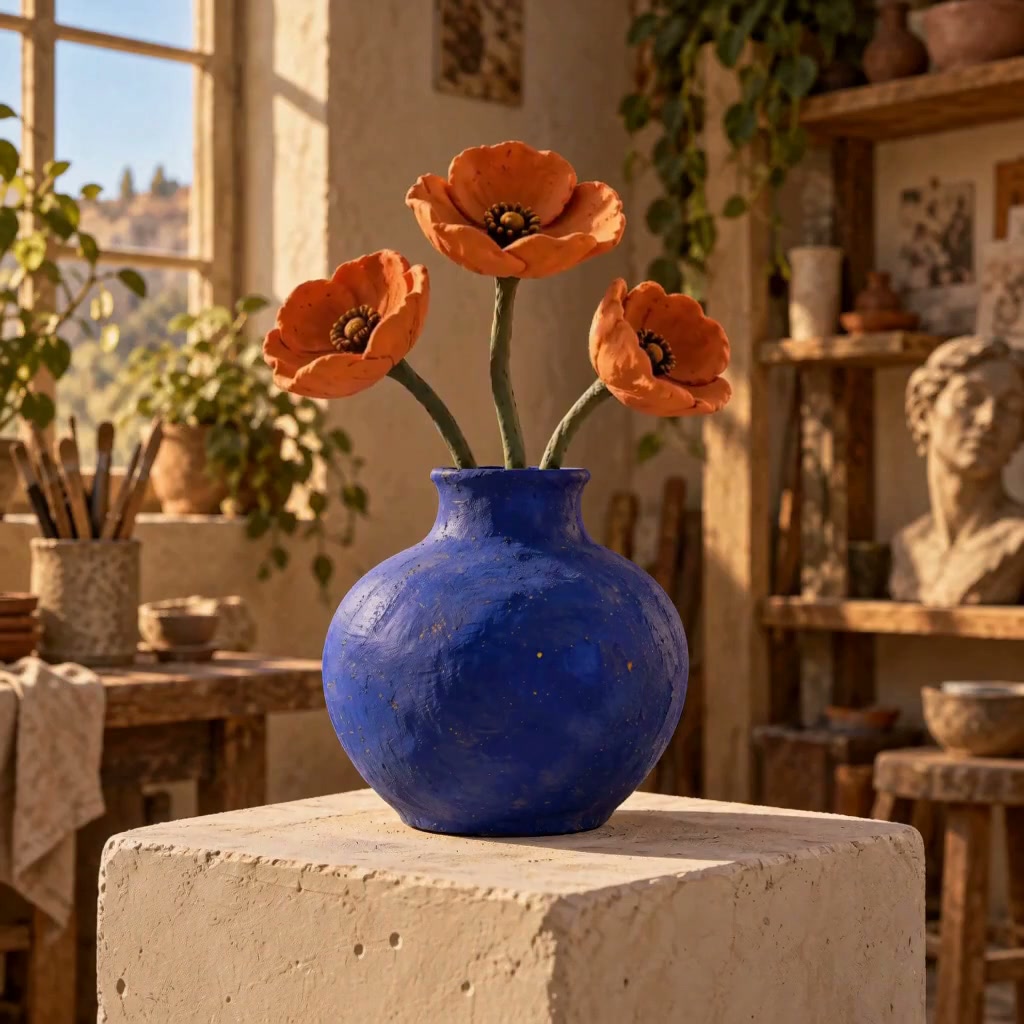
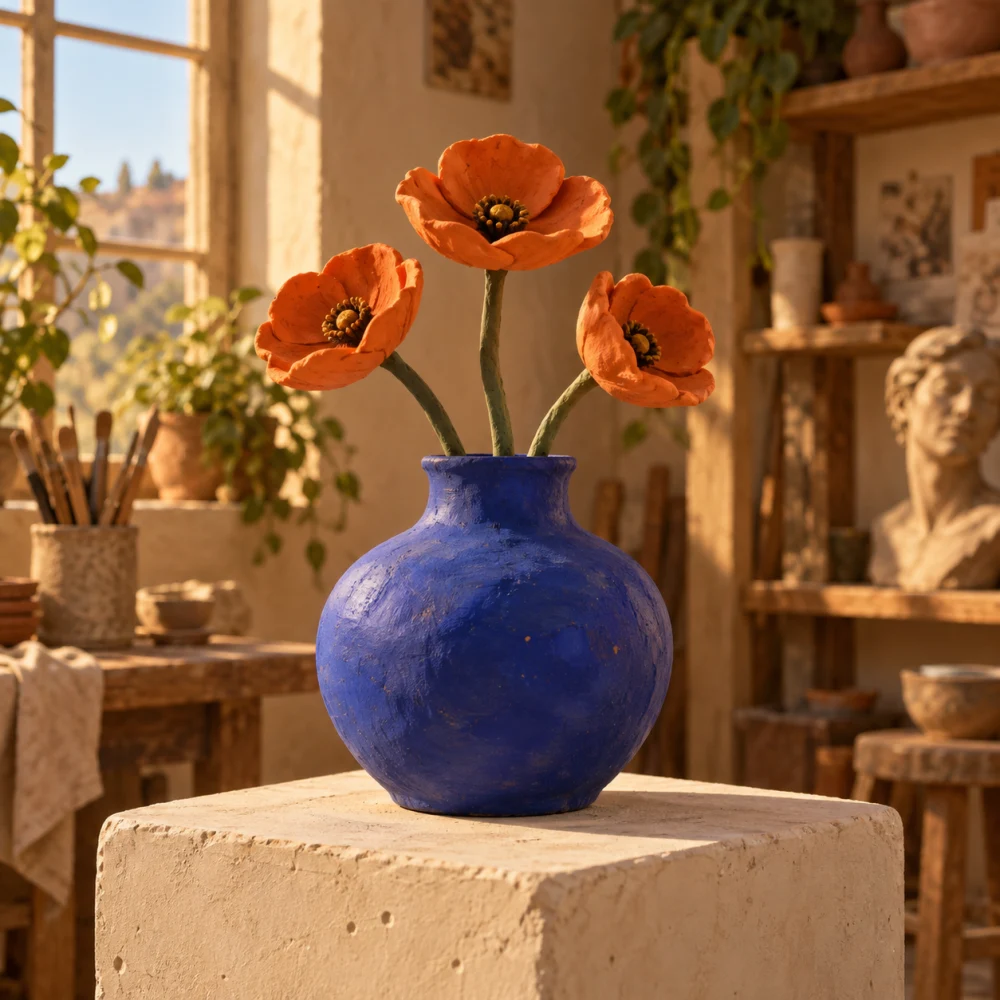
Animate material, shape and color

The starting image can establish the object’s form. Ask for one transformation and check how its color, surface and silhouette develop through the clip.
Animate material, shape and color
Starting image
Starting image
Moving result

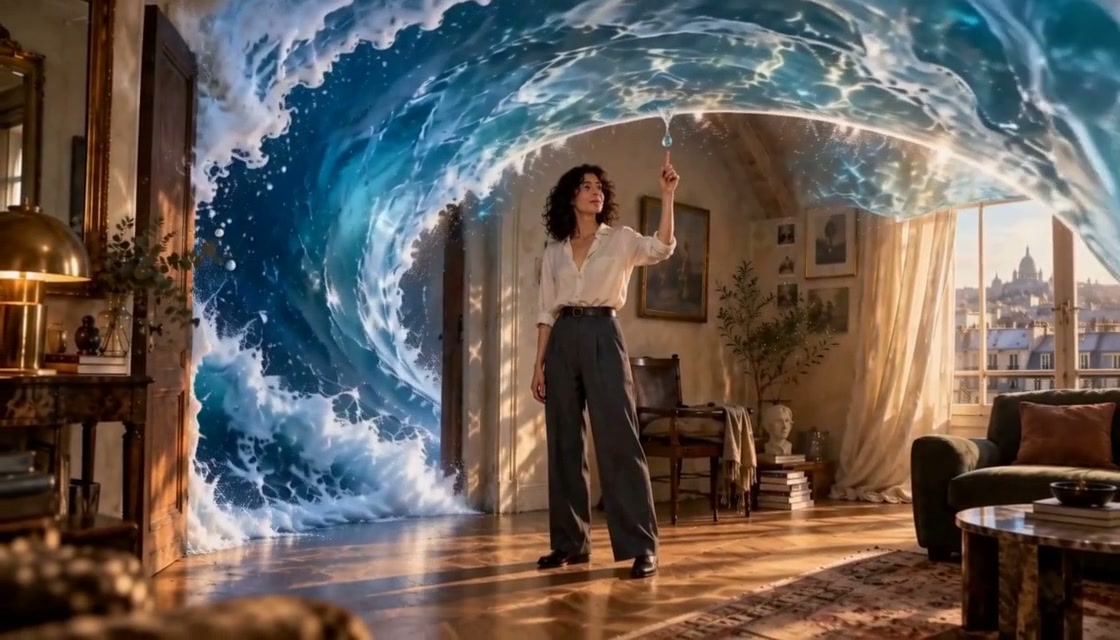
Extend the scene beyond its first frame

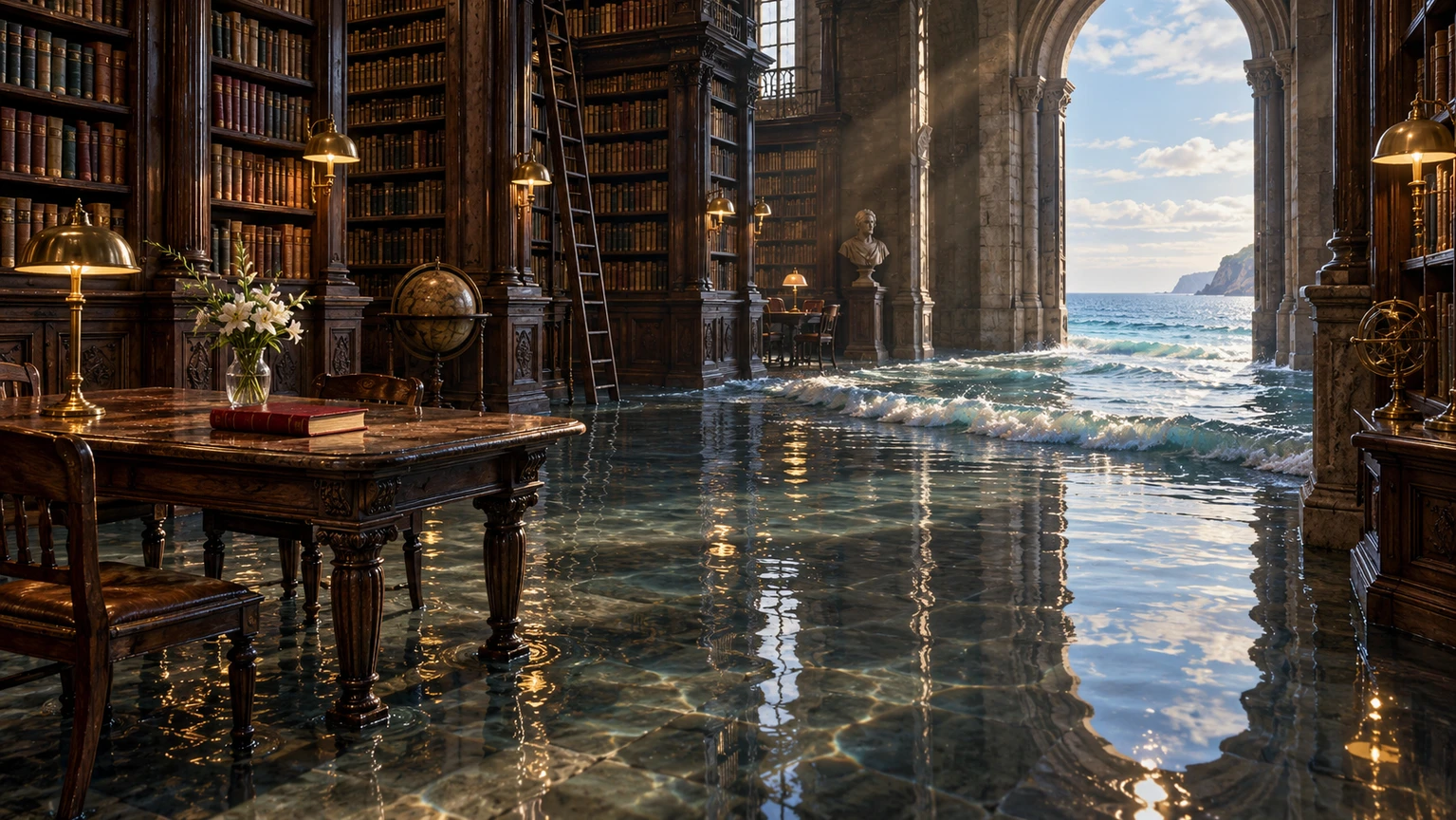
Describe an event that belongs in the setting. A wave entering a calm room adds motion while the original furniture and viewpoint keep the scene grounded.
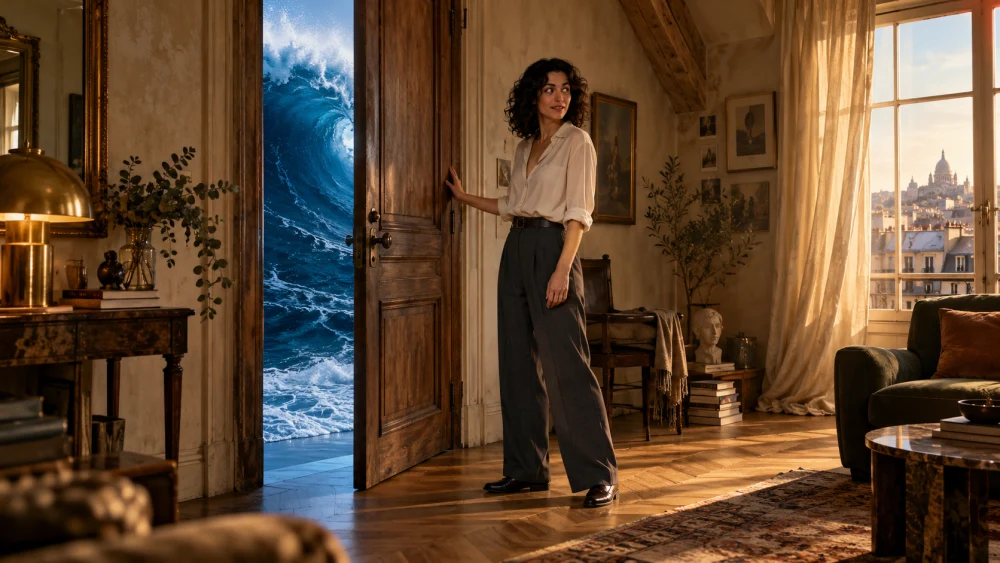
Extend the scene beyond its first frame
Starting image
Starting image
Moving result

Keep motion inside your composition

Choose an action that fits the framing. A dancer and her reflection need clear space, a readable silhouette and one connected movement.
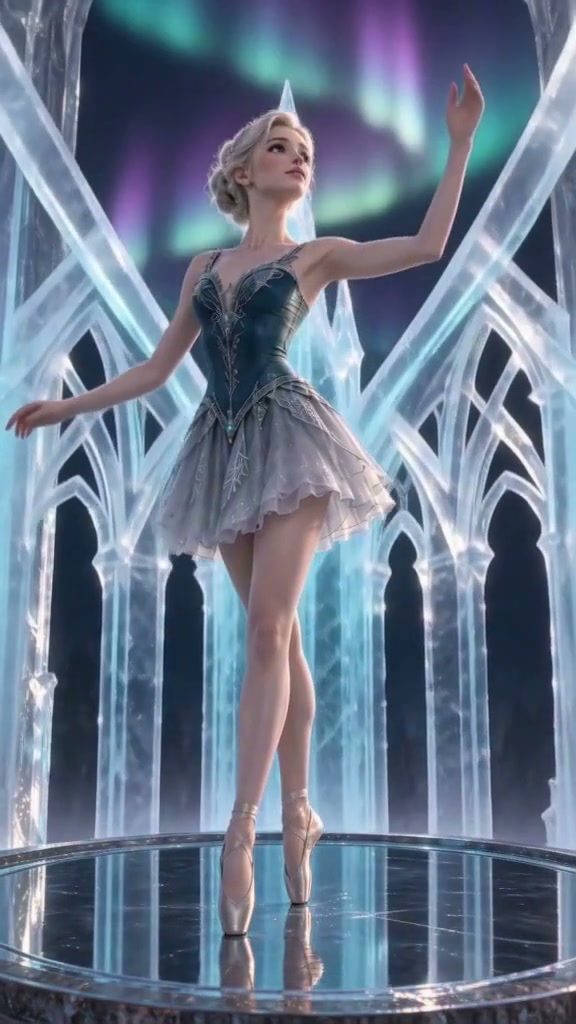
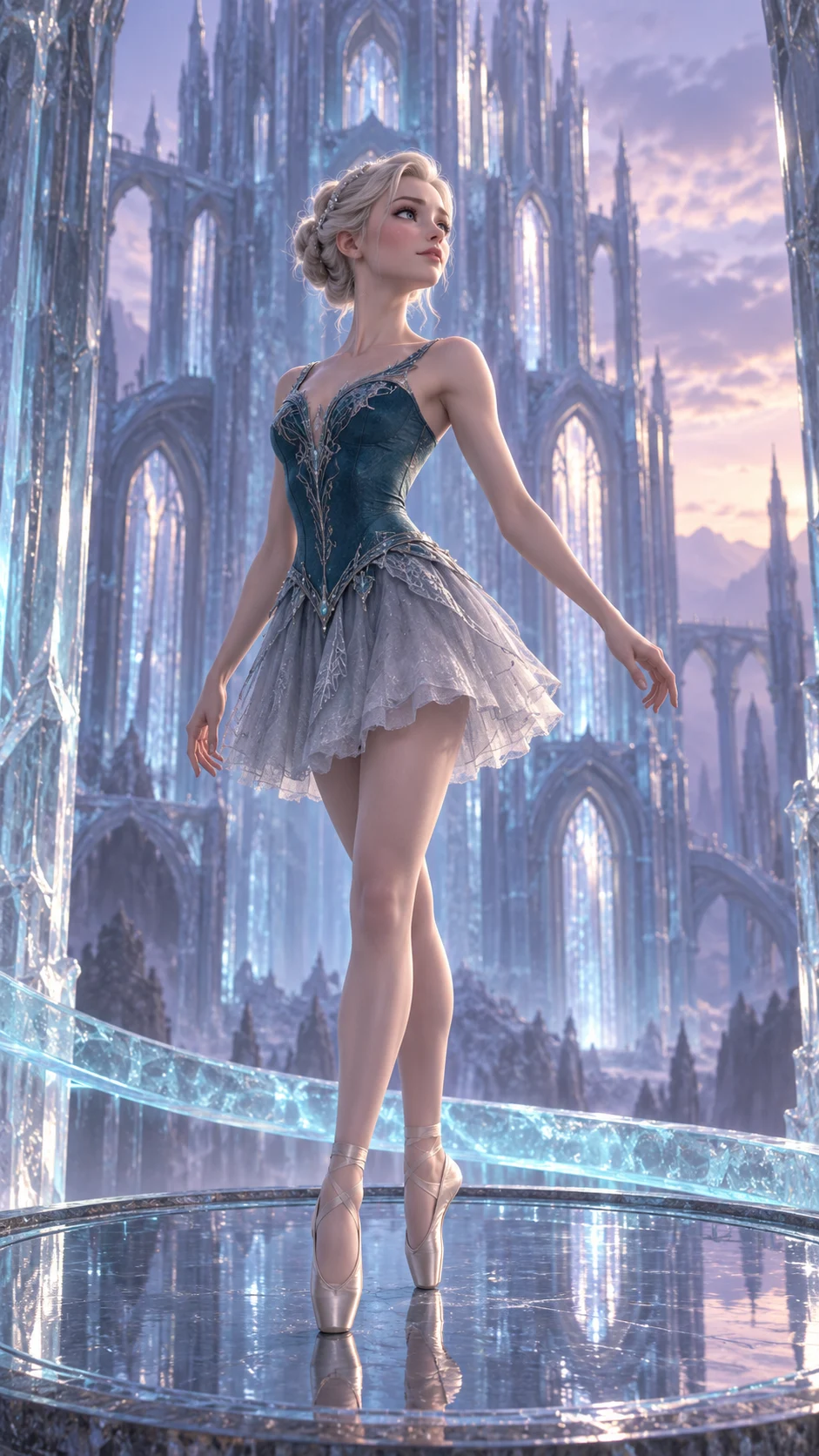
Keep motion inside your composition
Starting image
Starting image
Moving result

Let the image
Carry the appearance

The image establishes composition and appearance. Use these fields to direct movement and the important details to retain. A smaller camera move exposes fewer surfaces that the still image cannot show.

Upload your starting image in the generator. Use fills in this motion text only; review shape and fine details through the resulting clip.

Find a video model
For your next shot

Choose from the video models available in the generator. Input modes, duration and output settings vary by model.
Choose a model

Find the motion
Inside the image

Everyday spaces, unexpected motion

Everyday spaces, unexpected motion

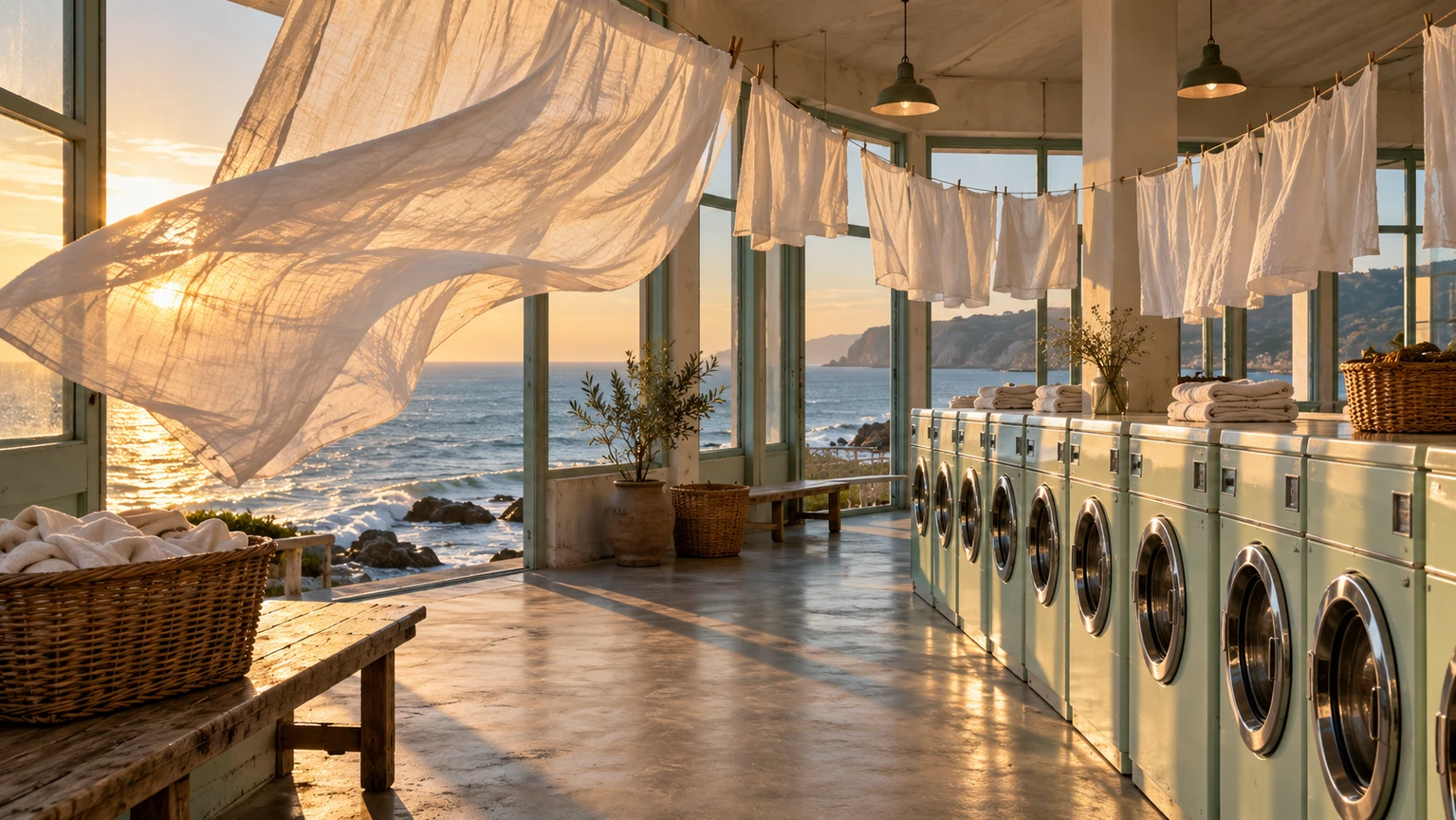
Build a scene around one surprising event: billowing sailcloth fills a laundromat while the room remains readable.
Atmosphere with a clear event

Atmosphere with a clear event

Give an imagined place a change the viewer can follow, such as water entering a library between the shelves.

Product images

Product images

Develop motion around an object with a clear shape and material.
Nature in motion

Nature in motion

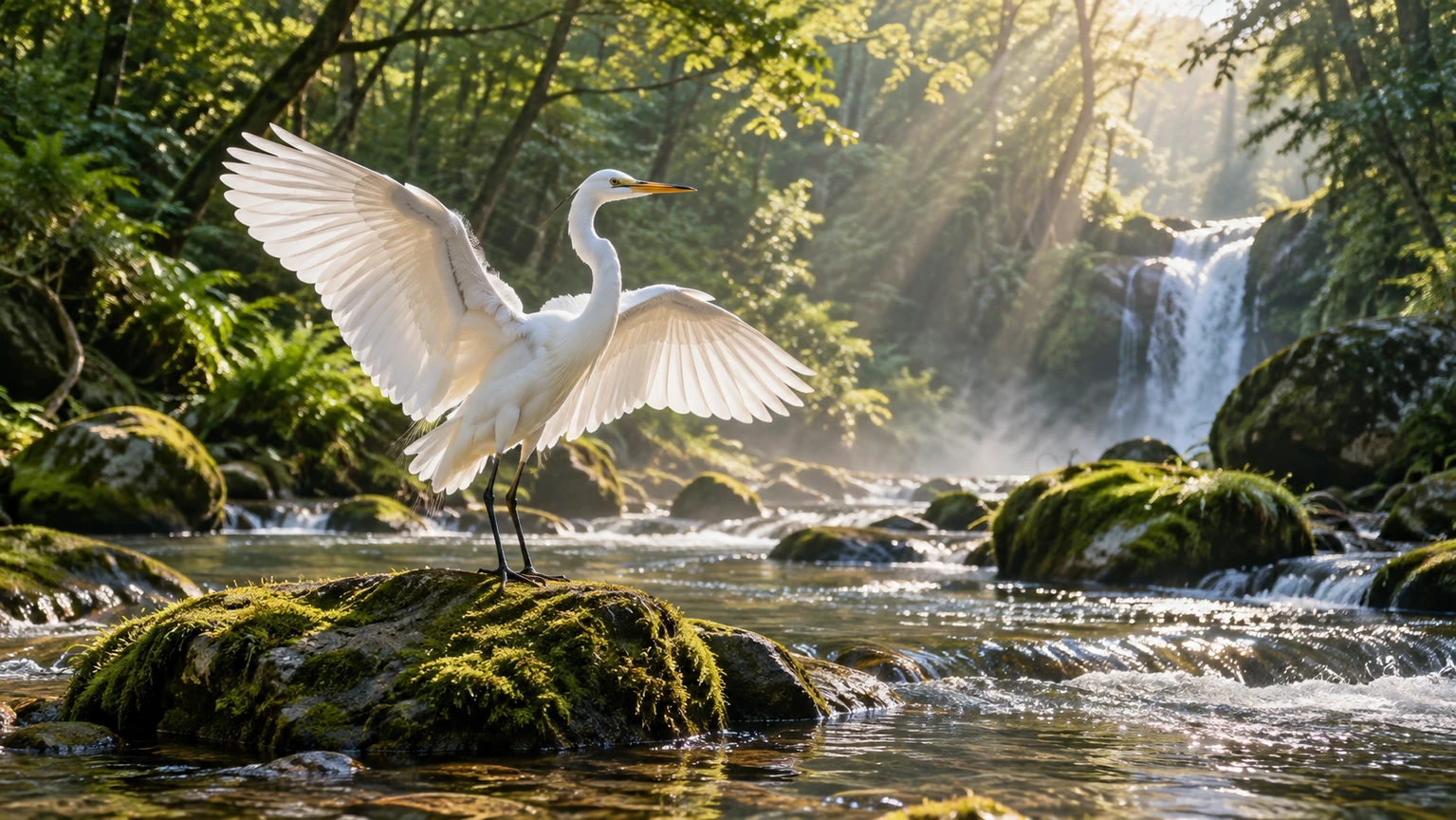
Start with a clear landscape and direct one natural action, such as a heron lifting from the river.
Fashion and movement

Fashion and movement

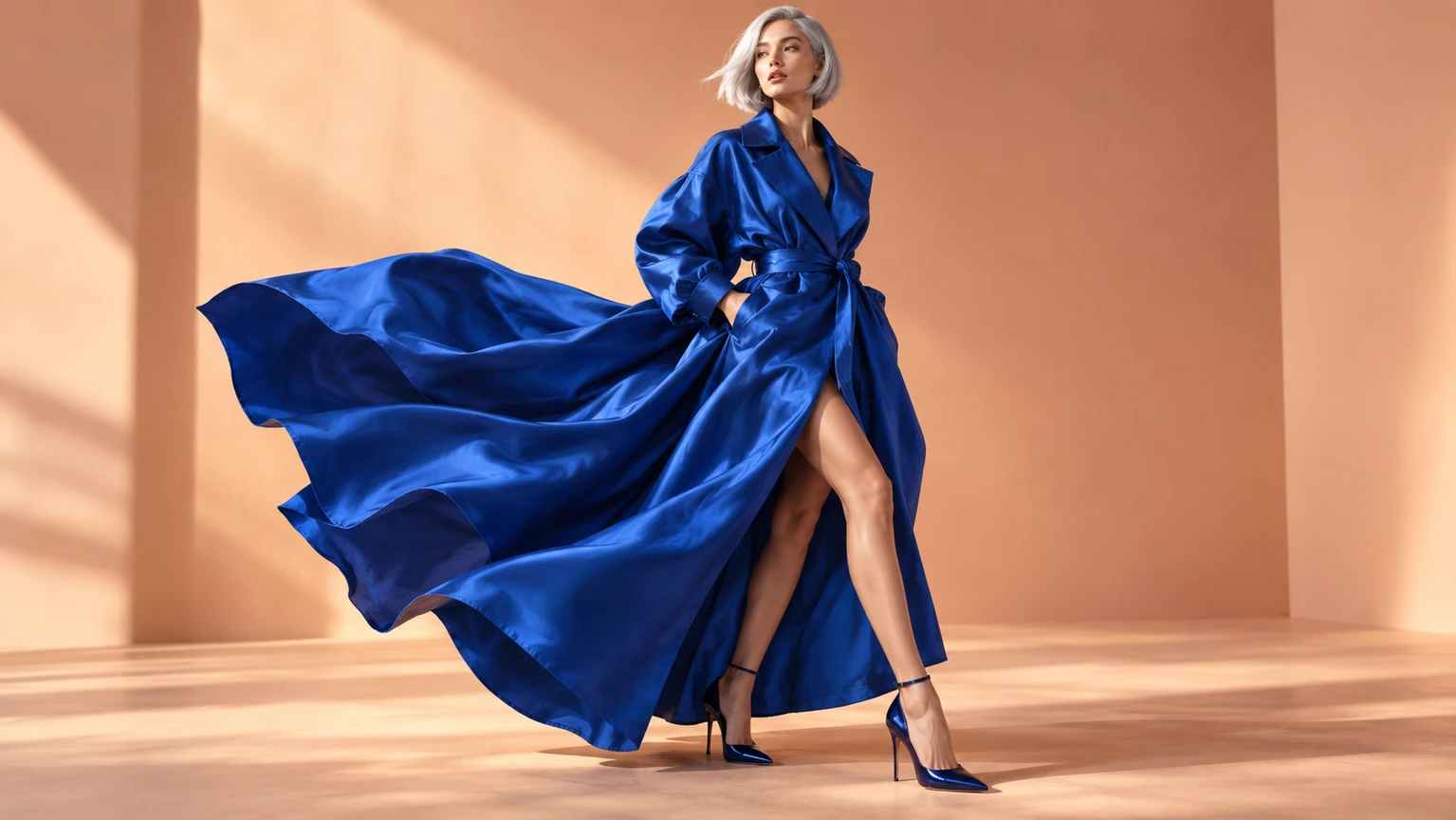
Let a portrait establish the outfit, then plan a gesture that makes its fabric and silhouette readable.

Take your idea
To its next step

Move between the available image and video tools as your project develops.

Text to Image

Describe an image and choose its format.

Image to Image

Give an existing image a new visual direction.

Image to Prompt

Turn visible image details into a starting prompt.

PNG Maker

Create an image with a transparent background.

Start with the image
Then add the action

  1. 01

    Upload a clear starting frame

    Use an image with readable edges, enough space for the action and a composition that matches the intended video.

  2. 02

    Direct the movement

    Describe the action, the camera and the details to retain. Avoid asking every part of the image to change at once.

  3. 03

    Check important frames

    Review the opening, main movement and ending. Watch faces, hands, product edges and objects that need to remain stable.

Plan for motion beyond a still frame

  • A starting image guides the scene, but exact identity and fine detail can drift during motion.
  • A large camera move may reveal areas that are not visible in the image; keep the move modest when accuracy matters.
  • Supported image formats, duration and resolution depend on the selected model. Check the generator before uploading.

One workspace
For different starting points

Choose whether your next scene starts with words, an opening image or visual references.

Direct the wearer and the attached fabric together for one readable gesture.

Start creating

Billowing sailcloth turns an everyday laundromat into a scene with an unusual event.

Start creating

A tide entering a library gives the architecture a specific change to follow.

Start creating

Plans for your next creation

Use your plan credits for images and videos. Review the selected tool, settings and credit quote before each generation.

Starter

$9.99/ month

800 credits / month

Credits renew monthly and expire at the end of the billing period.

View plan

Creator

$24.99/ month

2,500 credits / month

Credits renew monthly and expire at the end of the billing period.

View plan

Pro

$59.99/ month

6,200 credits / month

Credits renew monthly and expire at the end of the billing period.

View plan
See all plans and credit packs

Image to video FAQs

Choose a sharp image with a clear subject, readable lighting and enough room for the movement. Avoid crowded compositions when you want one subject or product to stay recognizable.

The starting image is an input that guides generation. A poster is a still selected from the result. In the comparison above, the image labeled “Starting image” is the actual input, separate from the result’s poster.

Describe the change you want: the subject’s action, the camera move and the important details to keep. You usually do not need to repeat every visual detail already visible in the image.

You can ask for a restrained move and name the product details to retain. Exact geometry, labels and small features can still change, so inspect the result before using it in a campaign.

A still frame only shows one view. When the camera moves, the model must interpret hidden surfaces and background areas. A smaller move reduces the amount it needs to invent.

Use reference-to-video when the selected model supports multiple visual inputs. Check whether those images act as subjects, scenes, opening frames or other supported reference roles.

Build on your starting image

AI Video Generator

Choose another video creation mode.

Text to Video

Create a scene from a written idea.

Reference to Video

Guide motion with supported references.

Image to Image

Refine the frame before animating.

Guides for your next creation

Prepare an image and describe motion

↗

Plan a video from a product photo

↗

Write a clear image prompt

↗

Your image
Has a next moment

Upload the frame, choose a supported model and describe the action that follows.

Start creating
AI Image

  • AI Image Generator
  • Image to Image AI
  • AI Photo Editor
  • Watermark Remover
  • Magic Eraser
  • Image Upscaler
  • Background Remover
  • Face Swap Photo
  • Chat to Image

AI Video

  • AI Video
  • Text to Video
  • Image to Video
  • Reference to Video

AI Video Effects

  • AI Video Effects
  • AI Kiss Video Generator
  • AI Hug Video Generator
  • City flight
  • Everything blooms
  • Giant pet
  • Step out of the frame
  • Petal drift
  • Doodle to life
  • City folding
  • Vanish
  • Street Colossus
  • High Flip
  • Thunder Strike
  • Portal Reveal
  • Energy Wings
  • AI Twerk Video Generator
  • Bigfoot Video Generator

Product

  • Jynno
  • All AI Tools
  • Agent
  • Pricing

Resources

  • Creative guides
  • Privacy Policy
  • Terms of Service
© 2026 Jynno. All rights reserved.