
Choose a visible target
Describe the object or garment whose color you want to change.


Change the color of an object or garment in a short video with a written instruction. Upload your clip and review the credit quote before creating.
Checking available settings…
Describe the object or garment whose color you want to change.
Specify the shade and mention details you want to retain.
Compare the subject, lighting and edges throughout the clip.
Choose a 3–10 second MP4 or MOV with a clear subject.
Name the target and the color you want, along with details to preserve.
Choose a resolution and review your credit quote before generating.
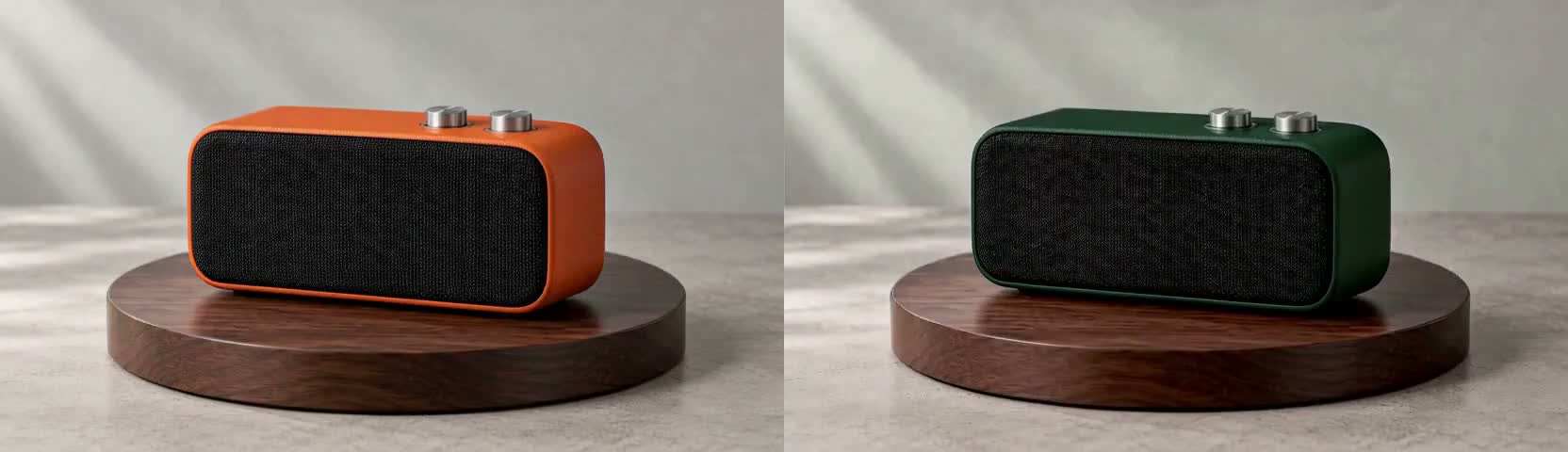
Compare the speaker casing before and after recoloring. Fine details, lighting and movement timing can vary.
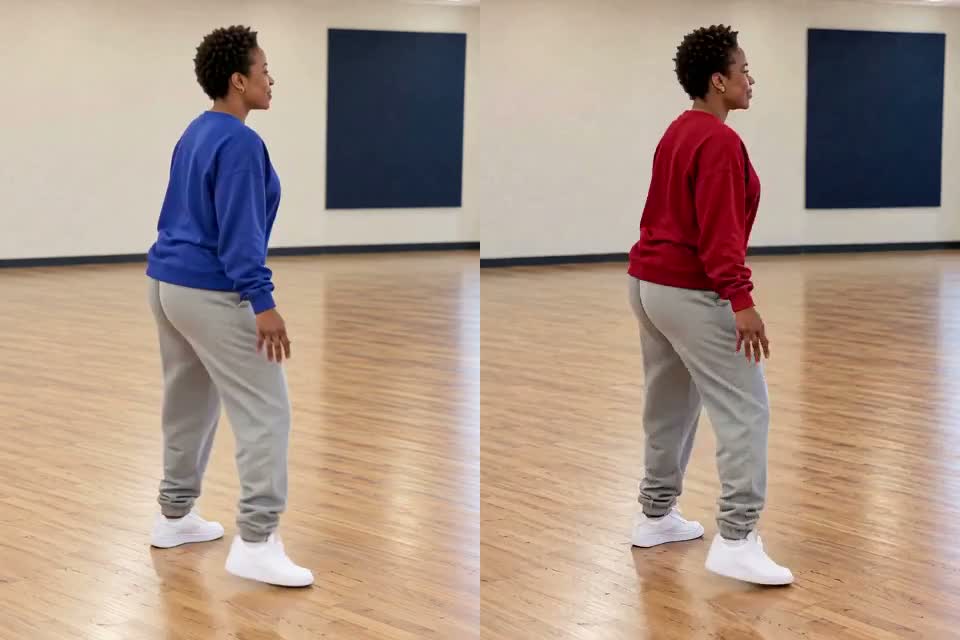
Compare the same dancer before and after changing the sweatshirt color. The room, gray trousers and white shoes remain recognizable; fine details and movement timing can vary.
Compare the backpack before and after the color change. The person and mountain scene remain recognizable; details and movement timing may vary.
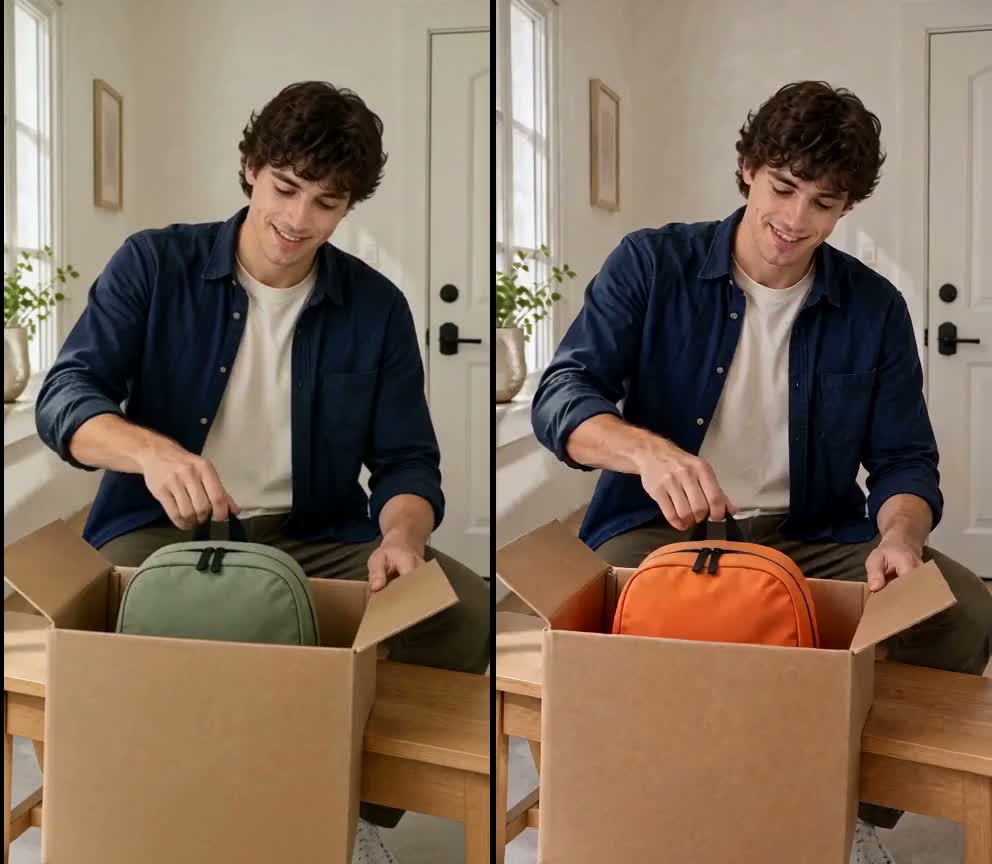
Use a short existing clip to try a different color on a product, an accessory or an item of clothing. The examples show a speaker casing, a sweatshirt and a backpack; each compares a real original with an edited result.
For product and social videos, a color variation can help you explore a different look while starting from footage you already have. The model generates new frames, so check the object’s shape, markings and surrounding details before using the result.
Name the object and its current color, then specify the new shade. For example: “Change the orange speaker casing to forest green; keep the controls, table, background and lighting.”
For a garment, identify the person and the piece of clothing: “Change the blue sweatshirt to red; keep the trousers and shoes unchanged.” Describe one main target at a time and check that the intended item remains visible during movement.
Choose an MP4 or MOV between 3 and 10 seconds, up to 50 MB. A clearly visible subject with steady lighting is easier to describe. Pick 480P or 720P and review the displayed credit quote before generating.
Compare several moments, especially turns, motion blur and overlapping objects. Generative editing can alter textures, logos, colors nearby or the timing of movement; it does not guarantee an exact color match or pixel-perfect preservation.
Describe the specific object and target color. Check the result throughout the clip because surrounding details may also change.
One-time purchase. Credits are valid for 365 days.
The final credit quote appears before generation; applicable taxes are additional.
Change the color of an object or garment in a short video with a written instruction. Upload your clip and review the credit quote before creating.
Open the toolFrom photo edits to video effects. Find your next creative move.
Jynno Image Edit
Jynno Restyle
Jynno Erase
Jynno Video Edit

Jynno Erase
Jynno Cutout
Jynno Cutout
Jynno Upscale
Jynno Effects
Jynno Vision
Jynno Upscale
Jynno Cutout